Mac window layout app for multiple monitors: Best Picks
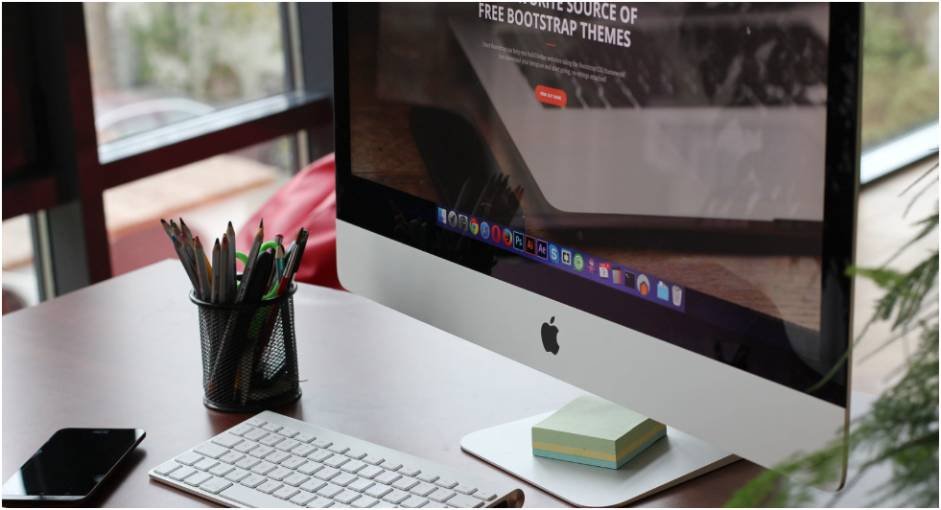
If your Mac looks perfect on one screen but turns into a window disaster after connecting a second monitor, the problem is not you. You need a smarter system. A Mac window layout app for multiple monitors can save your desk setup, restore app positions, and stop your external display workflow from falling apart every morning.
I use multi-screen setups for focused writing, browser research, communication, and file handling. The biggest issue is not opening apps. The real problem is putting every window back where it belongs after unplugging a MacBook, changing display order, or switching from laptop mode to desk mode.
Why Multi-Monitor Mac Setups Get Messy Fast
macOS has improved window management, especially with newer tiling options. Still, built-in tools are not always enough for people who use two or three screens daily. A multi-monitor setup usually has repeated zones. For example, I like my browser on the main display, notes on the left, messages on the laptop screen, and Finder on the right.
That setup works until I unplug the monitor. When I reconnect it, some windows return, some stack together, and some appear on the wrong screen. This is where a Mac window layout app for multiple monitors becomes useful. It helps turn a scattered workspace into a repeatable layout.
For Mac users who work from home, edit videos, manage spreadsheets, code, design, or run client calls, that repeatability matters. Five minutes of rearranging windows each day can become more than 20 hours of wasted time per year.
What a Mac Window Layout App for Multiple Monitors Should Do
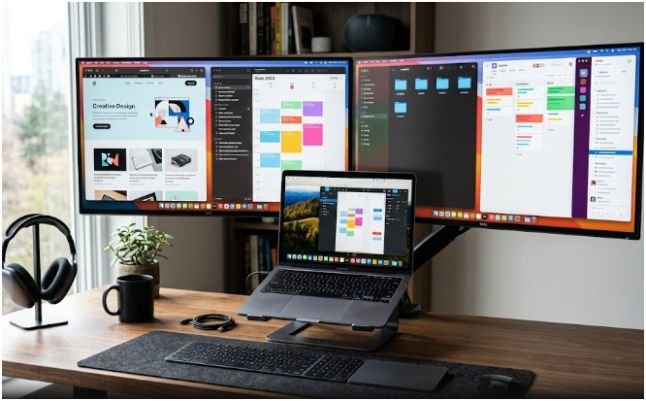
A good multi-display window manager should do more than make windows look neat. It should reduce friction when your setup changes.
Save Layouts, Not Just Resize Windows
Basic snapping moves one window into a half, third, or corner. That is helpful, but it does not always solve the real problem. If you use the same apps every day, saved layouts matter more.
The best tools let you arrange your workspace once, save that layout, and restore it later. This is ideal when you use a MacBook with external monitors at a desk, then unplug it for meetings or travel.
Move Windows Between Screens Quickly
A strong window management app should also support fast movement between screens. Keyboard shortcuts are essential here. Dragging a window across two displays is slow, especially on a large 4K or ultrawide monitor.
Look for actions like move to next display, center window, left half, right half, top half, bottom half, thirds, quarters, and custom zones.
Handle Docking and Undocking Without Chaos
The biggest test is simple. Close your MacBook, unplug the monitor, reopen it, then reconnect everything later. If the app can restore your work layout after that, it deserves attention.
Not every window manager handles this equally. Some apps focus on fast tiling. Others focus on remembering monitor profiles. That difference should guide your choice.
Best Apps for Saving and Restoring Window Layouts
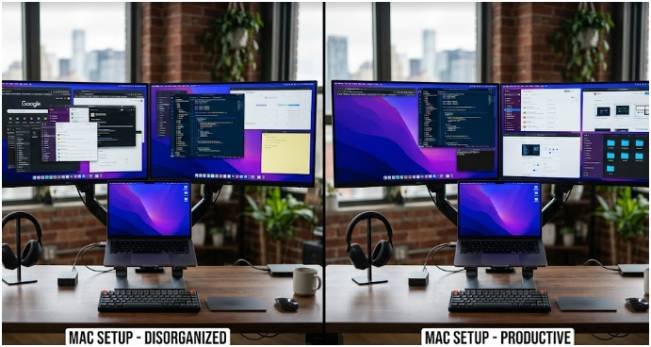
If your main pain is reconnecting monitors and rebuilding your workspace, start with layout restoration apps.
Moom for Layout Snapshots
Moom is one of the most polished choices for Mac users who want saved window arrangements. It lets you create custom layouts and use saved positioning actions. This works well when you want your writing, research, communication, and reference windows to return to known locations.
I would choose Moom if I wanted a balance between snapping and saved layouts. It feels especially useful for people with two or three displays who want control without turning their Mac into a complex automation project.
A practical setup could look like this: Safari on the main monitor, Slack on the laptop screen, Notes on the right side, and Finder in the lower corner. Once saved, that layout becomes a one-action reset button.
Display Maid for Monitor-Based Profiles
Display Maid is built around one clear idea: your windows should remember where they belong when display configurations change. That makes it valuable for MacBook users who move between a desk monitor, a meeting room display, and laptop-only work.
This app is best for people who hate rearranging windows after connecting or disconnecting external displays. It supports saved profiles, so you can create different arrangements for work, presentations, research, or admin tasks.
The tradeoff is that Display Maid is more about restoring positions than creating a modern snapping workflow. If your main need is layout memory, that is not a weakness. It is the point.
Ikuna for Full Workspace Context
Ikuna goes beyond simple window placement. It is more of a workspace and context manager. It can remember open apps, window positions, and project environments across multiple screens.
This makes sense for users who switch between different work modes. For example, a content creator may have one workspace for writing, another for editing, and another for analytics. A developer may have separate workspaces for coding, testing, and client review.
Ikuna is a strong fit when your layout is tied to a project, not just a screen shape. If you want the whole work context restored, not only window size, it deserves a closer look.
Best Apps for Fast Multi-Monitor Snapping
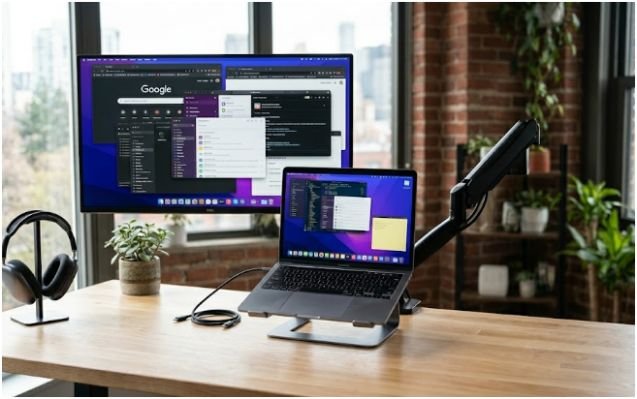
Not everyone needs saved layouts. Some users just want faster control. If that sounds like you, snapping apps may be enough.
Rectangle and Rectangle Pro
Rectangle is popular because it is lightweight, fast, and practical. It lets you move and resize windows with keyboard shortcuts or snap areas. For multi-monitor users, the ability to send windows to another display quickly is a major advantage.
The free version is strong enough for many users. Rectangle Pro is better if you want custom shortcuts, more advanced positions, and more control over repeated window actions.
I would suggest Rectangle for users who want speed without complexity. It is especially good for writers, students, marketers, and remote workers who manage browsers, documents, chat apps, and calendars across two screens.
Magnet for Drag-and-Snap Simplicity
Magnet is a polished paid app for users who prefer visual snapping. You drag windows to screen edges or corners, and the app tiles them into clean positions. It also supports keyboard shortcuts, which makes it faster once you build the habit.
Magnet is a good pick if you want a simple Mac window layout app for multiple monitors without many settings. It supports external displays and works well for people who want quick order, not deep workspace automation.
The main limitation is that Magnet is mostly about arranging windows now. If you need saved layouts that return later, Moom, Display Maid, or Ikuna will fit better.
Native macOS Settings You Should Fix First
Before blaming any app, check your macOS display setup. Open System Settings, go to Desktop & Dock, and look for Displays have separate Spaces. For most multi-monitor workflows, this should be enabled.
This setting gives each display its own workspace behavior. It can make window targeting more predictable across monitors. It also affects how Spaces, Mission Control, full-screen apps, and Stage Manager behave.
If your windows keep jumping or your displays act like one giant desktop, this setting may be part of the problem. After changing it, restart or log out if macOS requests it.
You should also arrange your monitors correctly under Displays. Drag the display boxes so they match your physical desk. If your laptop is below your monitor in real life, reflect that in settings. Window movement feels much smoother when macOS understands your actual layout.
My Tested Multi-Monitor Workflow Example
Here is the practical test I use when judging any multi-monitor window layout tool.
I start with a MacBook and one external display. On the external monitor, I place Chrome on the left and a document editor on the right. On the MacBook screen, I keep Slack, Calendar, and Notes. Then I unplug the monitor, work in laptop-only mode, reconnect the display, and check how much manual cleanup is needed.
A snapping-only app helps me rebuild the layout faster. A restoration app helps me avoid rebuilding it at all.
That difference matters. If I only change windows occasionally, Rectangle or Magnet feels enough. If I repeat the same desk setup every day, Moom, Display Maid, or Ikuna saves more time.
If you are already struggle with broken layouts after reconnecting monitors,know how to restore app window layout on Mac. That internal link fits naturally because restoration is the next step after choosing the right app.
Which App Should You Choose?
Choose Moom if you want saved layouts plus flexible window control. It is a strong middle ground for power users.
Choose Display Maid if your biggest issue is reconnecting monitors and restoring positions based on display setups.
Choose Ikuna if you want full project workspaces with apps, windows, and context restored together.
Choose Rectangle if you want a free or low-friction way to snap, resize, and move windows between monitors.
Choose Magnet if you prefer a clean paid app with easy drag snapping and simple shortcuts.
For most US remote workers using a MacBook with one external monitor, I would start with Rectangle if budget matters. I would choose Moom if saved layouts matter. I would choose Display Maid if plugging and unplugging monitors breaks my setup every day.
FAQs
1. What is the best Mac window layout app for multiple monitors?
Moom is best for saved layouts, while Rectangle is best for fast free window snapping.
2. Can macOS save window layouts across multiple monitors?
macOS can manage Spaces and tiling, but third-party apps are better for saved layout restoration.
3. Which Mac app restores windows after unplugging a monitor?
Display Maid is designed for restoring window positions after display changes.
4. Is Rectangle good for dual monitors on Mac?
Yes, Rectangle is a strong choice for moving and snapping windows across dual-monitor setups.
Final Take: Stop Letting Your Screens Freelance
A messy multi-monitor setup makes your Mac feel slower than it is. I like tools that make my desk feel ready before my coffee gets cold. The right window layout app gives every window a job, a place, and a reason to stop wandering.
Start with your real problem. If you need speed, use a snapping app. If you need memory, use a layout restoration app. Once your windows behave, your whole workday feels less chaotic.