How To Stop Manually Resizing Windows On Mac Today
I used to waste more time nudging window borders than doing real work. If you are searching for how to stop manually resizing windows on Mac, the fix usually starts with one place: Desktop & Dock settings.
The problem is rarely just one window. macOS can tile, fill, snap, shrink, or move windows depending on your settings, apps, display, and workspace tools. Once you know which feature is causing the resize, your Mac becomes much calmer.
Why Your Mac Keeps Resizing Windows Without Asking
Window resizing on Mac usually comes from four sources. Native macOS tiling is the first. Third-party window managers are the second. Stage Manager is the third. External display settings are the fourth.
The mistake I see often is simple. People turn off one setting and assume the problem is solved. Then Rectangle, Magnet, BetterSnapTool, or a monitor utility keeps changing the window anyway.
Native Window Tiling
Modern macOS versions include built-in window tiling. When this is enabled, dragging a window near the left or right screen edge can tile it. Dragging it toward the menu bar can fill the screen.
This is useful when you want quick layouts. It is annoying when you only want to move a window slightly.
The feature can feel like your Mac is “guessing” what you want. That guess often fails when you work with browsers, writing tools, spreadsheets, design apps, or multiple displays.
Third-Party Window Managers
Apps like Rectangle, Magnet, BetterSnapTool, and similar tools can resize windows even after native macOS tiling is disabled. These apps use their own shortcuts, snap zones, and drag triggers.
That means your Mac may still resize windows because another app is running in the menu bar.
This matters because many users install these apps for productivity, then forget they are active. When a window jumps to half screen, it may not be macOS at all.
Stage Manager And Display Changes
Stage Manager can make windows shift, shrink, or move aside when you open another app. It is designed to keep your workspace focused, but it can feel like unwanted resizing.
External monitors can also create layout issues. If you unplug a monitor, change scaling, wake your Mac from sleep, or switch desktops, some apps reopen in different sizes.
Turn Off Automatic Window Tiling In System Settings
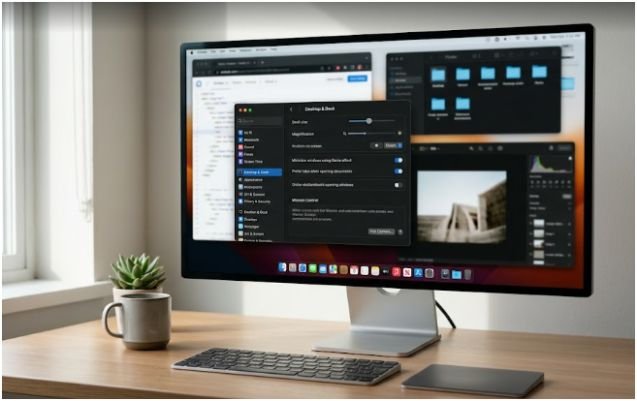
The fastest way to stop unwanted snapping is to disable the built-in tiling controls.
Click the Apple menu, open System Settings, then choose Desktop & Dock. Scroll until you find the Windows section.
This is where macOS keeps the main controls for window tiling.
Disable Edge Tiling
Turn off the setting that lets you drag windows to the screen edges to tile. This stops windows from snapping into half-screen or side-by-side positions when they touch the left or right edge.
This setting is the biggest fix for accidental resizing. I recommend turning it off first, then testing your normal workflow for a few minutes.
Open Safari, Finder, Notes, or Chrome. Drag each window near the edge. If nothing snaps, you have solved the most common part of the problem.
Stop Menu Bar Fill
Next, turn off the setting that lets windows fill the screen when dragged to the menu bar.
This is the setting that annoys many users after a macOS update. You drag a window upward to make room, then it suddenly expands. It feels like the window has a mind of its own.
Once disabled, windows should no longer maximize just because you move them near the top of the display.
Control Option-Key Tiling
macOS can also tile windows when you hold the Option key while dragging. If you often use Option for other shortcuts, this can trigger accidental resizing.
Turn this off if you want a fully manual experience. Keep it on if you still want tiling, but only when you deliberately press Option.
My preferred setup is simple. I keep automatic edge tiling off and use keyboard shortcuts or a window manager when I want structure. That gives me control without surprise resizing.
Fix Third-Party Apps That Keep Resizing Windows
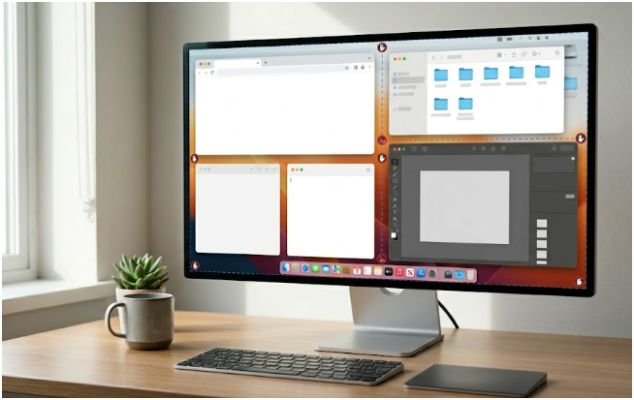
If you already disabled macOS tiling and windows still jump around, check your menu bar. A small icon could be running the whole show.
Rectangle, Magnet, BetterSnapTool, And Similar Apps
Open your window manager app and check its settings. Look for options like snap areas, drag to edge, window snapping, gestures, keyboard shortcuts, or launch at login.
You do not always need to uninstall the app. You can often keep the tool and disable only the behavior that causes problems.
For example, you may want keyboard shortcuts but not edge snapping. That setup lets you press a shortcut when you want a layout, without resizing windows every time you drag them.
This is also where productivity gets smarter. Instead of manually dragging borders all day, use saved layouts for work modes. Writers may want browser left and editor right. Designers may want reference material on one side and canvas space in the center.
If you want a cleaner two-app workflow, add your internal link here using the anchor text how to place apps side by side on Mac.
Dell Display And External Monitor Tools
Monitor utilities can also affect window placement. Dell Display and Peripheral Manager, display arrangement tools, and some docking station software may restore or resize windows.
Check those apps if the problem appears only when using an external screen.
A good test is to restart your Mac with no external monitor attached. Open the same apps and move the windows. If resizing stops, your monitor setup may be involved.
Then reconnect the display and check display scaling, arrangement, and monitor software settings.
Create A Better Window Layout Without Constant Dragging
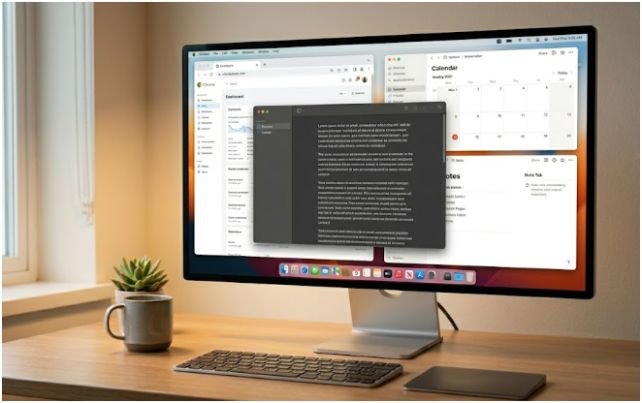
Stopping automatic resizing is only half the fix. The better goal is to stop manually resizing windows every day.
Manual resizing feels harmless, but it adds friction. A few seconds here and there become a daily productivity leak. I noticed this most when switching between writing, research, email, and analytics.
Use Preset Layouts Instead Of Manual Resizing
A preset layout gives each app a predictable place. Instead of dragging borders, you trigger one layout and get back to work.
For example, a writing layout could place your editor in the center, research browser on the left, and notes on the right. A meeting layout could place Zoom, Calendar, and Notes in fixed zones.
This works better than relying on automatic tiling because you choose the result before moving anything.
Save Your Best Work Setup
Spend five minutes building one layout you actually use every day. Do not create ten layouts at once. That gets messy fast.
Start with your most repeated task. For many Mac users, that is writing, email, studying, coding, content planning, or client reporting.
Set the windows once. Then save or memorize the arrangement through your preferred tool. The goal is not a fancy desktop. The goal is fewer interruptions.
My Tested Setup For Fewer Window Resizing Problems
Here is the setup I use when I want my Mac to stop surprising me.
I disable automatic edge tiling. I disable menu bar fill. I keep deliberate shortcuts for layouts. I also keep Stage Manager off when I need stable window positions.
This setup gives me the best balance. My windows do not jump when I drag them. I can still arrange apps quickly when I need structure. I also avoid the clutter that comes from having too many layout rules active at once.
The biggest lesson is this: do not stack too many window tools. Native tiling, Stage Manager, Rectangle, display utilities, and app-specific restore settings can all compete. One clean system beats five clever ones.
FAQs About Mac Window Resizing
1. Why does my Mac window resize when I drag it to the edge?
Your Mac is likely using built-in window tiling or a third-party window manager with edge snapping enabled.
2. How do I stop Mac windows from maximizing at the top?
Go to System Settings, open Desktop & Dock, find Windows, and turn off the menu bar fill option.
3. Can I stop auto resizing but still tile windows when needed?
Yes. Disable automatic edge snapping and use keyboard shortcuts, the green window button, or Option-key tiling only when needed.
4. Does Stage Manager resize windows on Mac?
Yes. Stage Manager can move, shrink, and group windows, so turn it off if you want stable manual layouts.
Stop Fighting Your Windows And Make Them Behave
The best fix for how to stop manually resizing windows on Mac is not just turning things off. It is choosing one clear window system and removing the rest of the noise.
Start with Desktop & Dock. Disable automatic tiling and menu bar fill. Then check third-party apps, Stage Manager, and external display tools.
Once your windows stop jumping, build one reliable layout for your main task. Your Mac should feel like a workspace, not a wrestling match.