Mac multitasking app for multiple windows: Top Picks

A messy Mac desktop can ruin your focus before you even start working. If you keep dragging Safari, Notes, Slack, Finder, and email around by hand, a Mac multitasking app for multiple windows can save more time than another productivity hack.
I started caring about window management after using a 13-inch MacBook and an external monitor in the same workday. The small screen forced discipline. The larger display invited chaos. That is when I realized the best setup is not about having more screen space. It is about placing the right windows in the right spots with the least effort.
A good Mac window manager should help you snap, resize, tile, and move windows without breaking your flow. Some users only need Apple’s built-in tools. Others need a dedicated app like Rectangle, Magnet, or BetterSnapTool.
Why I Started Using a Mac Multitasking App for Multiple Windows
I used to arrange windows manually. I would resize one browser tab, push a document to the side, open Finder, lose the original window, and repeat the same dance ten times a day. It felt harmless until I noticed how often I was managing the workspace instead of doing the work.
The issue gets worse when you use multiple apps at once. A writer may need a document, browser, research source, and notes app. A marketer may need analytics, email, a spreadsheet, and a project board. A developer may need a code editor, terminal, browser preview, and documentation.
A Mac multitasking app for multiple windows solves this by turning window movement into a repeatable action. Instead of dragging corners, you use shortcuts or snap zones. One tap sends a window left. Another puts it in the right third. A third shortcut centers the active app.
That consistency is what makes the biggest difference.
What Makes a Good Mac Window Management App?
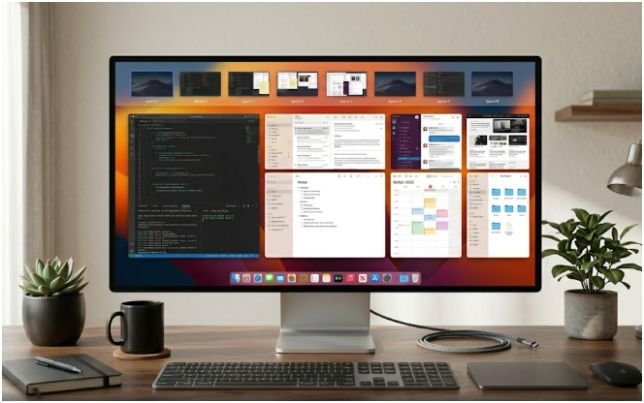
The best Mac window arranging app is not always the one with the longest feature list. It is the one you actually remember to use. I look for three things: speed, predictable snapping, and layout control.
Fast keyboard shortcuts matter more than fancy menus
Keyboard shortcuts are the heart of serious window management. Drag snapping is useful, but shortcuts are faster when your hands are already on the keyboard.
For example, I prefer using keyboard commands for left half, right half, center, maximize, and thirds. These five actions cover most workdays. Once you learn them, your Mac starts to feel less like a cluttered desktop and more like a controlled workspace.
Drag snapping should feel natural
Dragging still matters. Sometimes you are already using the trackpad or mouse. In those moments, dragging a window to the screen edge should instantly snap it into place.
The best Mac window snapping apps let you use both methods. You can drag when it feels natural and use shortcuts when speed matters.
Multi-monitor support can make or break the app
If you use an external monitor, your needs change. A simple left-right split may work on a MacBook screen. A widescreen monitor often needs thirds, quarters, centered windows, and custom zones.
This is where third-party apps beat most native macOS tools. They give you more placement options and better repeatability across displays.
Best Mac Multitasking Apps for Multiple Windows
The best Mac multitasking app for multiple windows depends on how much control you want. I would group the main options into three clear choices.
Rectangle: Best free open-source choice
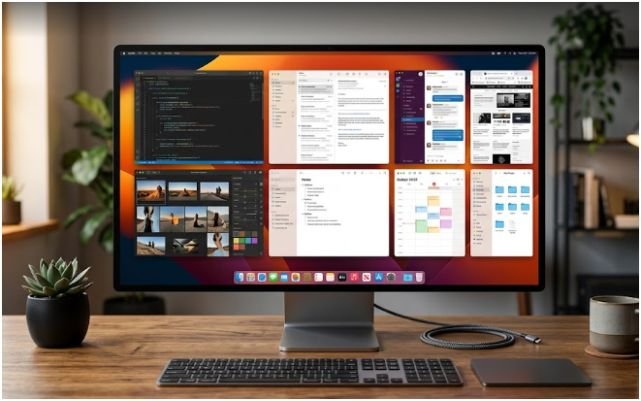
Rectangle is the easiest recommendation for most Mac users. It is free, open-source, and built for moving and resizing windows with keyboard shortcuts or snap areas.
I like Rectangle because it does the basics without feeling bloated. You can snap windows into halves, quarters, thirds, and centered positions. It also feels familiar if you previously used Spectacle, the older Mac window manager many users relied on before it was discontinued.
Rectangle is a smart first choice if you want better window control without paying for an app. It works well for students, writers, marketers, freelancers, and anyone who wants a cleaner Mac workspace fast.
The main advantage is value. You get a capable Mac window management app without a learning curve. The main limitation is that advanced custom layouts may require Rectangle Pro or another power-user tool.
Magnet: Best paid Mac App Store option
Magnet is one of the most popular paid options for Mac window snapping. It is available through the Mac App Store and focuses on quick tiling through drag zones, keyboard shortcuts, window buttons, and menu controls.
I see Magnet as the polished choice for users who want a simple paid app with a familiar App Store installation process. It handles common layouts like halves, quarters, thirds, and full-screen arrangements. That makes it useful for people who want an easy Mac window arranging app for productivity without tweaking too many settings.
Magnet works especially well if your daily layout changes often. You can drag a window to a corner, push another to the side, and build a clean desktop in seconds.
For many US-based office workers, remote employees, and creators, Magnet offers the right balance of simplicity and control.
BetterSnapTool: Best for custom layouts and power users
BetterSnapTool is the most customizable option in this group. It lets you drag windows to screen corners and edges, but its real strength is custom snap areas.
That means you can design your own trigger zones and window sizes. For example, you could create a layout where a browser takes 50% of the screen, Notes takes 25%, and Slack sits in a narrow strip on the right. If you use multiple monitors, this kind of control can become extremely useful.
BetterSnapTool is best for users who already know their workflow. Designers, developers, analysts, video editors, and productivity-heavy users may get more value from custom layouts than basic snapping.
The trade-off is setup time. It is not hard to use, but it rewards users who enjoy fine-tuning their workspace.
Are Built-In macOS Window Tools Enough?
Before installing anything, it is worth testing Apple’s native tools. macOS now includes several helpful window management features.
Native window tiling
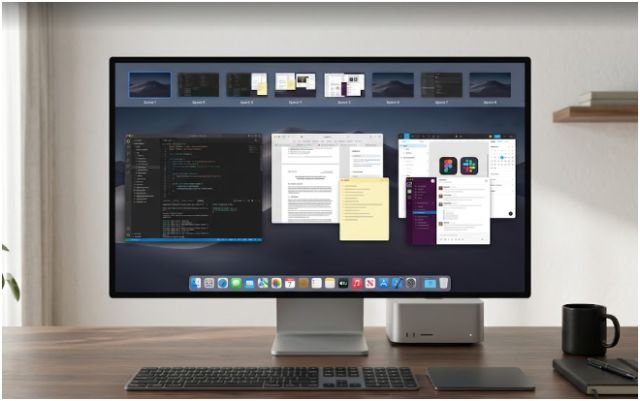
Apple’s built-in window tiling lets you arrange windows side by side. You can use the green window button or drag windows into available tile positions, depending on your macOS version and settings.
This works well for simple split-screen tasks. If you only need Safari on one side and Pages on the other, native tiling may be enough.
The limitation appears when you want thirds, quarters, custom zones, or quick keyboard-based layouts. That is where dedicated apps become more useful.
Stage Manager
Stage Manager groups open windows along the side of the screen while keeping your active workspace centered. I find it useful when I want to reduce visual clutter without creating separate desktops.
It works best for task grouping. For example, you can keep a writing workspace active while related apps stay nearby. However, Stage Manager is not the same as a true window snapping app. It helps with focus, not precise window positioning.
Mission Control and Spaces
Mission Control gives you a bird’s-eye view of open windows. Spaces lets you create separate desktops for different tasks. You can keep work apps in one Space, personal browsing in another, and creative tools in a third.
This is excellent for separating projects. Still, it does not replace a Mac multitasking app for multiple windows if your main issue is arranging several windows on the same desktop.
For best results, I use both ideas together. Spaces separates major workflows. A window manager controls the layout inside each Space.
My Three-Window Productivity Test
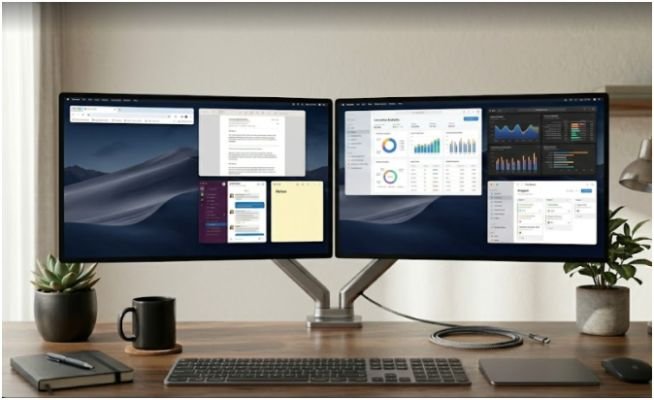
Here is the original test I use before deciding if a Mac window management app is worth keeping.
I open three windows: a browser, a writing app, and a communication app. Then I try to create a practical work layout in under ten seconds. My preferred setup is browser on the left half, document on the right half, and messages in a small floating or right-third position when needed.
Rectangle passes this test quickly because the shortcuts are direct. Magnet passes if you prefer dragging or using menu controls. BetterSnapTool wins when you want that third app to land in a very specific custom zone.
Native macOS tools work for the two-window version of this test. They feel less efficient once the third window enters the layout.
That is the key difference. Built-in tools help you tidy your screen. Third-party apps help you build a repeatable work system.
Which Mac Multitasking App Should You Choose?
Choose Rectangle if you want the best free Mac multitasking app for multiple windows. It covers the needs of most users and gives you strong keyboard-based control.
Choose Magnet if you want a polished paid app from the Mac App Store. It is ideal for users who want simple snapping, clean controls, and reliable daily use.
Choose BetterSnapTool if you want custom snap areas, unusual layouts, or better control across multiple monitors. It is the best choice for power users who care about exact window placement.
Use native macOS tools if your needs are simple. Window tiling, Stage Manager, Mission Control, and Spaces can handle basic multitasking without installing anything.
How to Build a Better Mac Multitasking Workflow
The app matters, but the system matters more. I recommend creating two or three repeatable layouts instead of inventing a new desktop every day.
For writing, use your main document beside your research browser. For admin work, place email beside your calendar or task manager. For deep work, keep one main app centered and push everything else into another Space.
This is also where the internal habit of how to organize multiple windows on Mac becomes valuable. The goal is not to fill every pixel. The goal is to reduce the number of decisions your brain has to make before doing focused work.
Start with one layout. Learn five shortcuts. Keep only the apps you need visible. That small setup can make your Mac feel faster, calmer, and easier to use.
FAQs About Mac Multitasking Apps
1. What is the best free Mac app for arranging multiple windows?
Rectangle is the best free option because it supports shortcuts, snap areas, halves, quarters, and thirds.
2. Does Mac have a built-in window manager?
Yes, macOS includes window tiling, Stage Manager, Mission Control, and Spaces for organizing open windows.
3. Is Magnet better than Rectangle for Mac multitasking?
Magnet is more polished for App Store users, while Rectangle is better if you want a free open-source option.
4. Do I need a window manager for multiple monitors on Mac?
Yes, a third-party window manager helps if you need custom layouts, thirds, quarters, or precise multi-monitor control.
Final Verdict: Your Desktop Deserves Better Manners
Your Mac should not make you babysit every open window. If you only use two apps at a time, Apple’s built-in tools may be enough. If your day involves research, writing, meetings, files, dashboards, and messages, a Mac multitasking app for multiple windows is worth it.
My practical pick is Rectangle for most users, Magnet for simple paid polish, and BetterSnapTool for custom power layouts. Start with the layout you use most often, assign shortcuts, and stop letting your windows wander around like unsupervised toddlers.