How To Restore App Window Layout On Mac Without Chaos

A broken Mac window layout can ruin your focus fast. One app opens halfway off-screen, another hides behind Mission Control, and your perfect dual-monitor setup disappears after one restart. If you are trying to figure out how to restore app window layout on Mac, the right fix depends on what actually broke.
I usually separate the problem into three buckets. Some windows are only hidden or minimized. Some apps remember a bad size or position. Some full workspaces need a real save-and-restore system. Once you know which one you are dealing with, the fix becomes much faster.
Why Mac Window Layouts Get Messy
macOS remembers window positions, app states, display arrangements, and reopening behavior. That is useful until it saves the wrong thing. I have seen Safari reopen too wide after an external monitor disconnects. I have also seen apps launch off-screen after switching from a desktop display to a MacBook screen.
The issue often starts when your screen setup changes. If you unplug a second monitor, use Sidecar, change display scaling, restart with “reopen windows” enabled, or force quit an app, macOS may reopen windows in awkward places.
The good news is that you do not always need to delete files or use Terminal. Start with the safest fixes first.
Start With the Fastest Window Recovery Fixes
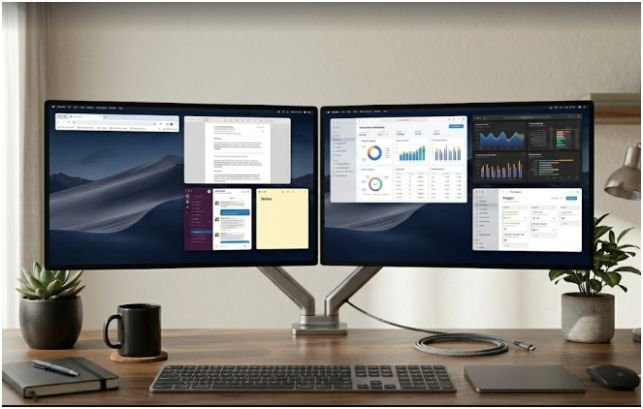
Before resetting anything, check whether the window is simply hidden, minimized, or sitting in another space. This matters because a hidden window does not need repair. It only needs to be brought back into view.
Bring Back a Hidden App Window
If you hid an app by accident, use the keyboard first. Hold Command + Tab and cycle to the app. Before releasing Command, hold Option, then release Command. This can bring the app window back instead of only switching to the app icon.
This trick is useful when an app appears active in the menu bar but no window shows on the desktop. It feels like the window vanished, but macOS may have only hidden it.
Restore a Minimized Window With App Exposé
If the window is minimized into the Dock, press Control + Down Arrow while the app is active. That opens App Exposé and shows the current app’s windows. Use the arrow keys to select the minimized window, then press Return.
I prefer this method over hunting through the Dock because it keeps my hands on the keyboard. It also helps when several windows from the same app are minimized.
Reset a Broken or Off-Screen App Window
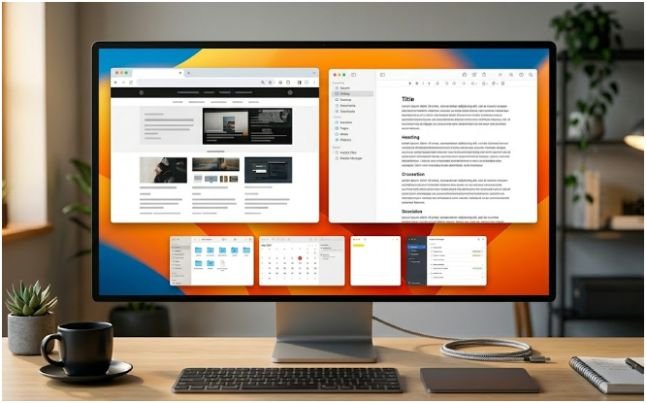
Sometimes the window itself is the problem. It may open stretched, frozen, too small, or partially outside the screen. When that happens, you need to force the app to recalculate its window position.
Use the Option-Click Green Button Trick
The quickest native reset is the Option-click zoom trick. Click the broken app window to make it active. Hold Option, then click the green button in the top-left corner of the window.
Instead of sending the app into full-screen mode, this forces the window to zoom based on your current screen. I use this first when a window is visible but shaped badly. It is fast, safe, and does not touch app settings.
This is not a full workspace restore. It only helps the active window resize itself into a usable shape.
Reset the App Window With Terminal
If the window opens off-screen or the green button does not work, Terminal can delete the app’s saved window frame. First, quit the problematic app with Command + Q.
Open Terminal from Spotlight, then use a command like this:
defaults delete com.apple.Safari “NSWindow Frame MainWindow”
Replace com.apple.Safari with the app’s bundle identifier. For example, Apple apps and Microsoft apps use different bundle IDs. After running the command, reopen the app. It should launch with a fresh default window position.
Use this carefully. The command targets saved preferences for that app window. If the window frame name is different, the command may not work. That is why I only use Terminal after the simpler fixes fail.
Clear Saved Application State
macOS can also reopen apps using saved application state. If that state is corrupted, the same broken window can keep returning.
Go to your desktop and click Go in the top menu bar. Hold Option and choose Library. Open the Saved Application State folder. Look for the folder connected to the problem app, such as com.apple.mail.savedState, and move it to Trash.
Restart your Mac and reopen the app. This clears the saved session data that may be forcing the bad window layout to return.
This method works best when an app keeps reopening with the same broken layout after every restart.
Rebuild Your Layout With Native macOS Tools
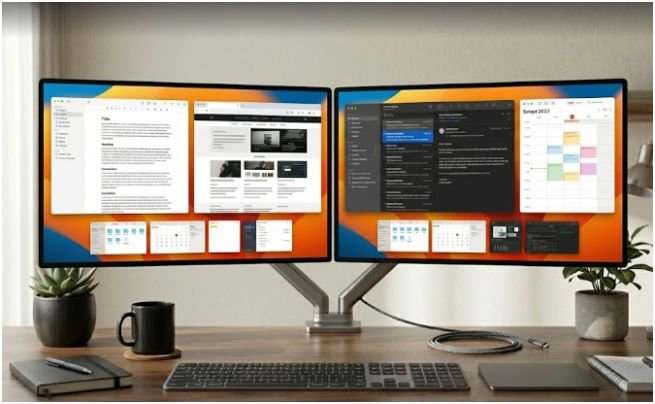
Once your windows are visible again, rebuild the layout. macOS has improved its native window tools, especially for users who only need simple left-right or corner layouts.
Use Window Tiling for a Clean Layout
Hover over the green button in the top-left corner of a window. You can choose a tiling layout from the menu. You can also drag windows to screen edges or use Option while dragging to place windows into highlighted areas.
This works well for simple setups. For example, I often place a browser on the left and a writing app on the right. It gives me a clean workspace without installing anything.
Native tiling is good for quick arrangement, but it does not fully solve how to restore app window layout on Mac across multiple restarts, displays, and app groups.
Use Mission Control and Stage Manager
Mission Control helps you find scattered windows and move between spaces. Press Control + Up Arrow to see desktops and open windows. Press Control + Down Arrow to show windows for the current app.
Stage Manager can also keep recent apps organized on the side of the screen. I find it useful for switching between writing, research, and messaging without stacking every window in the same workspace.
These tools help you recover visual control. They do not create a permanent saved workspace.
Save and Restore Complex Window Layouts
If you use a MacBook with an external monitor, native tools may not be enough. The problem becomes more obvious when you unplug from a desk setup and later reconnect. Your apps may not return to the same monitor, size, or position.
This is where a dedicated window manager helps. A tool built for layouts can save window positions and restore them later. That is especially useful for writers, developers, analysts, designers, and remote workers who repeat the same workspace every day.
For example, you might save one layout for writing, one for client calls, and one for research. Instead of manually dragging windows every morning, you can restore the setup in seconds.
If your workflow depends on multiple apps and displays, this is the right place to add an internal recommendation using Mac multitasking app for multiple windows. The anchor fits naturally here because the reader has moved beyond basic window recovery and now needs repeatable layout control.
My Tested Restore Ladder for Mac Window Problems
Here is the order I recommend from experience. First, check whether the app is hidden or minimized. Then use App Exposé to bring the window back. Next, try Option-clicking the green button to resize the active window.
If that fails, quit the app and reset its saved window frame with Terminal. If the same broken layout keeps returning, clear Saved Application State. Only after that would I rebuild the full workspace or use a third-party layout tool.
This order matters. Many people jump straight to Terminal when the problem is only a minimized window. Others install a window manager when they only need to clear a corrupted app state. The best fix is the smallest fix that solves the exact problem.
FAQs
1. How do I restore a minimized app window on Mac?
Press Control + Down Arrow, select the minimized window in App Exposé, and press Return.
2. How do I reset an app window that opens off-screen?
Quit the app, delete its saved window frame with Terminal, then reopen the app.
3. Can macOS save my full window layout automatically?
macOS can reopen windows, but it does not offer a full saved workspace layout button.
4. Why do Mac windows move after unplugging a monitor?
macOS recalculates window positions when display size, scaling, or monitor arrangement changes.
Final Take: Your Windows Don’t Get to Run the Show
A messy desktop does not mean your Mac is broken. Start with hidden and minimized window fixes, then reset the app only if the window state is truly corrupted. For daily multi-app setups, save a repeatable layout instead of rebuilding your screen by hand every morning.
That is the smartest answer to how to restore app window layout on Mac: recover the window, reset the broken state, then build a layout that does not betray you after every restart.