Why I Prefer a Lightweight Window Manager Over Heavy Mac Setups

A messy Mac desktop wastes time faster than most people notice. I used to lose focus just resizing browser windows, moving notes, and dragging Slack out from behind my main task.
That is why a lightweight window manager for Mac makes so much sense. It gives you fast window snapping without turning your computer into a complicated automation project. You drag a window to an edge, corner, or snap area, and the app places it exactly where it should go.
For most US remote workers, students, creators, and office users, that is enough. You do not need a command-line tiling system. You need windows that land in clean halves, thirds, and quarters without a fight.
What Makes a Window Manager “Lightweight” on Mac?
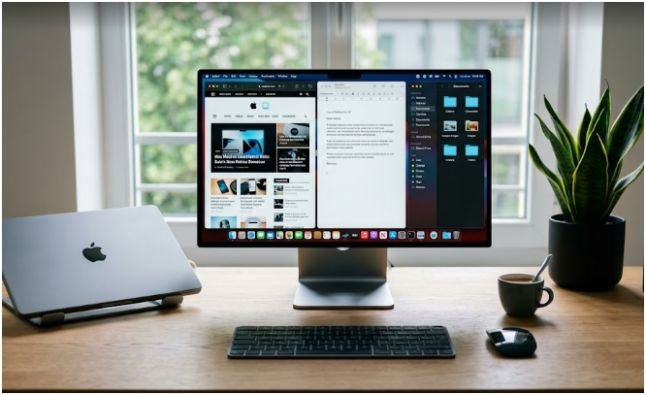
A lightweight app should solve one clear problem and stay quiet the rest of the time. For window management, that means fast snapping, low visual clutter, and simple settings.
It Should Stay Out of Your Way
The best Mac window tools live in the menu bar. They do not cover your screen, slow your workflow, or demand constant setup. You install the app, grant permission once, and use your Mac normally.
A good lightweight window manager should feel almost invisible. The only time you notice it is when your window snaps neatly into place.
It Should Work With Mouse Snapping
Keyboard shortcuts are useful, but not everyone wants to memorize them. A mouse-driven window manager feels more natural because it copies the behavior many people already know from Windows.
Drag a browser to the left edge, and it fills the left half. Drag a document to the right, and it fills the other half. Move a small utility window to a corner, and it becomes a quarter-screen panel.
That simple drag-and-snap habit is the real productivity win.
It Should Not Require Terminal Setup
Some Mac window managers are powerful but intimidating. They use config files, scripting, or command-line controls. That is great for developers, but it is overkill for everyday users.
A true lightweight window manager for Mac should offer a graphical interface. You should be able to change snapping sensitivity, launch settings, and shortcuts from a normal preferences panel.
Rectangle: The Best Free Option for Most Mac Users
Rectangle is my first recommendation for anyone who wants a free, simple, and highly practical Mac snapping tool. It is open source, supports macOS 10.15 and newer, and works on Intel and Apple Silicon Macs.
Its biggest strength is balance. Rectangle gives you mouse snapping and keyboard shortcuts, but it does not feel bloated. It runs from the menu bar and handles the common layouts most people need every day.
Why Rectangle Feels Fast
Rectangle lets you move and resize windows using snap areas or shortcuts. In daily use, the mouse snapping is the easiest feature to appreciate.
When I drag a window to the top of the display, I can maximize it. When I drag it left or right, I get a clean 50/50 split. Corners help when I want a quarter-screen layout for notes, chat, or a small reference window.
The graphical settings menu also makes Rectangle beginner-friendly. You can enable launch at login, adjust drag behavior, and fine-tune how snapping feels.
That matters because a productivity tool should not become another task.
Best Use Case for Rectangle
Rectangle is best for users who want a no-cost app that works quickly. I would pick it for students, remote workers, writers, marketers, developers, and anyone using multiple windows daily.
It is also a strong choice if you are testing whether window snapping actually improves your workflow. Since it is free, the risk is low.
If you already searched for a MacBook window snapping tool, Rectangle is one of the cleanest starting points.
Magnet: The Best Paid App Store Option
Magnet is the better fit if you prefer paid apps from the Mac App Store. It offers a polished, mouse-friendly experience with menu bar controls, shortcuts, window buttons, and trigger areas.
The app focuses on quick resizing and clean layouts. You can snap windows into halves, quarters, thirds, and other common screen positions without manually dragging corners.
Why Magnet Works Well for Mouse-First Users
Magnet feels very direct. You can drag windows to screen edges, use menu bar presets, or rely on shortcuts. The dropdown menu is useful for people who prefer clicking layouts instead of remembering commands.
This is where Magnet earns its place. It does not try to become a full workspace automation platform. It simply arranges windows quickly.
That makes it useful for people who want a Mac App Store option with a familiar setup process.
Best Use Case for Magnet
Magnet is best for users who prefer a polished paid app and want everything handled through the official Apple storefront. It also suits people who like menu-based controls more than detailed settings panels.
I would choose Magnet for a work Mac where simplicity matters more than deep customization. It is especially useful for users who want snapping without thinking about open-source downloads or technical setup.
Rectangle vs Magnet: Which One Should You Choose?

Rectangle is the better first pick for most people because it is free, open source, and flexible. It gives you the core snapping features without a purchase.
Magnet is better if you prefer a paid App Store app with a polished menu bar experience. It feels clean, direct, and friendly for non-technical users.
Here is the simplest decision:
Choose Rectangle if you want the best free lightweight window manager for Mac.
Choose Magnet if you want a paid App Store option with a sleek interface.
Both tools are strong. The right choice depends less on features and more on how you like to install and manage apps.
The Setup Step Most People Miss
macOS does not let window managers control your windows automatically without permission. You must grant Accessibility access before Rectangle or Magnet can move app windows.
Open System Settings, then go to Privacy & Security. From there, choose Accessibility and turn on permission for the window manager you installed.
This step is not optional. If the app seems broken after installation, this is usually the reason.
I also recommend restarting the app after enabling permission. It helps macOS apply the change cleanly.
My Tested Layout for a Cleaner Mac Desktop
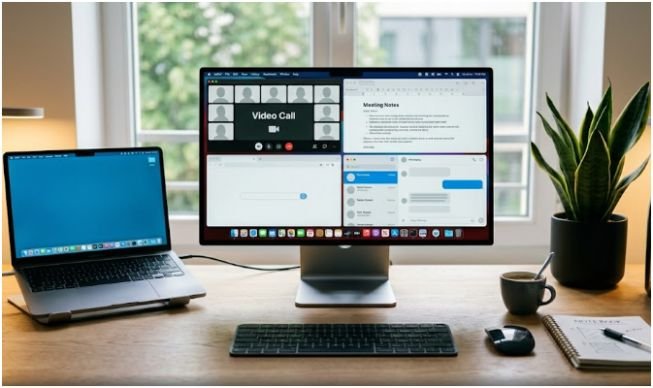
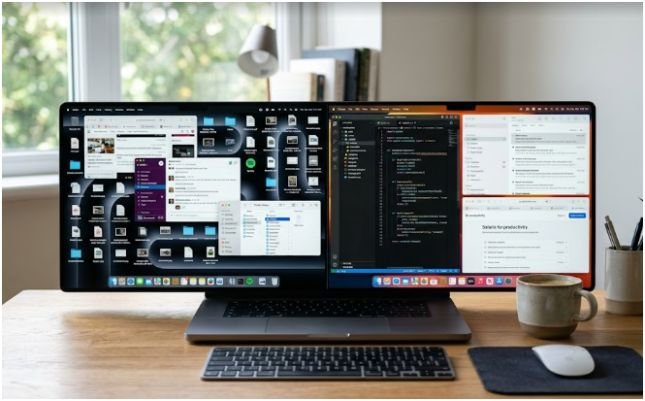
My favorite setup is a simple three-zone layout. It works well on a MacBook screen and feels even better on an external monitor.
I keep my main browser in the center or left half. Notes, briefs, or research sit on the right side. Messages, music, or file windows stay in a quarter section when needed.
This layout cuts the tiny delays that happen all day. I do not hunt for windows. I do not resize corners. I do not keep minimizing apps just to find the one I need.
The biggest gain is mental. A clean screen lowers visual noise, so each task feels easier to start.
For remote work, I use a slightly different layout. Video calls take one half, notes take the other half, and chat stays in a corner only when needed. That keeps meetings organized without making the desktop feel packed.
When Built-In macOS Tools Are Enough
macOS already includes useful window features such as Split View, Mission Control, Stage Manager, and newer window tiling options. These tools can be enough if you only arrange windows occasionally.
The problem is repetition. Built-in features are fine for simple layouts, but they can feel slower when you rebuild the same desktop several times a day.
That is where a lightweight snapping app wins. It reduces the number of clicks between “I need this layout” and “my screen is ready.”
If you only use one or two apps, built-in macOS tools may be enough. If you constantly switch between browser, docs, chat, email, calendar, and design tools, a dedicated window manager feels faster.
FAQs
1. What is the best lightweight window manager for Mac?
Rectangle is the best free choice for most users, while Magnet is a strong paid option from the Mac App Store.
2. Do Mac window managers slow down performance?
Lightweight tools like Rectangle and Magnet usually run quietly in the menu bar and use minimal system resources.
3. Can I snap Mac windows without keyboard shortcuts?
Yes, both Rectangle and Magnet support mouse-driven snapping by dragging windows to screen edges or corners.
4. Why does my Mac window manager not work after install?
You likely need to enable Accessibility permission in System Settings under Privacy & Security.
Final Take: Snap It Before Your Desktop Snaps Back
A lightweight window manager for Mac is one of those upgrades that feels small until you remove it. Once your windows snap into place, manual resizing starts to feel painfully old-fashioned.
My pick is simple: start with Rectangle if you want free and flexible. Pick Magnet if you prefer a polished App Store app. Either way, give your desktop a system before it turns into another digital junk drawer.