Window Management For Remote Work: A Smarter Mac Workflow
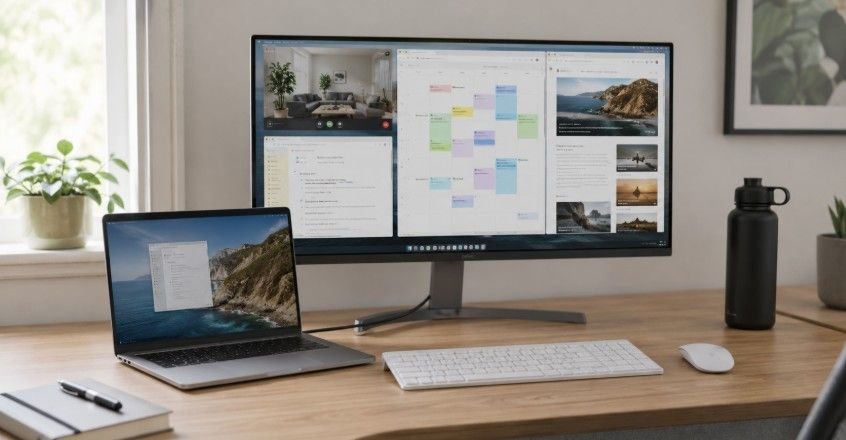
Remote work can feel calm until Zoom, Slack, Safari, Mail, Notes, Calendar, and three half-finished tabs start playing hide-and-seek on your screen. That is where window management for remote work becomes a real productivity skill. A clean Mac layout helps you move faster, think clearly, and stop wasting energy hunting for the right window.
Key Takeaways
- Clean layouts reduce remote-work clutter.
- Mac Spaces separate work modes.
- Grid snapping speeds up daily tasks.
- Shortcuts make switching easier.
- Better screens need better systems.
Why This Setup Matters
Remote work is great until your screen looks like a digital junk drawer. Window management for remote work is necessary because your Mac becomes your office, meeting room, planner, notebook, and command center. Without a simple layout system, every task takes extra clicks, extra searching, and extra patience you probably do not have before your second coffee.
Grid-Snapping Tools
Grid snapping is one of the fastest ways to control screen space. It helps you place windows into clean halves, thirds, quarters, or custom zones without dragging corners all day.
Why Grid Layouts Work
A grid layout makes your Mac feel organized because every window has a clear zone. Your writing app can stay centered, your reference page can sit on the right, and your chat app can stay small on the side. This creates a repeatable pattern you can use every day.
For remote workers, this is especially useful during task changes. You can move from a meeting setup to a writing setup without rebuilding your screen manually. Instead of guessing where each window should go, you follow a layout that already works.
Mac Apps For Snapping
macOS includes basic tiling options, but dedicated Mac window management tools give you more control. Apps like Rectangle and Magnet are popular because they let users snap windows with keyboard shortcuts. GridSutra can fit naturally in this workflow by helping Mac users arrange, position, and manage multiple windows with more structure.
The real value is speed. A remote worker can place Safari, Slack, Notes, Zoom, and Calendar into useful positions in seconds. That means fewer interruptions and less visual clutter during busy workdays.
How To Use It Daily
Start by choosing your most common layout. For writing, keep your main document large and place research beside it. For meetings, keep Zoom or Google Meet large and place notes next to it. For admin work, keep email, calendar, and task tools visible together.
This is the how-to core of window management for remote work: choose the task, place the main app first, add only the support apps you need, and save or repeat that setup until it becomes automatic.
Virtual Desktops And Spaces
Virtual desktops help you separate work instead of piling everything onto one screen. On macOS, this feature is called Spaces, and it is one of the best tools for remote workers.
Create Work Zones
Think of Spaces as different rooms inside your Mac. One Space can be for deep work, another for communication, and another for meetings. This keeps your writing or coding window away from Slack, Mail, and other attention-grabbing apps.
A simple setup works best. Use one Space for focus work, one for messages and email, and one for calls. This makes your Mac easier to navigate because you always know where each type of work lives.
Use Mission Control
Mission Control gives you a quick overview of all open windows and desktops. Press Control + Up Arrow or swipe up on the trackpad to see everything at once. From there, you can create new Spaces, move windows, or jump to the right desktop.
For remote employees, Mission Control is helpful because it reduces panic during busy moments. Instead of clicking through hidden windows, you can see your full workspace and move directly to what you need.
Keep Meetings Separate
Meetings deserve their own Space. Keep your video call, notes, shared document, and browser reference together. Move private chats, unrelated tabs, and personal apps away before screen sharing.
This makes you look more prepared and protects your privacy. It also helps teammates and clients follow your screen without seeing unrelated clutter.
Native Keyboard Shortcuts
Keyboard shortcuts make window management faster because your hands stay on the keyboard. Once shortcuts become familiar, switching apps and desktops feels much smoother.
Mac Shortcuts To Know
Command + Tab lets you switch between open apps quickly. Control + Up Arrow opens Mission Control. Control + Left Arrow and Control + Right Arrow move between Spaces. Command + H hides an app, while Command + M minimizes a window.
These simple shortcuts reduce mouse movement and help you stay in flow. You do not need to memorize every Mac shortcut. Start with the ones that match your daily remote-work habits.
Built-In Mac Window Tools
macOS also offers Split View, Stage Manager, and window tiling. Split View works well when you need two apps side by side, such as Safari and Notes. Stage Manager keeps your active app visible while recent apps stay grouped on the side.
These features are useful for basic Mac multitasking. However, they may feel limited if you use multiple monitors, custom layouts, or complex remote-work setups. That is where a dedicated window management app can make the experience smoother.
Build Shortcut Habits
The best shortcut system is simple. Use one shortcut to switch apps, one to view all windows, one to move between Spaces, and one to hide distractions. Once these actions become automatic, your Mac feels easier to control.
Remote workers benefit because small delays disappear. You stop breaking focus just to find a window, and your screen starts responding like a planned workspace instead of a random pile of apps.
Monitor Setup Tips
A larger screen can help remote work, but only if you manage it well. More space without a system often creates more clutter.
Single Laptop Screen
On a MacBook screen, keep things minimal. Use one main window and one support window. Move chat, email, and calendar to another Space so they do not compete with your primary task.
This setup works well for writers, marketers, students, freelancers, and remote employees who travel. A smaller screen rewards discipline. The fewer windows you show, the easier it is to focus.
Ultrawide Monitor
An ultrawide monitor gives you room for three useful zones. Keep your active work in the center, place references on one side, and keep communication tools on the other side. Avoid stretching one app across the whole display unless you truly need it.
The center zone should hold your most important task. Your eyes naturally return there, so that space deserves your main work, not a random browser tab.
Dual Screens
Dual monitors are powerful, but they can become messy fast. Use one screen for active work and the other for support tools. For example, keep your document, design file, or code editor on the main monitor and keep chat, calendar, preview windows, or notes on the second.
The trick is consistency. Put the same app types in the same places every day, and your setup will feel natural instead of overwhelming.
Remote Work Layout Tips
A strong remote setup should support real daily tasks, not just look organized in screenshots.
Deep Work Layout
For deep work, make your main app large and remove distractions. Keep only the reference material you need. Move Slack, email, and calendar to another Space or hide them until your focus session ends.
This layout is ideal for writing, coding, editing, strategy, research, and planning. The goal is to create a quiet digital room where one task gets your full attention.
Communication Layout
For communication-heavy periods, keep Slack or Teams, Mail, and Calendar grouped together. This helps you process messages, check meetings, and respond without scattering communication apps across your desktop.
Do not keep this layout open all day unless your role requires constant availability. Use it during planned check-in times, then return to your focus layout.
Client Call Layout
For client calls, keep the meeting app visible, notes beside it, and any shared document ready. Close unrelated browser tabs before the call starts. This simple habit makes your screen look professional and helps you avoid awkward window searching.
A good call layout saves time and builds trust. People notice when your screen is clean and your materials are ready.
Frequently Asked Questions
1. How Can I Make $70,000 A Year Working From Home?
You can reach $70,000 working from home by building skills in fields like software development, digital marketing, project management, UX design, sales, or data analysis, then applying to remote-first companies.
2. How To Control Windows Remotely?
You can control windows remotely with tools like Chrome Remote Desktop, Apple Screen Sharing, or remote desktop software. For daily Mac use, combine Spaces, Mission Control, shortcuts, and window snapping.
3. Is Remote Work Going Away In 2026?
Remote work is not going away in 2026, but many companies may continue shifting toward hybrid work. Skilled remote workers, freelancers, and distributed teams will still need strong digital workflows.
4. How Should Remote Employees Be Managed?
Remote employees should be managed through clear goals, written expectations, regular check-ins, reliable tools, and trust. Managers should measure outcomes instead of constantly tracking screen time or online status.
Clear Screen, Clear Brain
A better Mac layout can make your remote day feel lighter, faster, and far less chaotic. Window management for remote work gives every app a role, every task a space, and every meeting a cleaner setup. Start with simple grids, use Spaces wisely, learn a few shortcuts, and let your Mac become a calmer place to get real work done.