How to Do Multitasking on Windows: Smart Ways to Get More Done
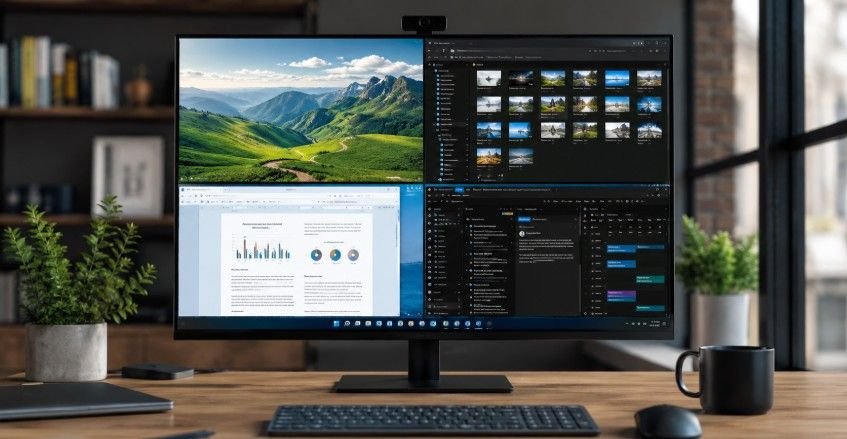
A busy computer screen used to feel overwhelming until the right window management techniques made everything easier. Learning how to do multitasking on windows can completely change the way you work, study, browse, and manage daily tasks. Modern Windows devices come packed with productivity tools that help organize applications, reduce clutter, and create a smoother workflow without requiring third-party software.
Key Takeaways
- Multitasking becomes easier with built-in Windows productivity tools.
- Snap Layouts help organize multiple applications efficiently.
- Alt + Tab allows fast switching between open windows.
- Virtual Desktops reduce clutter and improve focus.
- Proper window management improves productivity and workflow.
Why Does Everyone Talk About This?
Understanding how to do multitasking on windows is no longer just for tech enthusiasts. Whether you’re attending online classes, managing office work, researching content, or comparing documents, handling multiple windows efficiently saves valuable time.
The fun part is that Windows already includes powerful multitasking features that many users never fully explore. Once these tools become part of your daily routine, managing several tasks at once feels far less stressful and much more productive.
Split Your Screen Like A Pro
Snap features are the foundation of modern Windows window management. They allow multiple applications to share screen space without overlapping or creating unnecessary clutter.
Use Snap Layouts For Better Organization
Snap Layouts make arranging windows effortless. Hover your cursor over the maximize button located in the upper-right corner of an application window. Several layout options will appear, allowing you to choose how windows should be positioned across the screen.
This feature is especially useful when comparing spreadsheets, taking notes from research material, monitoring dashboards, or managing communication tools while working on another task.
Drag And Snap With Your Mouse
A quick way to split your screen is by dragging a window to either side of the display. Once released, Windows automatically snaps it into place. Snap Assist then displays remaining open applications so another window can fill the available space.
This approach creates a clean workspace that minimizes distractions and keeps important information visible at all times.
Arrange Multiple Apps At Once
Modern versions of Windows support advanced layouts that divide the screen into three or four sections. This setup works particularly well for content creators, project managers, students, and remote workers who need several applications open simultaneously.
Speed Up Window Switching
Efficient multitasking depends on moving between applications quickly. Windows includes built-in shortcuts that eliminate the need to constantly reach for the mouse.
Master Alt + Tab
Alt + Tab on mac remains one of the most useful Windows shortcuts. Holding Alt while tapping Tab displays thumbnails of currently open applications. Continuing to tap Tab cycles through available windows.
This feature allows instant navigation between tasks and significantly improves productivity during busy work sessions.
Open Task View Instantly
Task View provides a visual overview of everything currently running on your computer. Press Windows + Tab to launch it and see all active applications on a single screen.
This bird’s-eye perspective makes it easier to locate specific windows, close unnecessary programs, and maintain an organized digital workspace.
Reduce Context Switching
Constantly searching for open applications wastes time. Using Alt + Tab and Task View regularly helps reduce context switching, allowing you to maintain focus and move between tasks more efficiently.
Create Separate Workspaces
One of the most overlooked productivity features in Windows is Virtual Desktops. They help organize projects by separating tasks into dedicated workspaces.
Set Up New Desktops
Open Task View using Windows + Tab and select New Desktop. A fresh workspace appears instantly, allowing you to organize applications according to different projects or responsibilities. This simple feature creates a cleaner environment and helps prevent screen overcrowding.
Switch Between Desktops Quickly
Navigating between desktops is easy using Windows + Ctrl + Left Arrow or Windows + Ctrl + Right Arrow. These shortcuts allow seamless movement between different workspaces without interrupting your workflow. Users often dedicate one desktop to work, another to research, and another to personal activities.
Stay Focused On One Task
Virtual Desktops improve concentration by keeping unrelated applications hidden. Instead of seeing dozens of windows simultaneously, you only view the tools relevant to your current task.
Essential Shortcuts For Faster Multitasking
Keyboard shortcuts can dramatically improve efficiency once they become second nature.
Snap Windows Instantly
Press Windows + Left Arrow or Windows + Right Arrow to snap the active window to either side of the display. This shortcut provides a fast way to create split-screen layouts. Many professionals rely on this feature daily to compare information across applications.
Access Task View Quickly
Windows + Tab opens Task View instantly and displays all active applications and desktops. It is one of the fastest ways to manage complex workflows. This shortcut becomes especially valuable when working with numerous browser tabs and productivity tools.
Build Shortcut Habits
The most productive Windows users develop habits around keyboard shortcuts. Even small reductions in clicking and searching can add up to significant time savings over weeks and months.
Make Multitasking Work In Real Life
Knowing the features is helpful, but understanding where they fit into daily routines makes them even more valuable.
For Students
Students can place lecture notes on one side of the screen while keeping educational resources or online classes visible on the other. This arrangement improves learning efficiency and note-taking accuracy.
For Content Creators
Writers, marketers, and designers often need research sources, editing tools, communication platforms, and content drafts open simultaneously. Snap Layouts and Virtual Desktops create an organized workflow that supports creativity.
For Remote Professionals
Remote workers benefit from separating meetings, email, project management tools, and documents across multiple windows or desktops. This setup reduces distractions and improves task tracking.
Fix Common Multitasking Issues
Even powerful features occasionally require adjustments to function properly.
Enable Snap Windows
If snapping does not work, open Settings, select System, then Multitasking. Ensure Snap Windows and related options are enabled. Many users discover these settings were disabled accidentally during system changes.
Check For Windows Updates
Outdated software can sometimes affect multitasking features. Installing the latest Windows updates helps maintain stability and ensures access to the newest productivity enhancements. Keeping Windows current also improves compatibility with modern applications.
Reduce System Clutter
Too many active programs can slow performance. Closing unused applications frees system resources and creates a smoother multitasking experience. Regular maintenance keeps productivity tools functioning effectively.
Frequently Asked Questions
1. How do I turn on Multitasking on Windows?
Open Settings and select System, then choose Multitasking. Enable Snap Windows, Snap Assist, and related options to activate the full range of Windows multitasking and window management features.
2. Why is Ctrl+Shift+S not working?
The Ctrl+Shift+S shortcut performs different functions depending on the application being used. Check the program’s keyboard shortcut settings because another command may have replaced or disabled it.
3. What is Ctrl + L in Windows?
Ctrl + L typically highlights the address bar in web browsers and File Explorer. This shortcut helps users quickly enter a website address, file path, or search location.
4. How do I multitask on my PC?
To learn how to do multitasking on windows, use Snap Layouts for split screens, Alt + Tab for window switching, Task View for organization, and Virtual Desktops for separating projects efficiently.
Turn Chaos Into Productivity With How To Do Multitasking On Windows
Mastering how to do multitasking on windows is one of the easiest ways to create a more productive and organized workspace. Features like Snap Layouts, Alt + Tab, Task View, Virtual Desktops, windows manager for mac and keyboard shortcuts work together to simplify window management. Whether you’re studying, creating content, working remotely, or managing multiple projects, these tools help you stay focused, reduce clutter, and get more done with less effort.