Virtual Desktops Vs Window Management To Organize Mac Screen
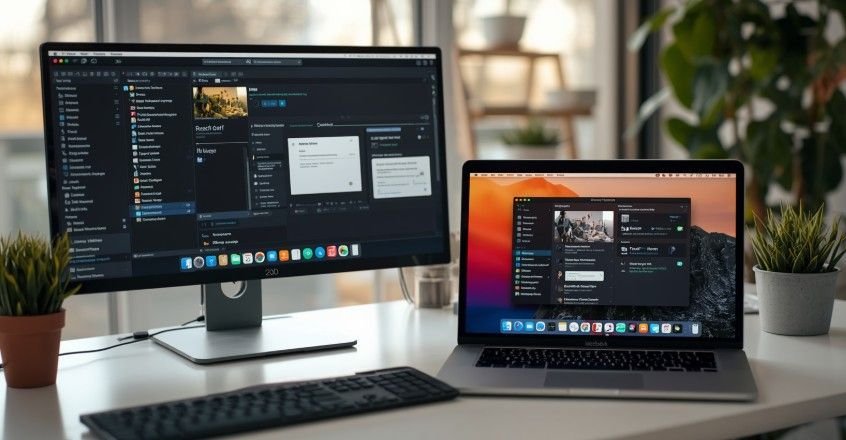
Messy screens can make your Mac feel like a digital junk drawer. The good news is that virtual desktops vs window management is not a complicated tech debate. It is a simple way to understand how to group apps, arrange windows, reduce clutter, and move through work without losing your focus every few minutes.
What Are Virtual Desktops?
Virtual desktops are best understood as extra screens you can switch between.
The Basic Concept
A virtual desktop gives you multiple workspaces on one computer. It feels like having several physical monitors, except you view one workspace at a time. On macOS, these workspaces are called Spaces, and you can manage them through Mission Control.
One Space can hold communication apps like Mail, Messages, and Slack. Another can hold writing, design, coding, or research tools. A third can hold personal browsing, music, or planning apps. Nothing disappears. Everything simply lives in a cleaner place.
Best Use Cases
Virtual desktops work beautifully for heavy multitaskers who move between different types of work. A writer can keep research in one Space and drafting in another. A developer can keep the code editor on one desktop, documentation on another, and browser testing on a third.
They are also useful for anyone who wants fewer distractions. Instead of seeing every open app at once, you only see the apps that belong to the current task. That makes the screen feel lighter and your brain less overloaded.
macOS Native Tools
On Mac, the main tools are Spaces and Mission Control. You can open Mission Control with Control + Up Arrow, a trackpad gesture, or the Mission Control key. From there, you can add desktops, move windows, and organize apps by task.
Trackpad gestures make Spaces feel natural. A quick swipe lets you jump from writing to messaging or from research to design. The key is to keep the system simple. Three useful Spaces beat ten confusing ones every time.
What Is Window Management?
Window management controls what happens inside the screen you are currently using.
The Basic Concept
Window management is about resizing, positioning, stacking, snapping, tabbing, switching, and tiling app windows. It does not create separate desktops. It decides how open apps appear in your current view.
This matters when you need to see multiple apps at the same time. For example, you might place Safari beside Notes, Calendar beside Reminders, or a PDF beside a writing app. Good window organization reduces clicking and makes comparison easier.
Floating And Tiling
Traditional Mac and Windows desktops usually use floating windows. That means windows can overlap, move freely, and sit wherever you drag them. This feels flexible, but it can get messy when too many apps are open.
Tiling locks windows into clean sections of the screen so they do not overlap. It is popular in Linux window managers and among keyboard-focused power users. On macOS, you can get a similar effect with built-in window tiling or third-party window management apps.
macOS Native Tools
macOS includes several helpful window management features. Split View lets two apps sit side by side in a focused full-screen layout. Stage Manager groups active windows while keeping others tucked aside. macOS Sequoia also improves native window tiling by letting users drag windows to edges or use the green button for layout options.
These tools are ideal when you are actively comparing, copying, planning, editing, or reviewing. If virtual desktops decide where work lives, window management decides how that work is displayed.
Virtual Desktops And Window Management Compared
The difference becomes clear once you match each tool to the right problem.
Space Versus Layout
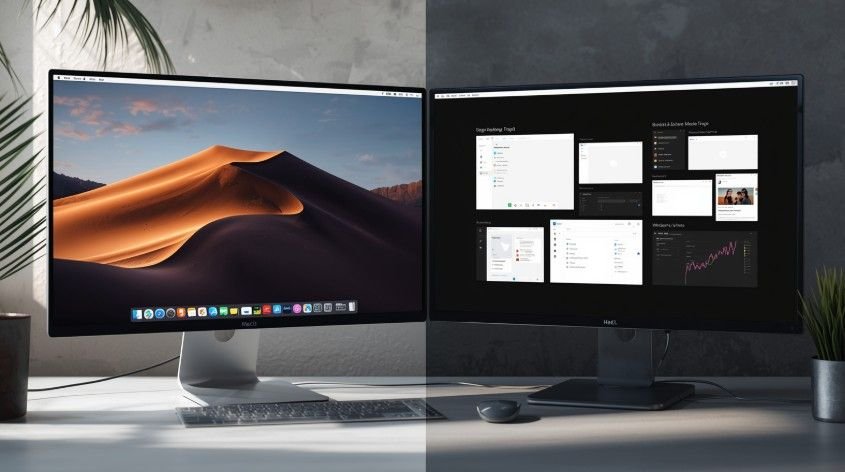
Virtual desktops are about separation. They group apps by project, role, or task. Window management is about arrangement. It controls size, placement, visibility, and focus inside one workspace.
Think of virtual desktops as rooms and window management as furniture placement. You may have a writing room, a meeting room, and a research room. Inside each room, you still need a sensible desk layout.
Switching Versus Seeing
Virtual desktops reduce clutter by making you switch between workspaces. That is helpful when tasks are unrelated. You do not need your email sitting beside your deep work document all day.
Window management improves active multitasking by letting you see related apps together.
That is helpful when tasks depend on each other. You may need a browser, notes app, and document visible at once to work efficiently.
Local Desktops Versus Cloud Desktops
A local virtual desktop on macOS is not the same as a cloud virtual desktop, virtual machine, remote desktop, or VDI platform. Mac Spaces organize apps on your own computer. Business virtual desktops deliver remote desktops or apps from centralized infrastructure.
This distinction matters for SEO and for readers. Personal virtual desktops improve workflow. Enterprise virtual desktops improve secure remote access, IT management, and hybrid work support.
Which One Should You Use?
The best choice depends on how you work during a normal day.
Use Virtual Desktops For Context
Choose virtual desktops when you need clean separation. They are perfect for different clients, projects, roles, or attention modes. A Space for communication, a Space for deep work, and a Space for planning can make your Mac feel instantly calmer.
They also help if you use a single laptop screen. Instead of forcing every app into one cramped view, you can move between organized workspaces with gestures or shortcuts.
Use Window Management For Comparison
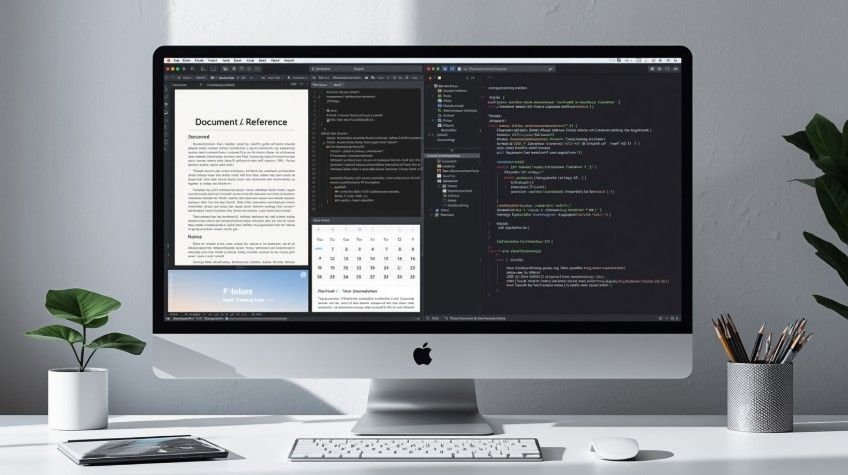
Choose window management when you need apps visible together. This is best for writing with references, coding with documentation, reviewing spreadsheets, editing creative files, or planning with Calendar and Notes open side by side.
Window management is also better for large monitors and ultrawide displays. Bigger screens are wasted if every app floats randomly. Snapping and tiling turn that space into a useful layout.
Use Both For Real Productivity
The best workflow is not either-or. It is both. Use virtual desktops to separate projects, then use window management to arrange apps inside each project.
For example, your writing Space may have a browser snapped beside your draft. Your communication Space may group Mail and Slack. Your planning Space may show Calendar beside Reminders. That combination keeps focus and visibility balanced.
How To Use virtual desktops vs window management
Here is a simple workflow you can apply on macOS without overthinking it.
Step One: Create Work Zones
Start with three Spaces. Make one for deep work, one for communication, and one for planning or research. Open Mission Control, add the desktops, and move the right apps into each Space.
Keep the names in your mind even if macOS does not label them the way you want. Desktop 1 is focus. Desktop 2 is messages. And, desktop 3 is planning. The point is to reduce random app switching.
Step Two: Arrange Each Zone
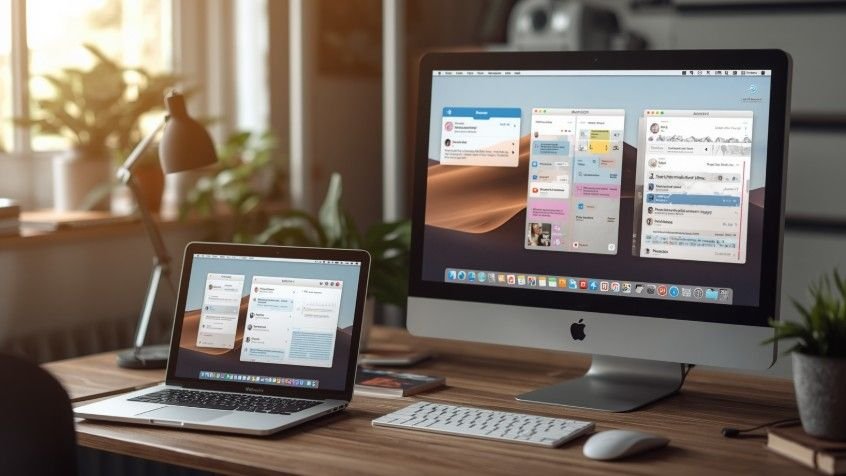
Now use window management inside each Space. In your focus Space, snap your main app beside a reference app. For your communication Space, keep Mail and Messages easy to access. In your planning Space, pair Calendar with Notes or Reminders.
Do not aim for a perfect setup on day one. Use your Mac normally, then notice which apps you keep switching between. Those apps probably belong beside each other.
Step Three: Build Easy Habits
Use Control + Up Arrow for Mission Control, trackpad swipes for Spaces, and native tiling options for window placement. Shortcuts matter because a good workflow should feel quick, not like extra homework.
Review your setup weekly. Remove desktops you ignore. Keep layouts that save time. The best screen organization system is the one you actually use without thinking.
Frequently Asked Questions
1. What Are The Disadvantages Of Using A Virtual Desktop?
Virtual desktops can become confusing if you create too many or forget where apps are placed. They also do not improve performance, reduce memory use, or replace good window layouts.
2. What Is The Difference Between A Window Manager And A Desktop Environment?
A window manager controls window placement, resizing, stacking, focus, and behavior. A desktop environment includes a window manager plus menus, panels, settings, file tools, launchers, and visual system features.
3. Why Do Companies Use Virtual Desktops?
Companies use virtual desktops to provide secure remote access, centralize data, simplify IT support, manage apps more easily, and help employees work from different locations without storing sensitive files locally.
4. What Is Replacing Azure Virtual Desktop?
Azure Virtual Desktop is not being fully replaced. Some teams compare it with Windows 365, Citrix DaaS, Amazon WorkSpaces, Omnissa Horizon Cloud, and other cloud desktop services.
Wrap It Up Without The Window Chaos
Virtual desktops vs window management is not a battle for your screen. It is a better way to think about space, focus, and flow. Virtual desktops separate your work into cleaner zones, while window management shapes each zone into something useful.
On macOS, combining Spaces, Mission Control, Stage Manager, Split View, and tiling gives you a calmer, faster, more focused workspace.