How To Arrange Desktops On Mac For A Cleaner Workflow
A cluttered screen can make Mac feel slow. Learning how to arrange desktops on Mac keeps files, apps, windows, and workspaces in their own lanes, so your screen stops looking like a digital junk drawer and feels like a calm command center.
Key Takeaways
- Stacks clean file clutter instantly.
- Spaces separate app workspaces neatly.
- Mission Control manages Mac desktops.
- Fixed desktop order saves time.
- Assigned apps reduce window hunting.
Why Do You Need To Arrange Your Desktop?
Knowing how to arrange desktops on Mac is necessary because your Mac can become a tiny chaos machine. One minute you are writing, the next you are buried under tabs, screenshots, messages, and random PDFs. A clean setup turns that mess into a simple flow where every window has a home.
Mac organization is not only about looks. It helps you focus, switch tasks faster, and avoid searching for the right window. The trick is to handle two things together: file clutter on the desktop and multiple app workspaces called Spaces.
Clean Desktop Files First
Before arranging Spaces, clear the visible clutter on your desktop.
Use Desktop Stacks
Desktop Stacks is the fastest way to tidy messy files. Click anywhere on the desktop, then press Control + Command + 0. macOS gathers loose files into smart groups, so screenshots, documents, images, and PDFs stop spreading across your wallpaper.
You can also right-click the desktop and choose Use Stacks. This is perfect if your Mac collects downloads, screenshots, projects, and notes. Stacks do not delete anything. They simply group files neatly.
Group Files By Context
After turning on Stacks, right-click the desktop and select Group Stacks By. You can sort files by Kind, Date Last Opened, Date Added, Date Modified, Date Created, or Tags.
Sorting by Kind separates images, documents, folders, and PDFs. Date Added helps you find recent files faster. Tags work well for client, project, priority, or topic-based organization.
Keep The Desktop Light
A clean desktop should not become a storage room. Move finished files into folders, cloud drives, or project locations instead of letting them sit forever.
Check your desktop at the end of each day. Delete what you do not need, file away what matters, and let Stacks handle temporary clutter. Fewer distractions make desktops feel focused.
Set Up Mac Spaces
Spaces are virtual desktops that help separate apps and tasks.
Create A New Space
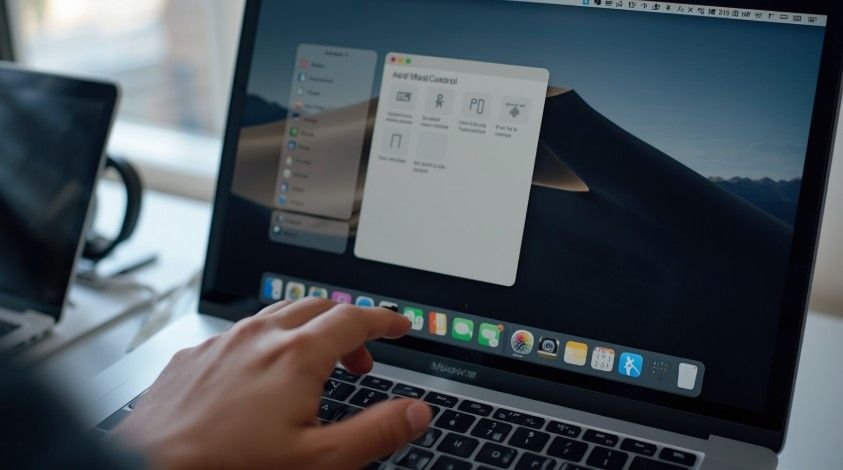
Press F3, or swipe up with three or four fingers on your trackpad, to open Mission Control. Move your pointer to the top bar and click the plus button to add a new desktop.
Each Space acts like a separate workspace. Keep writing tools in one Space, research tabs in another, and communication apps in a third. This is the core step in how to arrange desktops on Mac.
Switch Between Spaces
To move between Spaces, swipe left or right with three or four fingers on your trackpad. You can also press Control + Left Arrow or Control + Right Arrow.
These gestures feel natural when desktops are in a predictable order. Keep focused work first, research second, messages third, and admin tools last, so your hands learn the flow.
Reorder Desktop Spaces
Open Mission Control and look at the Spaces bar across the top. Drag any desktop thumbnail left or right to change its order.
This helps when your workflow changes. During writing, place your document Space beside your browser Space. For meetings, move Calendar and Notes closer together.
To keep that order fixed, open System Settings, go to Desktop & Dock, find Mission Control, and turn off Automatically rearrange Spaces.
Assign Apps To Desktops
Assigned apps make your Mac predictable.
Pin Apps To A Space
Move to the desktop where you want an app. Right-click the app in the Dock, go to Options, then choose Assign To This Desktop.
This works well for Mail, Messages, Slack, Calendar, Notes, Safari, Finder, and project tools. For apps you need everywhere, choose Assign To All Desktops.
Build Task-Based Workspaces
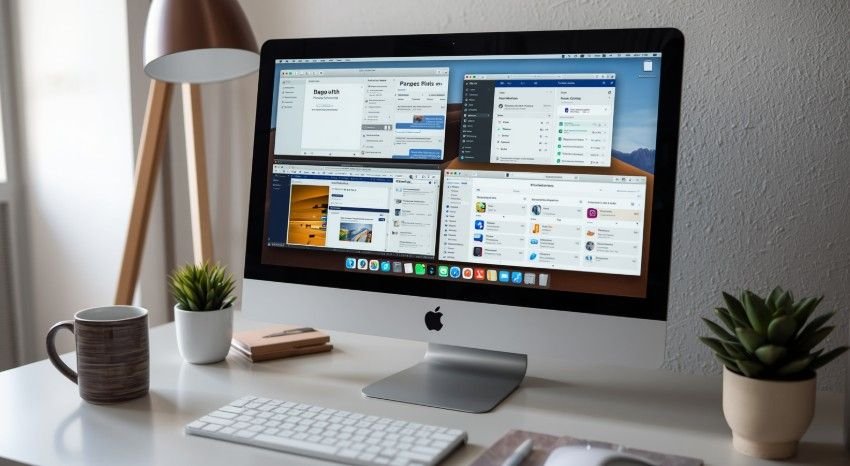
A strong setup starts with three or four Spaces. Use one for deep work, one for research, one for communication, and one for planning or admin.
This task-based layout makes every desktop meaningful. Instead of thinking about app names, you think about what you are doing. Start small and expand only when your workflow needs it.
Use Full Screen Wisely
Full-screen apps and Split-Screen View create their own Spaces in Mission Control. They are useful, but they can crowd the Spaces bar if overused.
Use Split View when two apps belong together, such as a document beside a browser or Notes beside a video call. For daily window management, regular Spaces plus tiled windows feels more flexible.
Arrange Screens And Icons
Mac desktop organization also includes monitors and icons.
Arrange External Displays
If you use an external monitor, open System Settings and go to Displays. Drag the display boxes so they match your real desk setup.
If your monitor sits to the right of your MacBook, place it on the right in settings. Also check Desktop & Dock settings for Displays have separate Spaces, which affects how Spaces behave across screens.
Fix Desktop Icon Layout
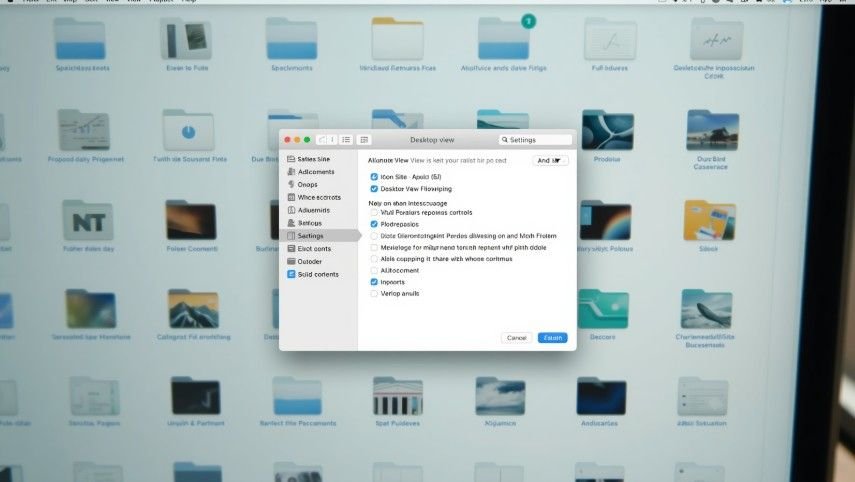
If you cannot arrange desktop icons on your Mac, the desktop may be automatically sorted or locked into a view setting. Click the desktop, open View, and check Sort By, Clean Up, and Show View Options.
Show View Options lets you adjust icon size, grid spacing, text size, and label position. Clean icons handle file clutter, while Spaces handle app clutter.
Use Stage Manager Carefully
Stage Manager can group active apps on the side of the screen, while Spaces separate bigger work areas. They can work together, but too many systems at once may feel busy.
Start with Stacks and Spaces first. Add Stage Manager only if it makes app switching easier. The best Mac setup is one you can use daily without thinking.
Frequently Asked Questions
1. How Do I Change The Order Of Desktops On My Mac?
Open Mission Control, move your pointer to the Spaces bar, then drag desktop thumbnails left or right. This is how to arrange desktops on Mac in the order you prefer.
2. How To Arrange Desktop Screens On Mac?
Use Mission Control to arrange Spaces, or open System Settings and Displays to arrange external screens. Match the display layout to your real desk setup for smoother pointer movement.
3. Why Can’t I Arrange My Desktop Icons On My Mac?
Your desktop may be sorted automatically. Click the desktop, open View, and adjust Sort By, Clean Up, or Show View Options to control icon placement.
4. Can I Assign Apps To Specific Mac Desktops?
Yes. Right-click an app in the Dock, choose Options, then select This Desktop or All Desktops. This keeps apps opening where expected.
Final Click To Make Your Mac Behave
Learning how to arrange desktops on Mac gives your screen a system instead of a mess. Clean files with Stacks, group them by context, create Spaces in Mission Control, switch with gestures, assign apps to the right desktops, and adjust displays when needed. Once your Mac has clear zones, daily work feels faster, calmer, and easier to manage.