How To Set Up Dual Monitors Without The Tech Headache
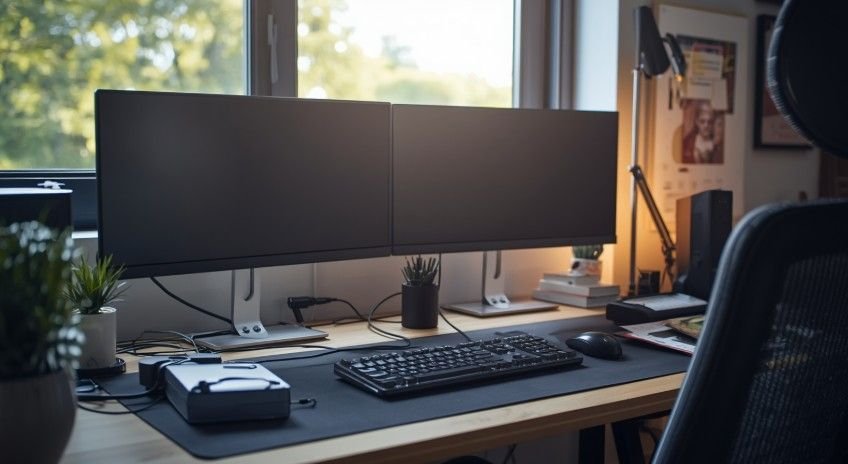
A crowded desktop can make easy work feel messy. One tab hides your notes, another buries your chat, and your main file disappears behind everything. That is why learning how to set up dual monitors can make daily work feel cleaner, faster, and much easier to manage.
Key Takeaways
- More space means fewer clicks.
- Extend mode shows different windows.
- Ports decide your cable choice.
- Docks help laptops.
- Correct screen arrangement makes mouse movement smooth.
Why Two Screens Feel Like Magic
Modern work rarely happens in one window. You might write, research, join calls, manage email, and track tasks in the same hour. Knowing how to set up dual monitors gives each job its own space, so your desktop feels like a command center.
It also protects your focus. Keep your main task on one display and supporting apps on the other. For remote work, studying, coding, editing, gaming, and design, that second screen quickly becomes your productivity buddy.
Check Your Gear First
Before opening display settings, check what your computer and monitors support. A smooth dual screen setup starts with the right ports, cables, and adapters.
Know Your Video Ports
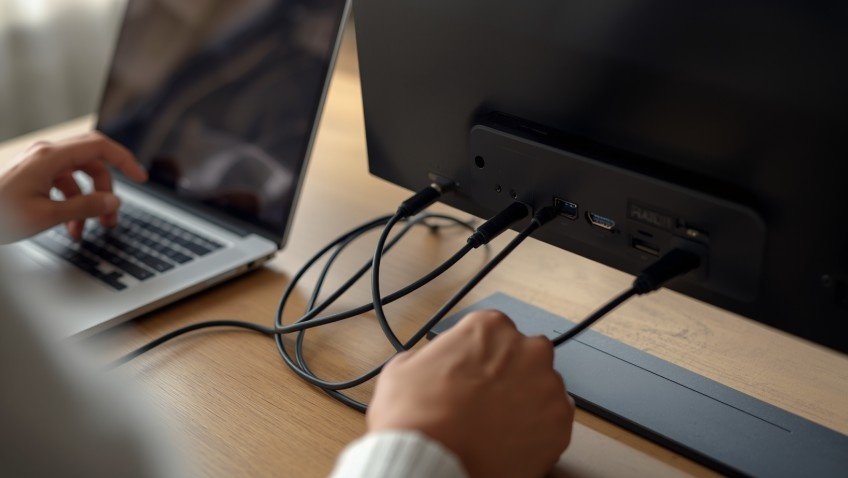
Look at the side or back of your computer and monitor. Common ports include HDMI, DisplayPort, USB-C, Thunderbolt, DVI, and VGA. HDMI is common, DisplayPort is strong for high refresh rates, and USB-C or Thunderbolt is popular on laptops and MacBooks.
Not every USB-C port supports video output. Some only charge or transfer data. If your second monitor stays black, check your laptop specs, cable rating, and monitor input.
Understand Splitters And Docks
A basic HDMI splitter usually mirrors one screen on two monitors. For an extended desktop, your computer needs two independent video signals.
A docking station, USB-C hub, Thunderbolt dock, DisplayLink adapter, or graphics card with multiple outputs can solve this. Laptop users often get the cleanest setup with a dock.
How To Set Up Dual Monitors
Setting up dual monitors is quick: plug in your displays, open your system’s Display Settings, select Extend these displays, and arrange the on-screen boxes to match your physical desk setup so your mouse moves seamlessly between the screens. This is the simplest way to learn how to set up dual monitors without confusion.
Physical Connection
Plug in both monitors first. Connect each display using HDMI, DisplayPort, USB-C, Thunderbolt, or a supported adapter. If your laptop lacks ports, use a USB-C hub, Thunderbolt dock, or docking station.
Power on your monitors and computer. If a screen says No Signal, press the monitor’s menu or input button and select the correct source, such as HDMI 1, HDMI 2, DisplayPort, or USB-C.
For desktop PCs, connect monitor cables to the graphics card ports whenever possible for better stability and refresh rate support.
Configure Windows Settings
Right-click an empty area of the desktop and select Display Settings. Click Identify, and a large number will appear on each screen. This shows which settings box belongs to which monitor.
Click and drag the numbered rectangles until they match your real desk layout. If monitor 2 sits on the left, place it on the left in settings. This fixes cursor jumps and awkward window movement.
Scroll to Multiple Displays and choose Extend These Displays. Then select your preferred primary monitor and check Make This My Main Display so apps, games, and the taskbar open where you expect.
Configure macOS Settings
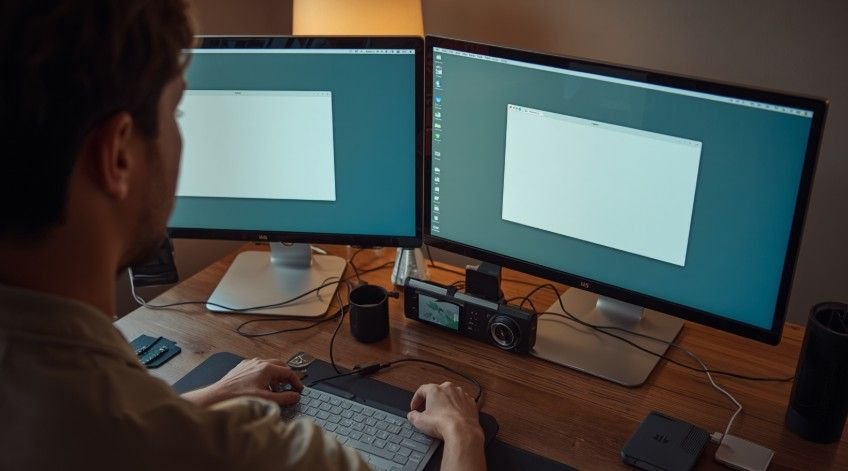
Open the Apple Menu, choose System Settings or System Preferences, and click Displays. macOS will show boxes for your connected screens. Drag them until they match your physical monitor layout.
Make sure Mirror Displays is unchecked if you want two separate workspaces. Mirroring is useful for presentations, but extended mode is better because each display can hold different apps.
To set your main display, drag the white menu bar to the screen you want as primary. Use Mission Control, Spaces, and Stage Manager to keep apps organized across both monitors.
Make Window Management Easier
Once both displays work, the real upgrade comes from how you use the space. A smart layout keeps your workflow predictable.
Give Each Screen A Job
Use your main monitor for active work. Keep writing, spreadsheets, design tools, code, games, or editing software there. Use the second monitor for research, chat, email, notes, music, dashboards, or reference documents.
This simple habit reduces visual noise. Your brain knows where things belong, so you spend less time hunting for windows and more time finishing tasks.
Use Built-In Shortcuts
On Windows 11, Snap Layouts help arrange apps quickly. Hover over a maximize button or use Windows plus arrow keys to snap windows into place and move them between screens.
On macOS, Split View, Mission Control, Spaces, and Stage Manager help organize apps and avoid full-screen clutter.
Fix Common Screen Issues
Most dual monitor problems come from cables, inputs, unsupported ports, drivers, or the wrong display mode. Start with simple checks first.
Second Monitor Not Detected
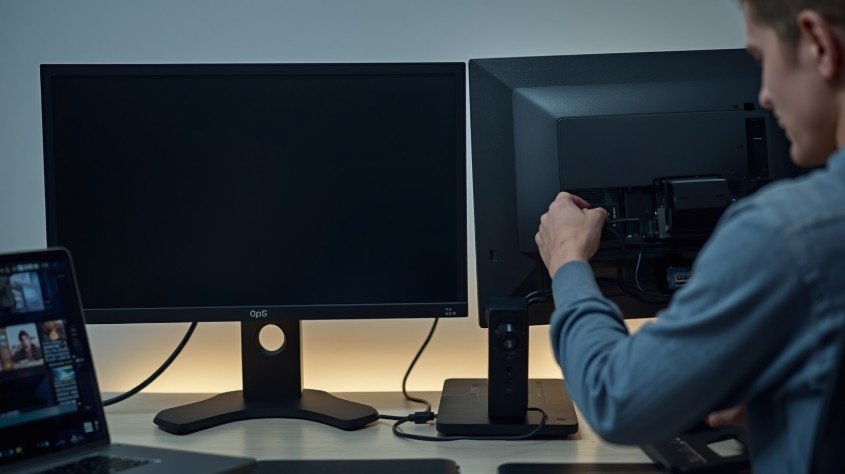
Check power, cable fit, and monitor input. On Windows, open Display Settings and click Detect. Updating graphics drivers can also help after connecting a new monitor, dock, or adapter.
On macOS, open Displays and reconnect the cable. Restart with both monitors attached if needed. Also confirm your Mac model supports your number of external displays.
Both Screens Show The Same Thing
Your system is probably using Duplicate or Mirror mode. On Windows, press Windows + P and choose Extend. On macOS, open Displays and turn off Mirror Displays.
This is the key setting that lets two screens show different apps. It is also one of the most important parts of how to set up dual monitors for real productivity.
Mouse Moves The Wrong Way
Your display arrangement does not match your desk. Go back to display settings and drag monitor 1 and monitor 2 into the correct left, right, top, or bottom position.
For a visual step-by-step tutorial, compare the numbered boxes with your real monitors. Once they match, your mouse should travel smoothly.
Frequently Asked Questions
1. How Do I Get My Two Monitors To Show Two Different Things?
Use Extend mode instead of Duplicate or Mirror. On Windows, press Windows + P and choose Extend. On macOS, open Displays and turn off mirroring so each screen works independently.
2. How Do I Separate My Monitor 1 And 2?
Open Display Settings, click Identify, then drag the numbered boxes to match your desk layout. This separates monitor 1 and 2 and makes your cursor move naturally between screens.
3. How To Connect Two Monitors With One HDMI?
Use HDMI for one monitor and connect the second through USB-C, Thunderbolt, DisplayPort, a docking station, or a DisplayLink adapter. A normal HDMI splitter usually mirrors instead of extending.
4. How Do I Set Up Dual Screen Monitors?
To learn how to set up dual monitors, connect both displays, choose Extend in display settings, arrange the screen boxes, pick a main display, then adjust resolution and scaling.
Double The Screens, Half The Chaos
Once you understand how to set up dual monitors, your desk starts working with you instead of against you. The trick is simple: connect the right cables, choose Extend, arrange the screens correctly, and give every window a home. Whether you use Windows or macOS, a thoughtful dual display setup can make work feel faster, cleaner, and a lot more fun.