Get More Done: Manage Multiple Windows On Mac Efficiently
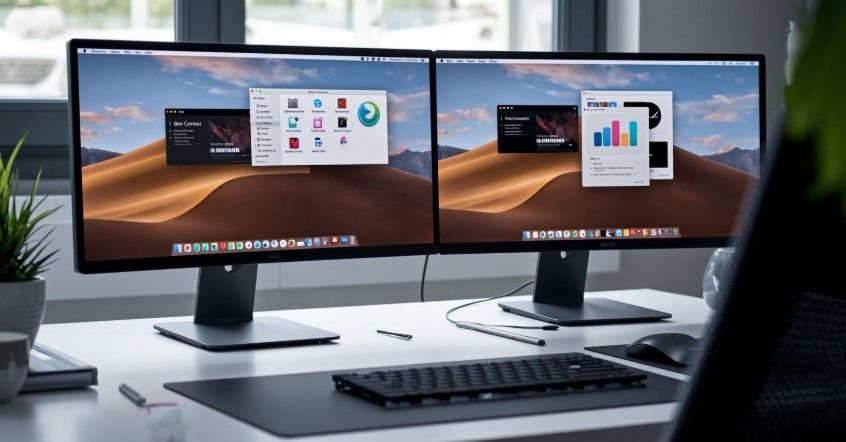
Packed desktops, overlapping apps, and dozens of browser tabs can quickly make any Mac feel chaotic. After spending hours switching between documents, research pages, messaging apps, and spreadsheets, learning how to manage multiple windows on a mac became one of the biggest productivity upgrades in my daily workflow. Thankfully, macOS includes several built-in tools that make multitasking easier without needing extra software.
Key Takeaways
- Mission Control provides a quick overview of every open window and desktop.
- Split View helps you work with two apps side by side efficiently.
- Stage Manager reduces distractions by organizing inactive apps automatically.
- Multiple desktops keep work, study, and personal tasks separated.
- Keyboard shortcuts speed up navigation and improve productivity.
Mac Users Should Master Window Management
A crowded desktop feels a lot like searching for keys in an overstuffed bag. Everything is technically there, but finding what you need takes far longer than it should.
Learning to manage multiple windows on mac helps create a cleaner workspace, reduces distractions, and makes multitasking feel natural. Instead of constantly hunting for hidden windows, you can focus on getting things done faster and with less frustration.
Split View For Side-By-Side Multitasking
Split View is one of the easiest ways to work with two applications simultaneously. Whether you’re comparing documents, writing while researching, or attending a virtual meeting while taking notes, this feature keeps everything visible.
Open Split View Quickly
To activate Split View, move your pointer over the green full-screen button located in the upper-left corner of any window. Choose either “Tile Window to Left of Screen” or “Tile Window to Right of Screen.”
Once the first application is positioned, select another open app to fill the remaining half of the screen. Both windows instantly become part of a focused workspace.
Resize Windows For Better Visibility
Not every application requires the same amount of screen space. Some tasks need larger viewing areas while others require only a small section of the display.
Drag the vertical divider between both windows to adjust their size. Double-clicking the divider returns it to its default position, making screen management even easier.
Use Split View For Everyday Tasks
Split View works especially well for students, content writers, developers, and remote workers. Instead of constantly switching between applications, you can keep both tools visible and accessible throughout your workflow.
Mission Control And Spaces Made Simple
Mission Control serves as the command center for window organization in macOS. It gives you a complete overview of open applications, desktops, and full-screen apps from one convenient location.
See Every Open Window At Once
Launch Mission Control by pressing Control + Up Arrow on your keyboard. MacBook users can also swipe upward using three or four fingers on the trackpad.
This instantly displays every active window, making it easier to locate documents, browser tabs, and applications that may be hidden behind other windows.
Create Separate Desktops
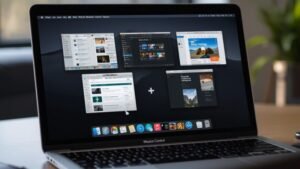
The Spaces feature allows you to create multiple virtual desktops. Open Mission Control and click the plus sign located in the upper-right corner of the screen.
Creating separate desktops helps organize projects more effectively. You might dedicate one desktop to work, another to personal tasks, and a third to research or creative projects.
Move Between Workspaces Effortlessly
Once multiple desktops are created, switching between them becomes seamless. Swipe left or right on the trackpad or use Control + Left Arrow and Control + Right Arrow.
This approach helps reduce clutter while keeping important applications grouped according to purpose.
Stage Manager For A Cleaner Desktop
Stage Manager is designed for users who want a more focused workspace without manually organizing windows throughout the day. It automatically arranges inactive applications while keeping your current task front and center.
Turn On Stage Manager
Open Control Center from the menu bar and select Stage Manager. You can also enable it through System Settings under Desktop & Dock preferences. Within seconds, open applications are reorganized into a cleaner layout that feels less overwhelming.
Stay Focused On Active Work
The application you’re currently using remains in the center of the screen. Other apps move into a sidebar along the left side for quick access. This setup reduces desktop clutter and helps maintain concentration during focused work sessions.
Work With Multiple Apps Together
Stage Manager doesn’t limit multitasking. You can drag an application from the sidebar directly onto your workspace to use multiple apps simultaneously.
This makes it useful for research, content creation, project management, and collaborative work.
Keyboard Shortcuts That Save Time
The fastest way to manage windows is often through keyboard shortcuts. Once these become part of your routine, navigating macOS feels significantly smoother.
Switch Between Applications
Press Command + Tab to cycle through open applications instantly. This shortcut is perfect when multiple programs are running and you need to move quickly between tasks.
Jump Between Windows In One App

Many users work with several browser windows or multiple documents within a single application. Press Command + ` (tilde) to move between windows belonging to the same app without opening Mission Control.
Use App Exposé
Press Control + Down Arrow to activate App Exposé. This feature displays all open windows for the active application, making it easy to locate specific documents, browser tabs, or project files.
Real-Life Ways To Manage Multiple Windows On Mac
Knowing the tools is only half the equation. The real productivity boost comes from using them strategically throughout the day.
Start each morning by assigning different projects to separate desktops. Use Split View whenever two apps need to stay visible together. during focused work sessions to reduce distractions and keep attention on priority tasks.
Mission Control should become your central navigation hub whenever several applications are open. Pair these habits with keyboard shortcuts and you’ll spend less time searching for windows and more time completing meaningful work.
For users transitioning from Windows PCs, these macOS features often replace familiar window snapping and taskbar workflows. After a short adjustment period, most users find the Mac approach cleaner and more flexible for multitasking.
Common Window Management Mistakes

Many people rely solely on minimizing windows. While this works occasionally, it often creates unnecessary confusion when dozens of apps are open.
Another mistake is keeping every application on a single desktop. As projects grow, a crowded workspace becomes difficult to navigate efficiently.
Ignoring keyboard shortcuts is equally limiting. Small productivity gains add up quickly, especially when repeated hundreds of times throughout the week.
Frequently Asked Questions
1. How to organize multiple windows on Mac?
To organize multiple windows on Mac, use Mission Control to view all active apps, create separate Spaces for different projects, and use Split View when working with two applications simultaneously.
2. How to manage multiple screens on a Mac?
Managing multiple screens on a Mac is easier when each monitor has a dedicated purpose. Assign work applications to one display and communication or reference tools to another for better productivity.
3. How to manage multiple desktops on Mac?
Open Mission Control, create additional Spaces, and move related applications into separate desktops. This helps keep projects organized while reducing clutter on your primary workspace.
4. How to set up multiple windows on a Mac?
Open the applications you need, activate Split View for side-by-side multitasking, and use Mission Control to arrange windows across multiple desktops for easier navigation.
Manage Multiple Windows On Mac Like A Pro
Once you learn how to manage multiple windows on mac, everyday multitasking becomes far less stressful. Features like Split View, Mission Control, Spaces, Stage Manager, and keyboard shortcuts work together to create an organized digital workspace.
By combining these tools with smart workflow habits, you can reduce distractions, improve concentration and focus, and make your Mac feel faster, cleaner, and significantly more productive every day.