How To Organize Design Tools On Mac And Find What You Need Faster
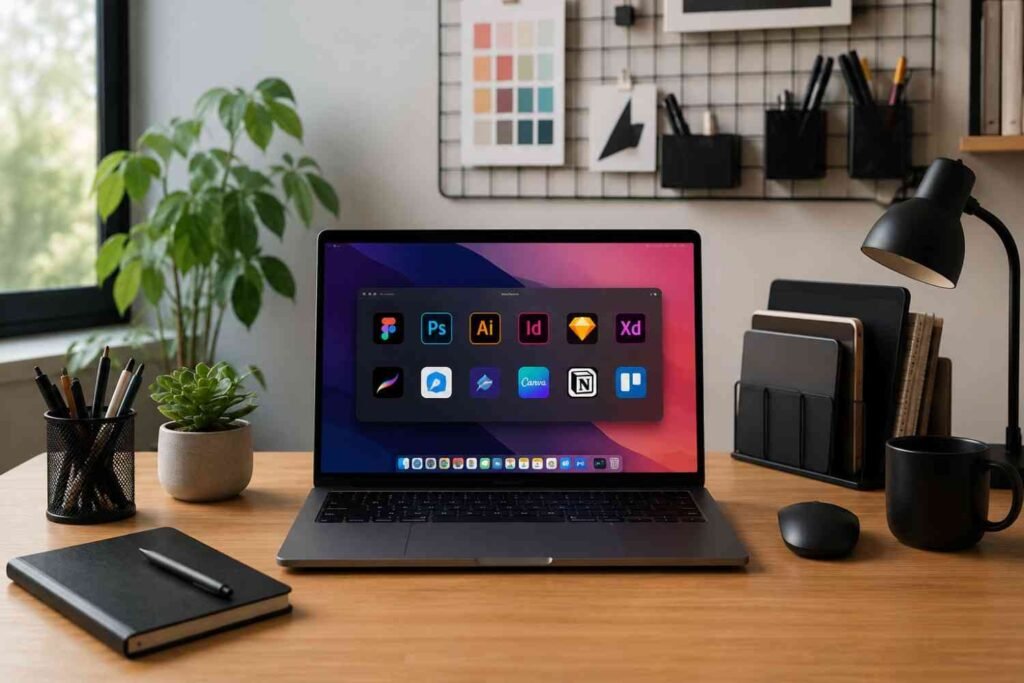
If you’re a designer, you’ve probably experienced that frustrating moment when you’re searching for a file, plugin, font, or app instead of actually designing. A few seconds here and there may not seem like much, but over time, that digital clutter can eat away at your productivity and break your creative flow.
The problem isn’t usually a lack of tools. Most designers have the opposite issue. Between design software, project files, asset libraries, cloud storage folders, and browser tabs, it’s easy for a Mac to become crowded. The good news is that a few organizational changes can make a huge difference. When everything has a place, you spend less time searching and more time creating.
Start By Organizing Tools Around Your Workflow

One common mistake is organizing applications based on software type alone. Instead, think about how you actually work throughout the day.
For example, your workflow might start with research, move into design creation, then shift to collaboration and project delivery. Grouping tools according to these stages makes them easier to access when you need them.
You can create categories such as:
- Design Creation
- Asset Management
- Collaboration
- Productivity and Communication
This approach feels more natural because it mirrors your daily process rather than forcing you to remember where each individual application belongs.
How To Organize Design Tools On Mac Step By Step
Clean Up Your App Navigation
Many designers still rely on scrolling through folders or hunting through the Dock to launch applications. That extra effort adds up over time.
A faster approach is using Spotlight Search. Press Command + Space and type the first few letters of the application you need. Apps launch almost instantly, saving valuable time throughout the day.
For those who want additional customization, productivity launchers such as Raycast can streamline app launching, file searching, and workflow automation from a single interface.
It’s also worth reviewing your menu bar. Over time, utility applications can clutter this space with icons you rarely use. Keep only the tools that actively support your design workflow and hide the rest to reduce visual distractions.
Create Organized Launchpad Categories
Launchpad can become chaotic when dozens of applications are scattered across multiple screens.
Instead, create folders that match your workflow. Place interface design tools together, keep illustration software in another folder, and group image-editing applications separately.
When applications are categorized logically, you spend less time searching and can switch between projects more efficiently.
Customize Your Dock
Your Dock should contain only the applications you use regularly. Avoid filling it with every creative tool you own.
Reserve Dock space for your primary design applications, browser, communication tools, and file management utilities. Everything else can be accessed through Spotlight Search.
This simple adjustment creates a cleaner workspace and reduces unnecessary visual clutter.
Optimize Finder For Better File Management
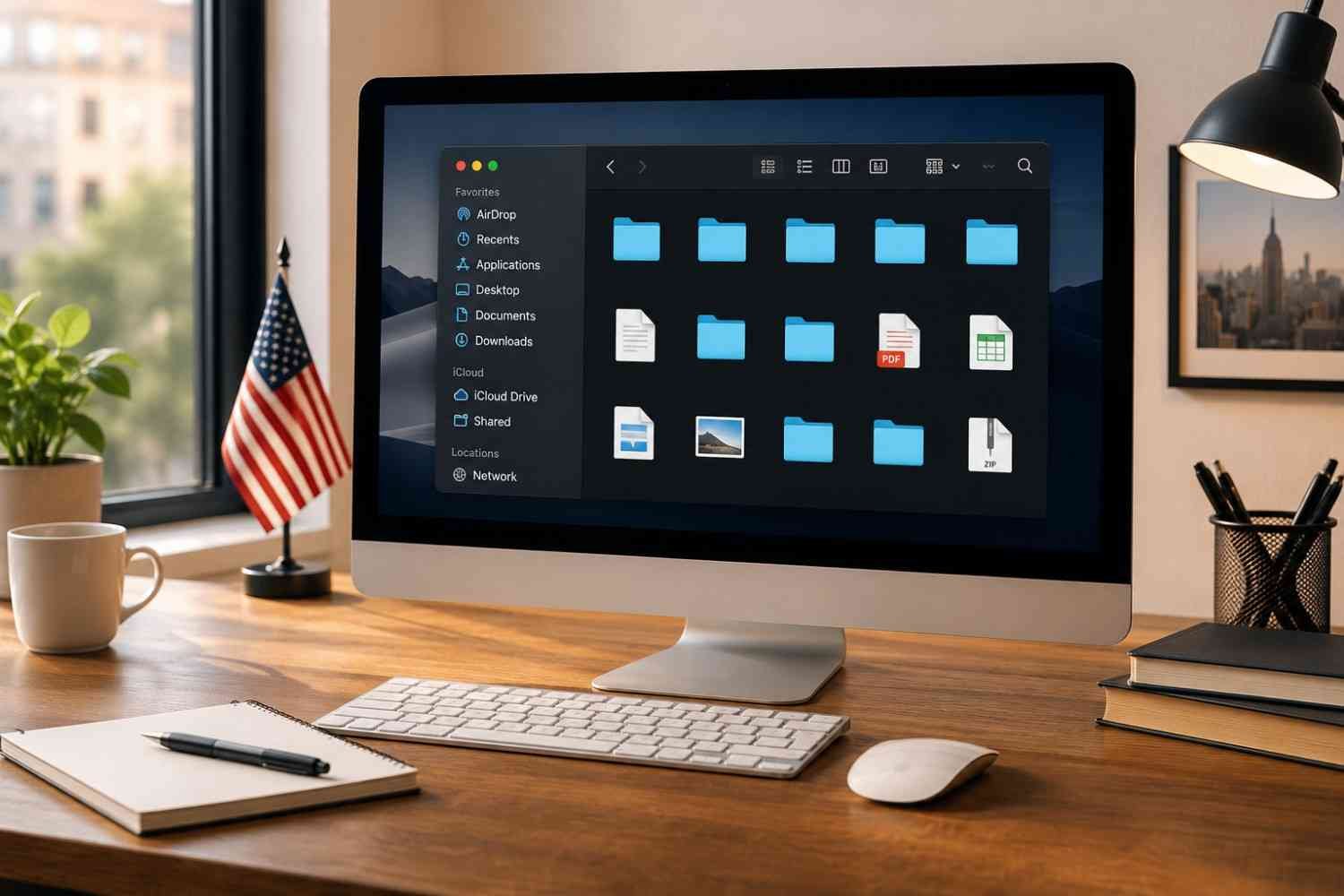
For many designers, Finder becomes the central hub of daily work. Taking a few minutes to customize it can dramatically improve file organization.
One of the most useful features is Quick Look. Simply select a file and press the Spacebar to preview images, mockups, PDFs, and design assets without opening the associated application. This is particularly helpful when dealing with large creative projects.
Another useful setting is placing folders at the top when sorting by name. This keeps project directories visible and prevents them from getting buried among individual files.
You should also customize the Finder sidebar. Add frequently accessed project folders and remove locations you rarely use. A cleaner sidebar makes navigation much faster during busy workdays.
Use Finder Tags To Organize Active Projects
Folders alone don’t always provide enough flexibility, especially when you’re managing multiple projects simultaneously.
Finder Tags offer a simple solution. You can assign colors or labels to files and folders based on their status.
For example, active projects can use one color, reusable resources another, and archived projects a third. This creates a visual system that helps you identify important items instantly.
Over time, tags become one of the easiest ways to navigate large project libraries without digging through nested folders.
Manage Design Assets Separately From Project Files

Design assets often create the most clutter because they accumulate quickly. Fonts, stock images, icons, templates, UI kits, and brand resources can spread across multiple folders and storage locations.
Instead of storing assets inside every project folder, create a dedicated asset management system. Maintain separate libraries for fonts, templates, illustrations, photography, and reusable design components.
This approach prevents duplication and makes it easier to reuse resources across future projects.
If you’re looking for how to arrange apps for better productivity, the same principle applies to design assets. Group similar resources together and create a structure that remains consistent from project to project.
Create A Faster Search System
A good organizational system should help you find things quickly, not just store them neatly.
One effective method is adopting consistent naming conventions. Project files should include descriptive names rather than generic labels like “Final,” “Final 2,” or “Latest Version.”
Using dates, project names, and version numbers makes searching significantly easier later.
Smart Folders can also help automate organization. These dynamic folders collect files based on criteria such as tags, file types, or modification dates. Instead of manually searching for recent design work, Smart Folders bring everything together automatically.
Organize Your Workspace To Reduce Distractions

File organization is important, but workspace organization matters too.
Features such as Stage Manager can help keep active applications visible while minimizing distractions from inactive windows. This creates a cleaner visual environment and allows you to focus on the task in front of you.
Window tiling is another useful productivity technique. Designers often need to compare layouts, reference documents, project briefs, and browser content simultaneously. Arranging windows side by side reduces constant switching and improves concentration.
Keeping only essential windows visible creates a more focused workspace and supports deeper creative work.
Frequently Asked Questions: How To Organize Design Tools On Mac And Find What You Need Faster
1. How often should I organize my design tools on Mac?
A quick review every week is usually enough. A more detailed cleanup once a month helps prevent files, applications, and assets from becoming difficult to manage.
2. What is the fastest way to launch design apps on Mac?
Spotlight Search is one of the fastest options. Press Command + Space, type the app name, and launch it immediately without navigating through folders.
3. Should design assets be stored separately from project files?
Yes. Maintaining separate asset libraries for fonts, templates, icons, and stock resources reduces duplication and makes assets easier to reuse across projects.
4. Are Finder Tags useful for designers?
Absolutely. Finder Tags provide a visual way to organize projects by status, priority, or category, making large project collections easier to navigate.
The Small Habits That Keep Everything Easy To Find
The most effective organization systems are usually the simplest ones. You don’t need dozens of folders, complicated naming conventions, or advanced software to stay organized. What matters is creating a structure that matches the way you work and maintaining it consistently over time. Small habits like organizing files at the end of a project, using clear names, and keeping your workspace clean can save countless hours throughout the year.
When your tools, files, and assets are easy to find, creative work feels lighter. Instead of searching for what you need, you can focus your energy where it belongs—on designing great work.