How To Build The Perfect Productivity Workspace On Mac And Reduce Digital Clutter
A Mac can be one of the most productive devices you own, but only when it stays organized. The problem is that most workspaces start clean and gradually become cluttered. Files pile up on the desktop, notifications compete for attention, and dozens of open windows make it harder to focus on what actually matters.
Many people assume productivity is about downloading more apps or finding the latest workflow hack. In reality, productivity often comes down to removing friction. When your digital environment is organized, your brain spends less time searching, switching, and sorting. That extra mental energy can then go toward meaningful work instead of managing chaos.
Why Your Mac Workspace Affects Productivity More Than You Think
Every item on your screen competes for attention. Desktop icons, notification badges, menu bar apps, and unnecessary windows all create visual noise. Even if you think you are ignoring them, your brain still processes that information in the background.
This is why a clean workspace matters. A well-organized Mac reduces cognitive load and helps you stay focused longer. It also cuts down on decision fatigue because everything has a designated place and purpose.
Think of your Mac workspace the same way you would think about a physical office. A tidy desk makes it easier to work. The same principle applies to your digital environment.
Start By Removing The Sources Of Digital Clutter
The fastest way to improve productivity is to eliminate distractions before adding new systems.
Begin with your desktop. If your desktop is covered in screenshots, documents, and random downloads, finding important files becomes difficult. macOS offers a simple solution through Stacks, which automatically groups similar files together. If you prefer an even cleaner look, hide desktop items completely through your system settings.
Next, take a look at your Dock. Many users keep dozens of apps there, even though they only use a handful daily. Reduce your Dock to the applications you rely on most often. Enable automatic hiding so it only appears when needed.
The menu bar deserves attention as well. Over time, background applications add icons until the top of the screen becomes crowded. Removing unnecessary menu bar items creates a cleaner interface and helps important controls stand out.
How To Organize Your Mac Desktop For Faster Access
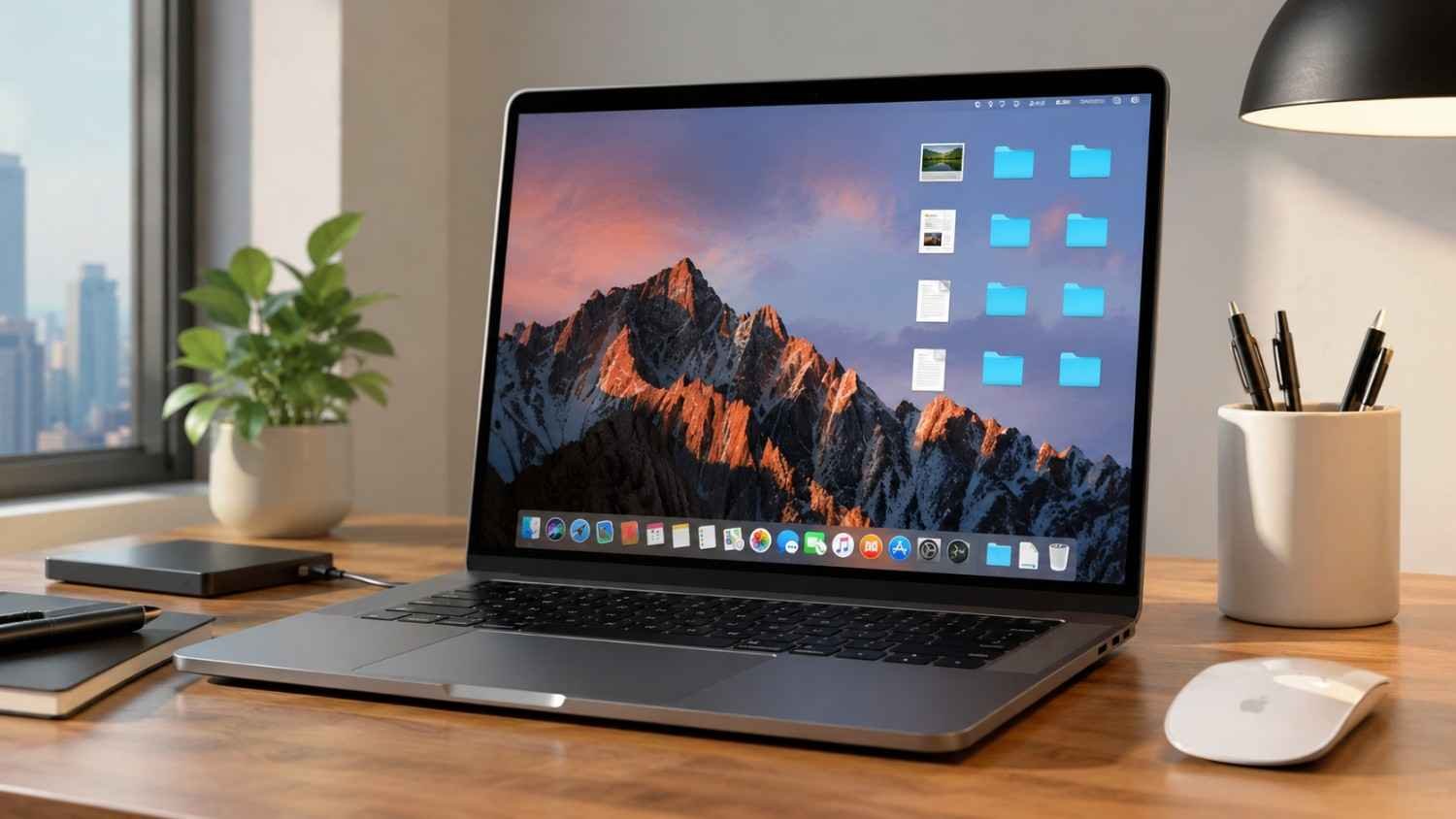
A productive desktop is not an empty desktop. It is a desktop where everything has a purpose.
Instead of organizing files by type, consider organizing them by projects. For example, create folders for client work, personal projects, finances, or ongoing assignments. This structure mirrors how you actually think about your work.
Another helpful approach is to limit desktop storage altogether. Treat the desktop as a temporary workspace rather than a permanent filing cabinet. Files should move into their proper folders once a task is completed.
If you’re working in creative fields, understanding how to organize design tools on mac can make a significant difference. Keeping design software, project assets, and reference materials grouped logically reduces unnecessary searching and speeds up your workflow.
Create A File System That Works Long-Term
Most organization systems fail because they are too complicated. The best systems are simple enough to maintain consistently.
Start by creating a clear folder hierarchy in Finder. Keep top-level folders broad and easy to understand. Within those folders, organize files based on projects or categories that make sense for your work.
Smart Folders can also save a surprising amount of time. Instead of manually searching for recent documents, PDFs, or downloaded files, Smart Folders automatically collect them based on rules you define.
The Downloads folder deserves special attention. Many users treat it like permanent storage, which quickly creates clutter. A useful habit is following a “one-touch” rule. Every downloaded file should either be deleted, archived, or moved to its proper location as soon as possible.
How To Set Up Multiple Workspaces Using Spaces
One reason digital clutter grows so quickly is that different tasks often compete for the same screen space.
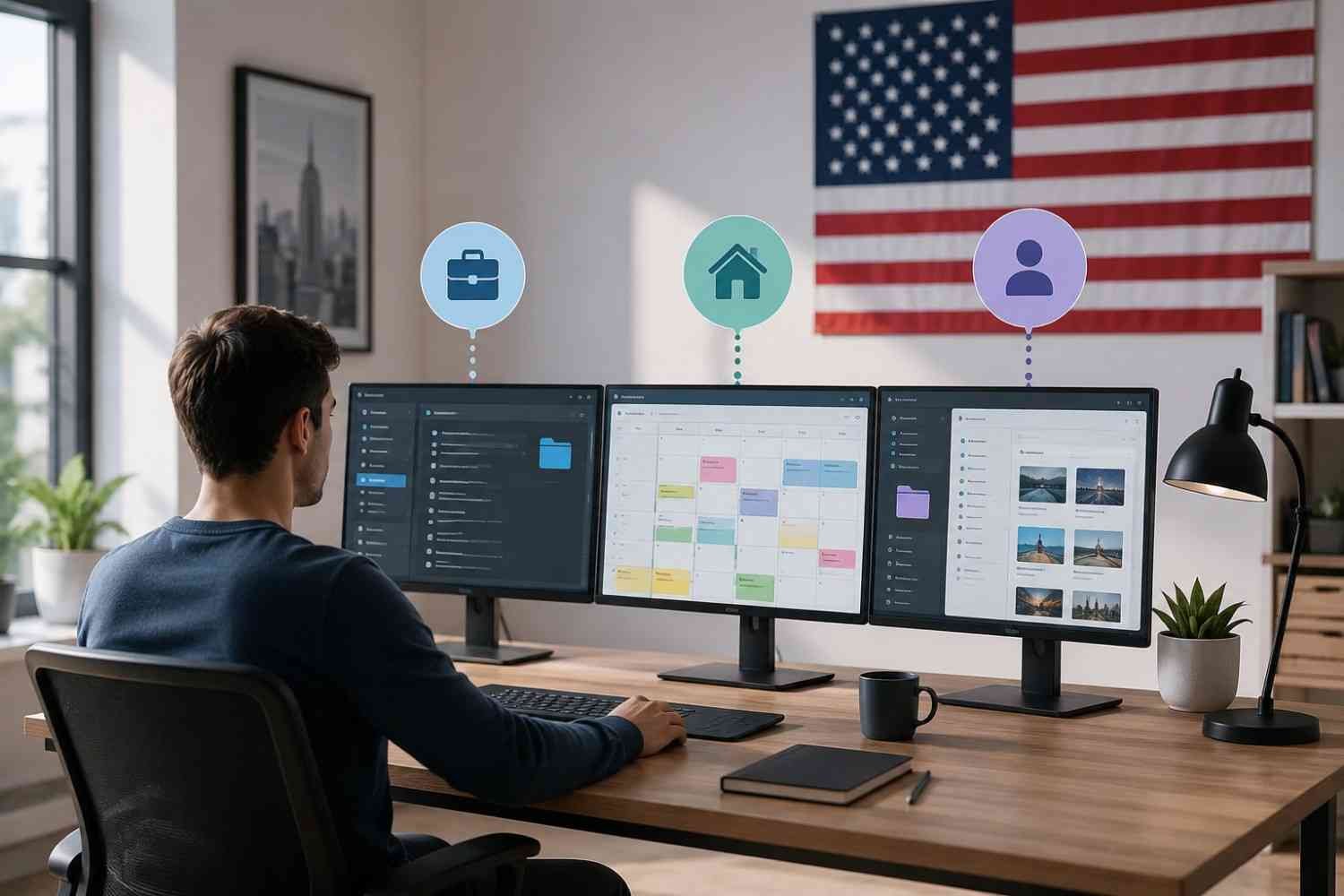
macOS Spaces helps solve this problem by creating separate desktops for different types of work. Instead of cramming everything into one workspace, you can dedicate each Space to a specific purpose.
For example:
- One Space for communication tools like email and messaging
- One Space for focused project work
- One Space for research and reference materials
- One Space for personal tasks and planning
This approach creates clear boundaries between activities. When you switch Spaces, you switch contexts, which makes it easier to maintain focus.
Mission Control makes managing these workspaces simple and provides a bird’s-eye view of everything currently open.
Build Better Window Management Habits
Productivity often suffers when windows overlap endlessly across the screen. Constantly searching for the right window interrupts concentration and slows momentum.
Stage Manager offers a cleaner way to work by keeping your current application front and center while grouping other open applications neatly to the side. This reduces visual clutter without forcing you to close everything.
For users who frequently multitask, window snapping tools can make a dramatic difference. Arranging windows into organized sections helps create a structured workspace and eliminates unnecessary resizing.
The goal is not to keep more windows open. The goal is to make the windows you need easier to access.
Automate Focus And Reduce Interruptions
Attention has become one of the most valuable resources in modern work. Protecting it should be a priority.
Focus modes allow you to create different profiles based on what you are doing. A Deep Work profile might block most notifications while allowing urgent messages from a small group of contacts. A Personal profile can prioritize family communication after work hours.
Notification badges also deserve scrutiny. Many people react to badges automatically, even when the information is not urgent. Removing unnecessary badges can reduce distractions significantly.
Another powerful habit is relying more heavily on keyboard-driven navigation. Spotlight Search allows you to launch applications, locate files, and perform searches without digging through folders. Tools like Alfred and Raycast expand those capabilities even further, helping you complete tasks with fewer clicks.
Small Habits That Keep Your Workspace Organized
Creating a productive workspace is only half the battle. Maintaining it matters just as much.
Set aside a few minutes at the end of each workday to clean up open tabs, archive completed files, and organize new documents. This small routine prevents clutter from building up over time.
It also helps to review your applications regularly. Remove software you no longer use and consolidate overlapping tools whenever possible. Jumping between too many apps creates complexity that slows work rather than improving it.
A productive workspace should feel simple. If maintaining your system becomes a chore, it is probably more complicated than it needs to be.
Frequently Asked Questions: How To Build The Perfect Productivity Workspace On Mac And Reduce Digital Clutter
1. What is the best way to reduce digital clutter on a Mac?
Start by cleaning your desktop, organizing files into logical folders, minimizing unnecessary applications, and setting up Focus modes. Consistent maintenance habits are often more effective than major one-time cleanups.
2. Does Stage Manager improve productivity?
For many users, yes. Stage Manager helps reduce visual distractions by keeping active applications visible while organizing other open apps in a cleaner layout.
3. How often should I organize my Mac workspace?
A quick daily cleanup combined with a more thorough weekly review usually keeps digital clutter under control without requiring significant effort.
4. Which Mac feature helps the most with productivity?
There is no single feature that works for everyone, but Spaces, Focus modes, Spotlight Search, and Smart Folders are among the most impactful built-in productivity tools available in macOS.
Why The Most Productive Mac Setups Feel Effortless
The best productivity workspace is rarely the one with the most apps, shortcuts, or automation tools. It is the one that removes friction from everyday tasks. When files are easy to find, distractions stay under control, and workspaces are organized around how you actually work, productivity becomes a natural result rather than a constant struggle.
A great Mac workspace should almost disappear into the background. When you’re no longer thinking about where things are or how to find them, you can focus entirely on the work that matters.