How to Use Trackpad Gestures Mac for Better Productivity
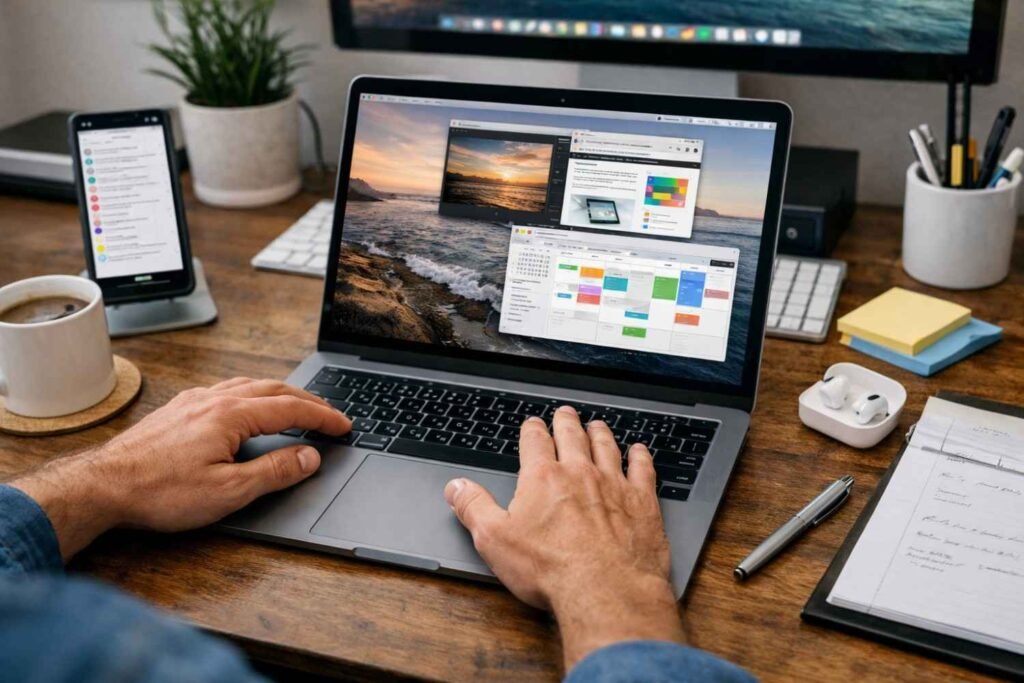
I used to think a faster Mac only meant buying a newer MacBook or closing a few browser tabs. Then I realized speed is not just about hardware. It is also about how clean your system is, how many apps run in the background, and how smoothly you move through macOS.
If you want to know how to use trackpad gestures Mac users rely on while also keeping your device running faster, this guide brings both ideas together.
The goal is simple. I want my Mac to feel quick when I open apps, switch windows, scroll pages, manage files, and work across multiple desktops. With the right Mac trackpad gestures and a few smart macOS maintenance habits, you can make daily work feel smoother without installing complicated tools.
Why Do Trackpad Gestures and Mac Speed Matter Together?
Mac trackpad gestures help you move faster through macOS, while performance cleanup helps your Mac respond better. One improves your workflow. The other improves your system’s breathing room. When both work together, your MacBook or Magic Trackpad feels more natural, responsive, and efficient.
If your Mac feels slow, gestures alone will not fix storage problems or heavy background apps. But if your system is clean and updated, gestures can help you work faster because you spend less time clicking, dragging, searching, and switching windows manually.
How Do I Turn On Mac Trackpad Gestures?
To start, open the Apple menu, go to System Settings, and select Trackpad. You will usually see settings grouped under Point & Click, Scroll & Zoom, and More Gestures.
These sections control your most important MacBook trackpad gestures, including tap to click, secondary click, pinch to zoom, smart zoom, Mission Control, App Exposé, Launchpad, and full-screen app switching.
I recommend turning on the tap to click first. It lets you tap the trackpad lightly instead of pressing down. Then enable secondary click, which works like right-click when you tap or click with two fingers. These two settings alone make your Mac feel quicker during normal browsing, writing, and file management.
Which Mac Trackpad Gestures Should I Learn First?
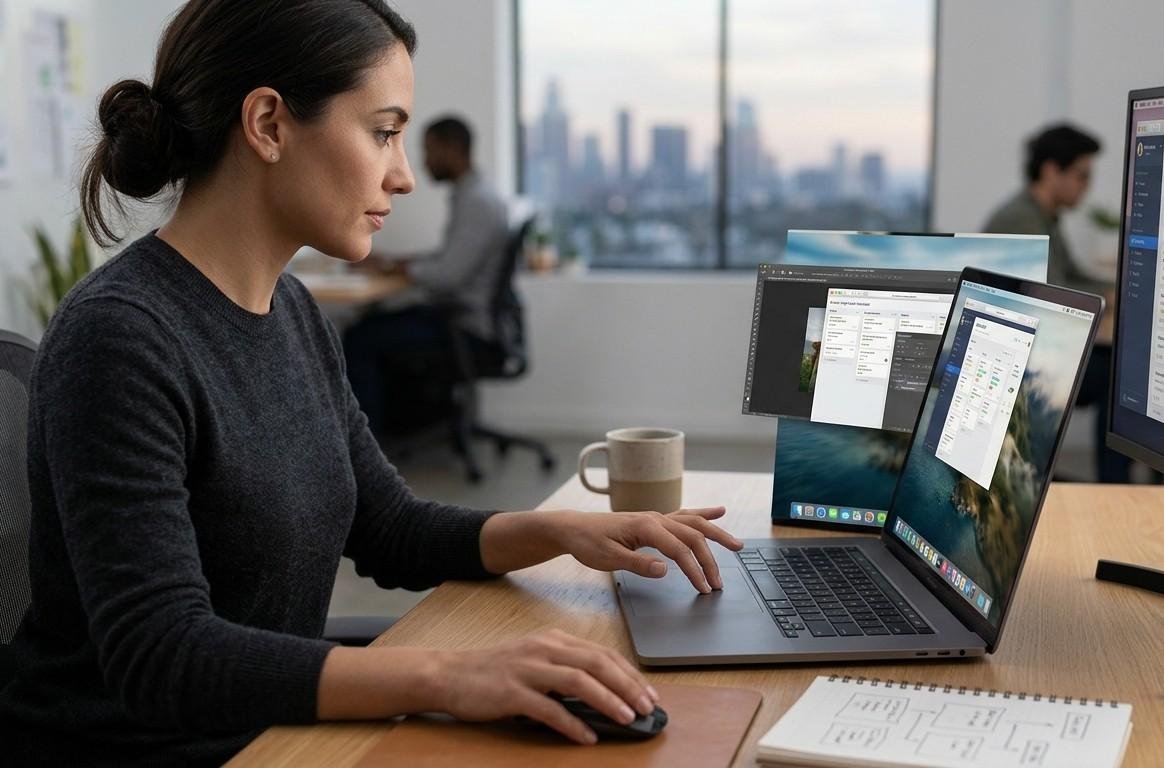
The easiest gesture to master is a two-finger scroll. Place two fingers on the trackpad and slide up or down to move through webpages, documents, emails, and PDFs. If scrolling feels backward, go to Scroll & Zoom and adjust Natural Scrolling until it feels right.
Pinching to zoom is another gesture I use often. Move two fingers apart to zoom in and pinch them together to zoom out. This works well in Safari, Photos, Preview, Maps, and many design tools. Smart Zoom is also useful because a quick two-finger double tap can zoom into supported content without manual pinching.
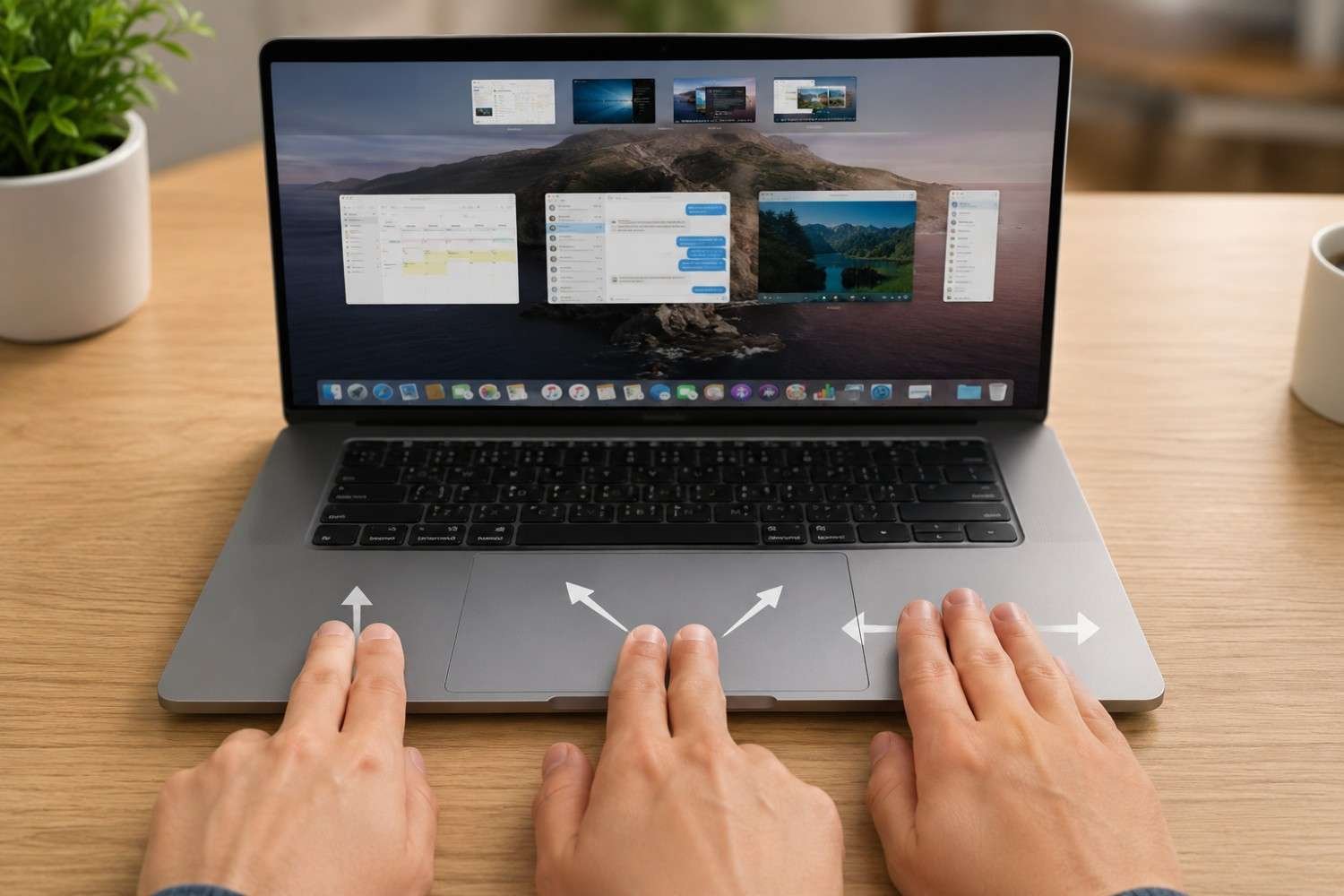
For multitasking, swipe up with three or four fingers to open Mission Control. This shows open windows, desktops, and full-screen apps in one view. Swipe left or right with three or four fingers to move between full-screen apps or desktops. When I work on a smaller MacBook screen, these gestures help me stay organized without constantly clicking through the Dock.
How Can I Use Trackpad Gestures to Work Faster Every Day?
The real value of how to use trackpad gestures on a Mac is not memorizing every possible gesture. It is choosing the few that remove daily friction. I use a secondary click to open shortcut menus, two-finger scroll to move through long pages, pinch to zoom for details, Mission Control to find windows, and full-screen swipes to move between focused workspaces.
You can also spread your thumb and three fingers apart to show the desktop. This helps when you need quick access to screenshots, downloads, or files saved on the desktop. Pinching your thumb and three fingers together opens Launchpad, which gives you a fast way to find apps without digging through Finder.
If you move windows often, enable three-finger drag. Go to System Settings, open Accessibility, choose Pointer Control, then Trackpad Options. Turn on dragging and select three-finger drag. This makes it easier to move windows and files without pressing hard on the trackpad.
How Do I Free Up Storage to Speed Up macOS?
A clean system helps macOS run better. I try to keep at least 10% to 20% of my disk space free because macOS needs room for virtual memory, temporary files, updates, and normal system operations. When storage gets too full, even simple tasks can feel slower.
Open the Apple menu, go to System Settings, choose General, and click Storage. Review large files, unused apps, documents, media, and Apple’s storage recommendations. Empty the Trash because deleted files still take up space until you remove them permanently.
I also check the Downloads folder because old installers, DMG files, ZIP files, screenshots, and duplicate documents often sit there for months. To clear the user cache, open Finder, press Command + Shift + G, type ~/Library/Caches, and review cache folders carefully. Delete only non-essential app cache files when you understand what they belong to, then restart your Mac.
How Do I Stop Background Apps From Slowing Down My Mac?
Background apps can drain CPU, memory, and battery without you noticing. Go to System Settings, select General, and open Login Items. Remove apps you do not need under Open at Login. Then review Allow in the Background and turn off unnecessary apps or services.
Next, open Activity Monitor from Applications and Utilities. Click the CPU tab to see which apps use processor power. Click the Memory tab to see which apps use RAM (Random Access Memory). If an app is frozen or using too many resources, select it and click the X button to quit it. I avoid force-quitting system processes unless I know what they do.
A cluttered desktop can also make the Mac feel messier and slower. macOS has to display and manage those visible icons, so I keep my desktop clean and move files into organized folders.
Which System Settings Can Make macOS Feel Faster?
Small visual changes can improve responsiveness, especially on older Macs. Open System Settings, go to Accessibility, and check Display or Motion settings. Turn on Reduce motion and Reduce transparency if animations and visual effects feel heavy.
Browser choice also matters. If Chrome feels resource-heavy on your MacBook, try Safari for daily browsing because Apple designs it for Mac, battery life, privacy, and speed. If iCloud Drive, Desktop, or Documents syncing is running heavily in the background, pause or reduce large sync tasks until your Mac becomes responsive again.
What Basic Maintenance Should I Do Regularly?
Restart your Mac regularly. Closing the lid is not the same as restarting. A full restart clears temporary tasks, refreshes memory, and stops runaway background activity. I restart whenever my Mac starts acting unusually slow.
You should also update macOS. Open System Settings, go to General, and click Software Update. Updates often include stability improvements, security patches, and bug fixes that can make your Mac run better.
How Do I Fix Mac Trackpad Gestures Not Working?
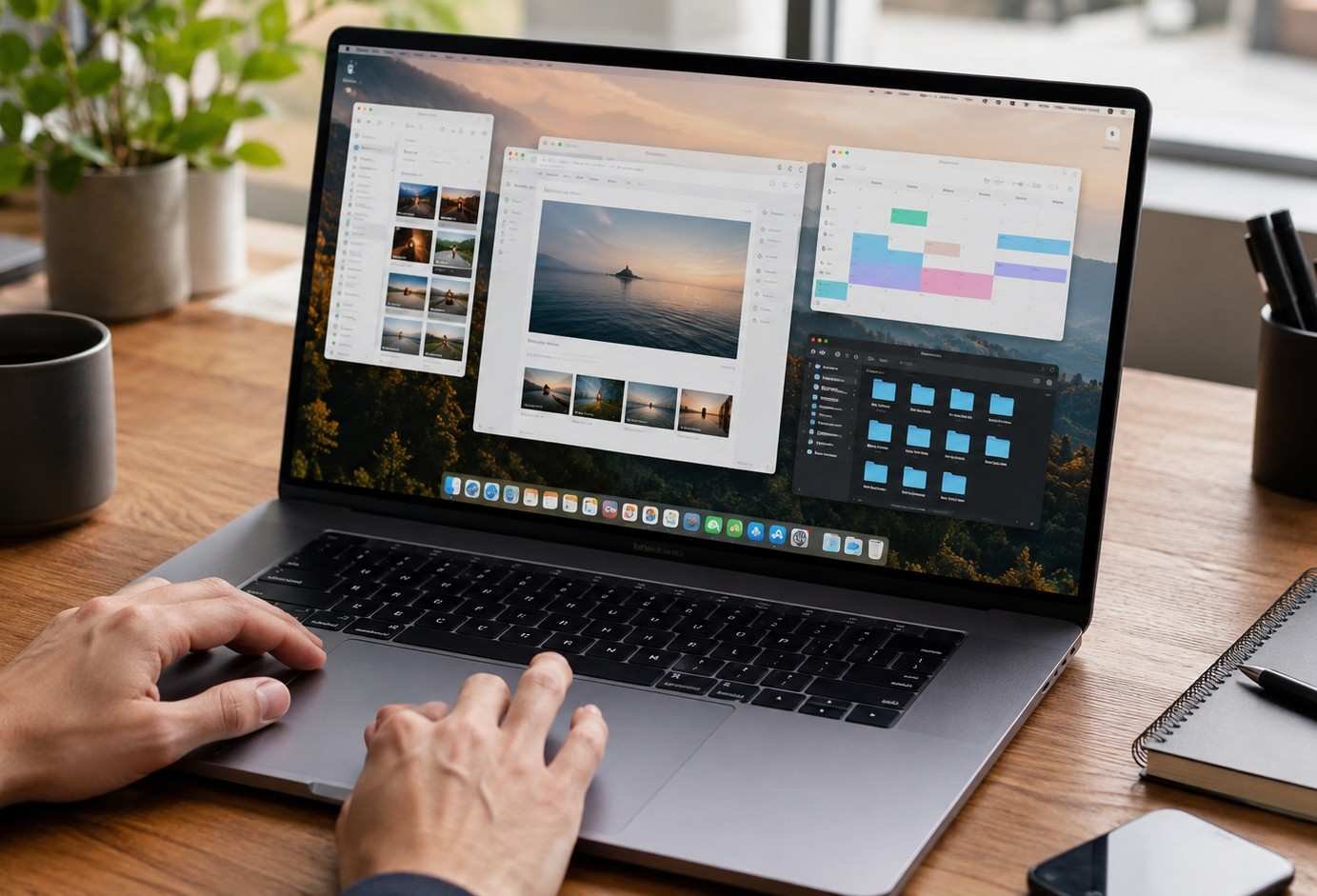
If gestures stop working, open System Settings and check Trackpad first. Make sure the gesture is enabled and confirm whether it requires two, three, or four fingers. Clean the trackpad surface, restart your Mac, and disconnect and reconnect your Magic Trackpad if you use one.
If only one app ignores a gesture, the app may not support it. If several gestures fail across macOS, check for software updates and review Accessibility settings.
Frequently Asked Questions (FAQs)
1. What is the easiest way to learn how to use trackpad gestures on a Mac?
Start with tap to click, two-finger scroll, secondary click, pinch to zoom, and Mission Control. These gestures are simple, practical, and useful for everyday MacBook productivity.
2. Can trackpad gestures actually speed up my Mac?
Trackpad gestures do not directly increase hardware speed, but they speed up how you work. For real performance, combine gestures with storage cleanup, fewer background apps, and regular updates.
3. How much free storage should I keep on my Mac?
I recommend keeping at least 10% to 20% of your storage free. This gives macOS room for virtual memory, updates, temporary files, and smoother performance.
4. Why does my Mac feel slow even after closing apps?
Your Mac may still have background processes, low storage, heavy browser tabs, iCloud syncing, startup apps, or high memory pressure. Activity Monitor and Login Items are the best places to check first.
Final Thoughts
Learning how to use trackpad gestures Mac users depend on is one of the easiest ways to make everyday work feel faster. But the best results come when you combine gestures with a clean, well-maintained system.
Start with the core gestures, clear junk files, manage Login Items, check Activity Monitor, reduce heavy visual effects, restart regularly, and keep macOS updated. These simple macOS tricks for students can also help anyone work faster with fewer slowdowns.
When your Mac has enough storage, fewer background tasks, and smoother navigation, it feels faster without needing a major upgrade.