How to Use macOS App Switcher Without Wasting Clicks
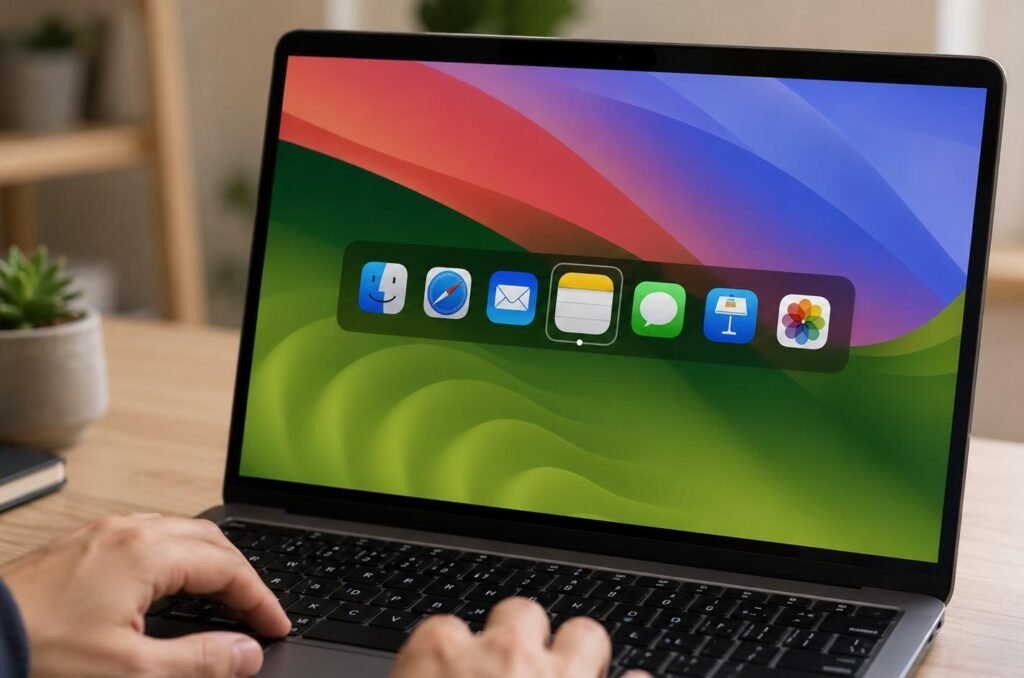
A busy Mac screen can slow you down fast, especially when Safari, Finder, Mail, Notes, Zoom, and other apps are all open at once. Instead of clicking around the Dock or searching through windows, the App Switcher gives you a faster way to move between active apps. I like it because it keeps my hands on the keyboard and helps me stay focused while working.
In this blog, I’ll explain how to use macOS app switcher with Command + Tab, hidden shortcuts, window controls, minimized app fixes, and simple tricks that make everyday Mac multitasking easier.
What Is the macOS App Switcher?
The macOS App Switcher is a keyboard tool that shows active applications in a horizontal overlay at the center of your screen. Instead of clicking app icons one by one, you can bring up the switcher and jump straight to the app you need.
To open it, press and hold Command, then tap Tab. Keep holding Command while the app icons stay on screen. When the app you want is highlighted, release Command, and macOS brings that app forward. If you need a visual view of every window, use Mission Control.
For quick app switching on Mac, Command + Tab is usually faster, especially when learning simple macOS tricks for students that reduce wasted clicks and make daily work smoother.
How Do You Use Command + Tab on Mac?
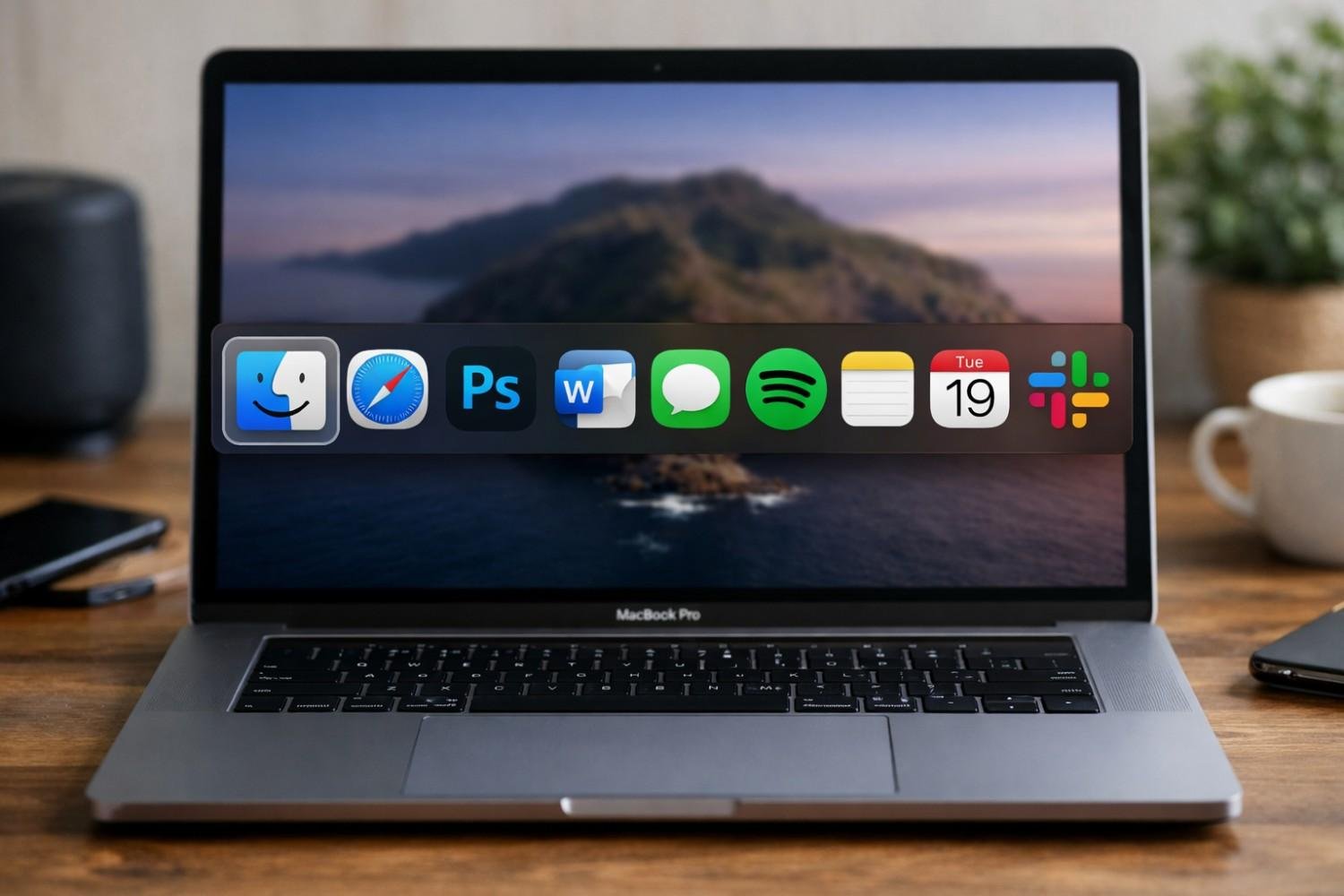
Press Command + Tab once and release both keys to toggle between your current app and the most recent app. To cycle through more apps, hold Command and tap Tab repeatedly. To move backward, keep holding Command and press Shift + Tab.
While the switcher is open, you can also use the key above Tab, often called the tilde or backtick key, to move in the opposite direction.
For more control, hold Command and press the Left or Right arrow keys. You can also keep Command held down and click any app icon with your mouse or trackpad. To cancel without changing apps, press Escape or Period before releasing Command.
Why Does Command + Tab Not Show Every Window?
Many people switching from Windows expect Command + Tab to show every open window. macOS works differently. Command + Tab switches between apps, not individual windows.
If you have three Safari windows open, the switcher shows Safari as one app. To switch between windows of the same app, use Command + Backtick. On most US keyboards, the backtick key is above Tab. This shortcut is useful when you have multiple browser, Finder, document, or project windows open inside one app.
How Can You Hide or Quit Apps from the App Switcher?
The app switcher also helps you manage clutter. Open it with Command + Tab, keep holding Command, highlight an app, and press H to hide it. This clears that app’s windows from the desktop without closing the app.
To quit an app, highlight it in the switcher and press Q while still holding Command. Save your work first, especially in writing, design, spreadsheet, editing, or coding apps.
How Do You Use App Exposé from the App Switcher?
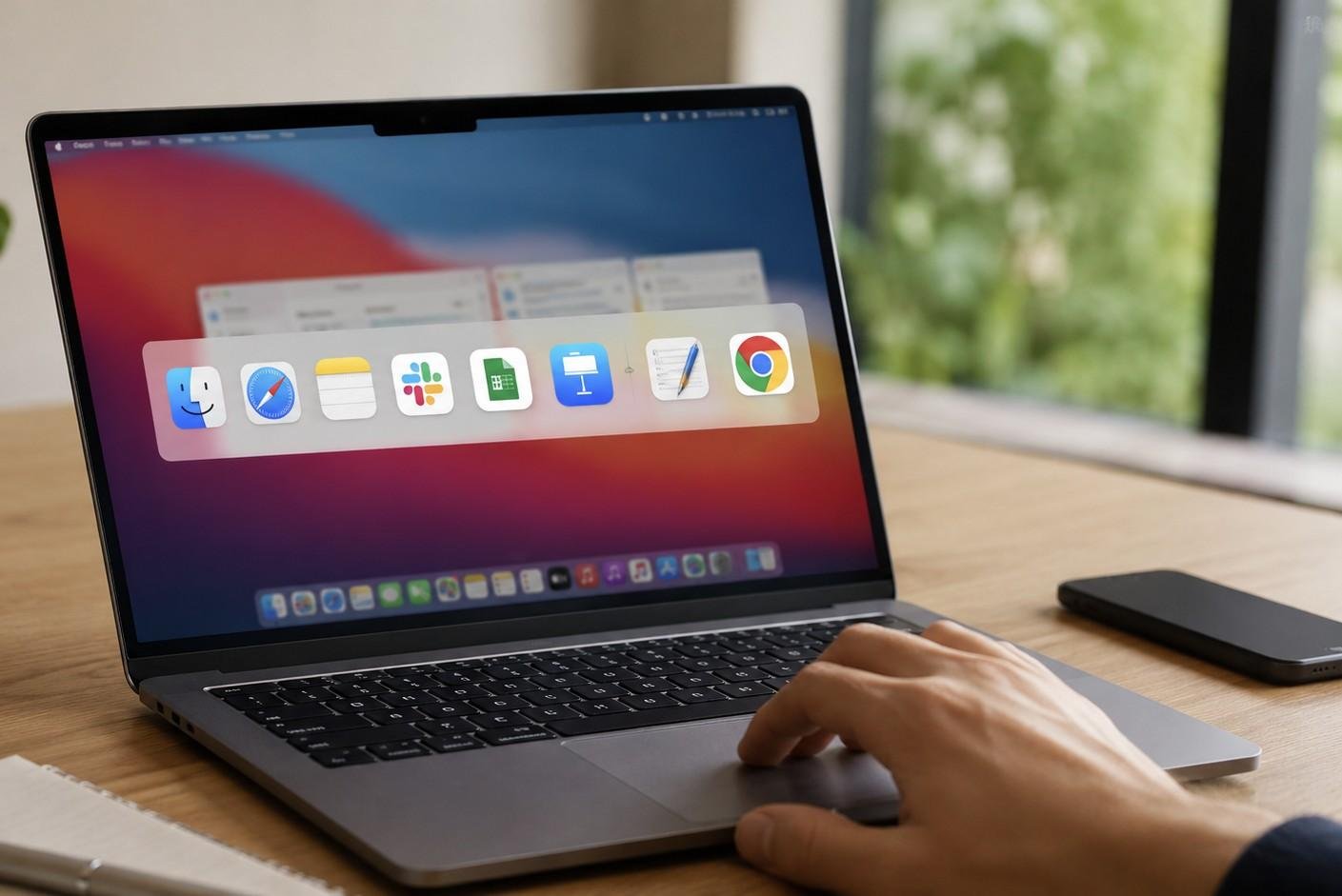
App Exposé helps when you reach the right app but still need the right window. Open the switcher, keep Command held down, highlight the app, then press the Up or Down arrow key. macOS can then show open windows and recent documents for that app.
How Do You Restore Minimized Windows?
Minimized windows can be confusing because Command + Tab may activate an app without opening the minimized window from the Dock. To handle this, open the switcher, highlight the app, press and hold Option, then release Command.
This can force a minimized window to appear. If it does not, open the minimized window from the Dock or use Mission Control. Command + Tab activates the app, but it may not always restore every minimized window automatically.
Can You Open Files with the Mac App Switcher?
Yes, and this is one of the most underrated Mac productivity tricks. Drag a file from Finder, keep dragging it, press Command + Tab to open the app switcher, hover over the target app icon, and drop the file onto that app.
For example, you can drag an image into Preview, Photoshop, Mail, or Messages without opening the destination app first. This saves clicks when you move files between apps during everyday work.
App Switcher vs Mission Control vs Stage Manager
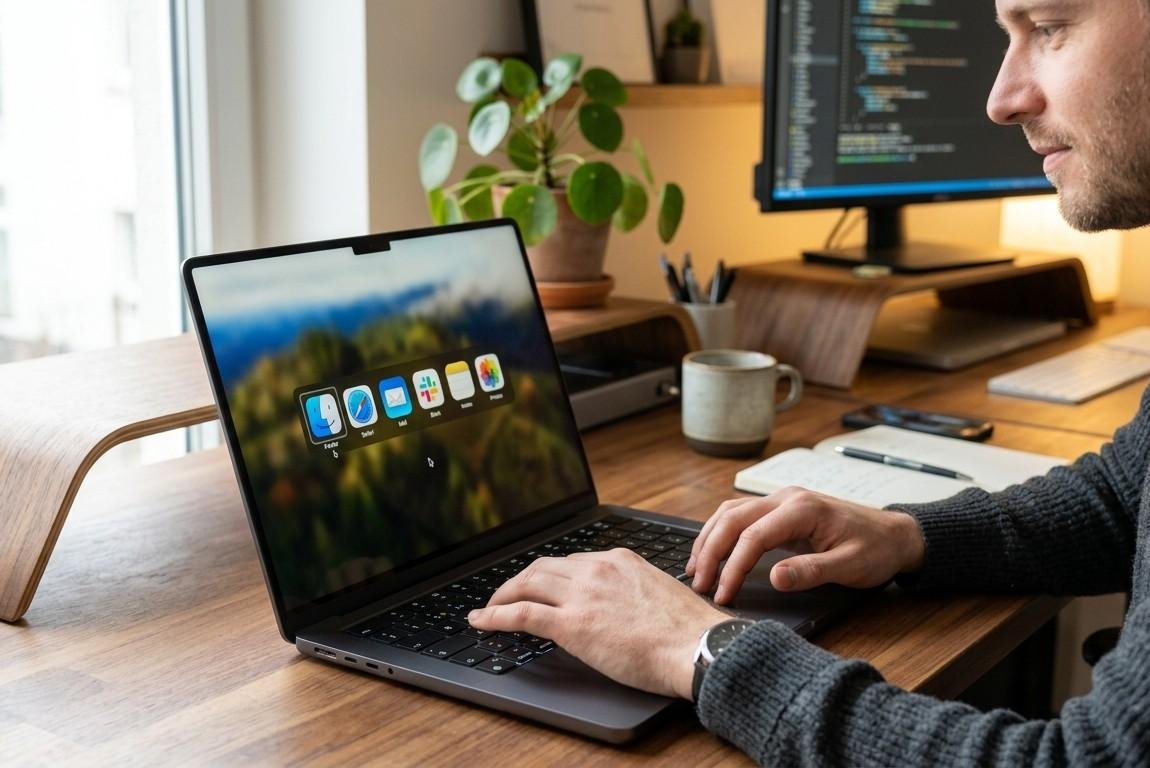
The app switcher is best for speed. Mission Control is best when you want a visual overview of every open window. Stage Manager is useful when you want app groups and a cleaner workspace layout. I use the app switcher when I know exactly which app I need, Mission Control when my screen feels messy, and Stage Manager when I want one main task in focus.
FAQs About the Mac App Switcher
1. What is the shortcut for the Mac app switcher?
The shortcut is Command + Tab. Hold Command, tap Tab, and release Command when the app you want is highlighted.
2. How do I switch backward in the App Switcher?
Hold Command and press Shift + Tab. You can also use arrow keys while keeping Command held down.
3. Why is Command + Tab not working?
Check your keyboard, try both Command keys, reconnect any external keyboard, or restart your Mac.
4. Is it worth learning how to use macOS app switcher?
Yes. It helps you switch apps faster, manage desktop clutter, open files more smoothly, and reduce unnecessary clicking.
Final Thoughts
Command + Tab handles app switching, Command + Backtick handles same-app windows, H hides apps, Q quits apps, Escape or Period cancels the switcher, and Option can help restore minimized windows. Practice these shortcuts for a few days, and your Mac will feel easier to control when you are juggling browsers, documents, meetings, messages, and files.