Mac productivity tool for clean screen setup Guide
A messy Mac screen slows me down before I even start working. If I see desktop files, crowded menu bar icons, overlapping windows, and random screenshots, my focus breaks fast. That is why a Mac productivity tool for clean screen setup is not just a nice extra. It is a practical way to make your Mac feel calmer, faster, and easier to use.
The best setup does three things well. It hides clutter, places windows where they belong, and keeps your screen ready for calls, captures, and focused work. I have tested this kind of setup across writing, research, editing, and presentation tasks, and the biggest win is simple: fewer tiny decisions every time I open my laptop.
Why a Clean Mac Screen Changes How You Work
A clean screen reduces the small distractions that steal attention. I do not mean deleting everything or turning your Mac into a blank white box. I mean keeping only the tools you need visible at the right moment.
When my menu bar is crowded, I check things I never planned to check. When my desktop is full of files, I start sorting instead of working. When windows overlap, I waste time resizing them instead of finishing the task.
Apple already gives Mac users features like Split View and Stage Manager. Split View lets you work with two apps side by side, while Stage Manager helps organize windows and app groups.
These built-in tools are useful, but they do not solve every clutter problem. They do not clean your menu bar, hide desktop mess during recordings, or create a repeatable workspace in one move.
That is where the right Mac productivity tool for clean screen setup becomes useful.
What a Mac Productivity Tool for Clean Screen Setup Should Do
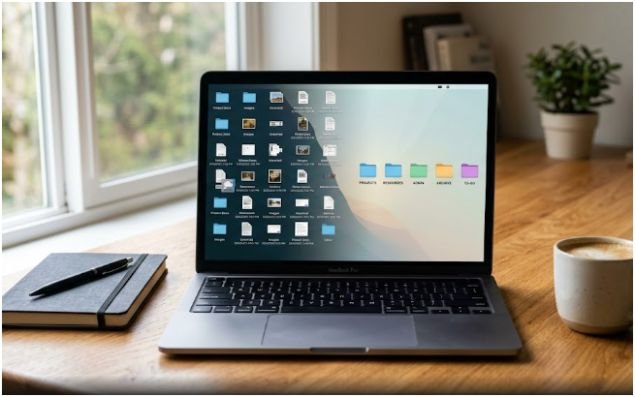
A good clean screen tool should not add more noise. It should remove friction. I use one rule before installing anything: the app must either save clicks, hide clutter, or make my workspace easier to restore.
Hide Visual Noise Without Hiding Useful Controls
The menu bar is one of the fastest places to lose screen discipline. Calendar tools, cloud storage icons, VPN status, battery apps, screen recorders, and messaging tools all compete for attention.
A strong menu bar tool lets you hide low-priority icons while keeping important controls nearby. Bartender, for example, is built for controlling what appears in the menu bar and when. Ice is a lighter option for users who want a simpler hidden menu bar without many advanced settings.
For MacBook users with a notch, this matters even more. The notch can reduce visible menu bar space, so hiding rarely used items can make the top of the screen feel usable again.
Arrange Windows Without Dragging Corners
Dragging window corners feels harmless until you do it 50 times a day. A clean screen setup needs fast window placement. Rectangle and Loop are popular because they let you snap windows into halves, thirds, quarters, or full screen zones.
This is where an internal workflow link fits naturally: if your main problem is window placement, start with a lightweight window manager for Mac before adding more cleanup apps.
A window manager keeps your active apps aligned. That means your browser, notes, calendar, and writing app stay where your eyes expect them.
Keep Screenshots and Calls Presentation-Ready
A clean desktop matters most when someone else sees your screen. Client calls, team demos, tutorials, and screen recordings all expose clutter fast.
CleanShot X helps here because it can hide desktop icons during screenshots and recordings. I like this because it solves the “wait, let me clean my desktop first” problem. The screen looks ready even when your files are not perfectly organized.
Best Mac Tools for a Cleaner Screen

The best clean setup is not one app. It is usually a small stack of tools that each handle one type of clutter.
Bartender or Ice for Menu Bar Cleanup
Bartender is a strong choice for users who want detailed control. You can hide menu bar icons, reveal them quickly, use triggers, and manage crowded menu bar items. It is better for power users who rely on many background apps.
Ice is better if you want a lighter, simpler menu bar cleanup tool. It helps reduce visible icons without making you configure too much.
My take: use Bartender if your menu bar is packed every day. Use Ice if you only need basic hiding.
Rectangle or Loop for Window Snapping
Rectangle is free and open source. It lets you move and resize windows with keyboard shortcuts or snap areas. That makes it a strong first install for anyone who wants a clean Mac workspace without paying upfront.
Loop is another clean option for users who like visual window snapping. It feels modern and simple, especially if you prefer mouse-based gestures over memorizing shortcuts.
My take: Rectangle is ideal for keyboard-first users. Loop works well if you want snapping to feel more visual.
CleanShot X for Clean Captures
CleanShot X is built for screenshots and screen recordings. Its desktop icon hiding feature is especially useful for creators, marketers, consultants, and remote workers.
I use this type of tool when I need a polished capture fast. It saves me from moving files, changing wallpaper, or cropping out distractions later.
My take: CleanShot X is worth considering if screenshots, tutorials, or client recordings are part of your weekly work.
DemoVeil and Dropover for Desktop Control
DemoVeil is useful for presentations, calls, and recordings because it can hide desktop clutter with a quick toggle. It is a simple idea, but it solves a real problem.
Dropover works differently. It gives you a temporary file shelf. Instead of dumping files onto the desktop, you can hold them in a floating shelf while you move between folders, apps, or projects.
My take: DemoVeil is for hiding mess. Dropover is for preventing mess.
DockDoor, Boring Notch, and Alcove for Faster Access
DockDoor adds live previews when you hover over app icons in the Dock. This helps when you have several windows open and need the right one quickly.
Boring Notch and Alcove use the MacBook notch area in a more functional way. Depending on your setup, they can turn that space into a hidden control area or quick-access zone.
My take: these tools are optional. Add them only after fixing menu bar, windows, and desktop clutter first.
My 5-Minute Clean Screen Setup Workflow
Here is the workflow I use when I want my Mac to feel clean quickly.
First, I hide menu bar icons that I do not need every hour. I keep only battery, Wi-Fi, calendar, and one or two work tools visible. Everything else goes behind a hidden menu.
Second, I snap my main work window to the left and my reference window to the right. For writing, that usually means my editor on one side and research on the other. For calls, it means meeting notes beside the video window.
Third, I move temporary files into a shelf or folder instead of leaving them on the desktop. This step matters because desktop clutter grows quietly.
Fourth, I turn on desktop hiding before screenshots or meetings. This gives me a clean screen without pretending my file system is perfect.
Fifth, I close apps that are not part of the current task. A clean screen is not only about what is visible. It is also about what is open.
Original finding from my own workflow: the biggest improvement came from combining window snapping with menu bar hiding. Desktop cleanup helped appearance, but window alignment helped speed. My screen looked cleaner, and my daily app switching felt less chaotic.
How to Choose the Right Tool Without Overloading Your Mac
Do not install every app at once. That creates another kind of clutter.
Start with your biggest pain point. If your menu bar is crowded, choose Bartender or Ice. If your windows overlap all day, choose Rectangle or Loop. If you record tutorials or share your screen often, choose CleanShot X or DemoVeil. If your desktop becomes a dumping ground, add Dropover.
A Mac productivity tool for clean screen setup should feel invisible after setup. If you keep opening the app to manage the app, it is probably not helping enough.
For most users, the best starter stack is simple: one menu bar cleaner, one window manager, and one capture or desktop hiding tool. That covers the biggest clutter zones without slowing you down.
When Built-In macOS Features Are Enough
You may not need a third-party app if your workflow is simple. Split View works well when you only need two apps side by side. Stage Manager can help if you like switching between groups of apps. Mission Control is also useful when you need a quick overview of open windows.
Built-in tools are enough for light multitasking. Third-party tools become more useful when you want repeatable layouts, cleaner screenshots, hidden menu bar icons, or faster window control.
My rule is simple. Use macOS features first. Add apps only where macOS still makes you repeat the same manual action every day.
FAQs About Mac Clean Screen Tools
1. What is the best Mac productivity tool for clean screen setup?
The best choice depends on the clutter: use Rectangle for windows, Bartender or Ice for the menu bar, and CleanShot X for clean screenshots.
2. How do I keep my Mac desktop clean during screen sharing?
Use a desktop hiding tool like CleanShot X or DemoVeil, then keep temporary files in a folder or Dropover shelf.
3. Is Rectangle better than macOS Split View?
Rectangle is better for flexible snapping, while Split View is fine for two full-screen apps side by side.
4. Do clean screen tools slow down a Mac?
Most lightweight tools use minimal resources, but you should avoid installing several apps that solve the same problem.
Final Snap: Make Your Mac Look Like It Has Standards
A clean Mac screen is not about being fussy. It is about protecting your focus from tiny distractions that stack up all day. I like tools that make my screen look calm without forcing me to become a full-time desktop organizer.
Start with one tool, not five. Fix the messiest part of your workflow first. Hide the menu bar clutter, snap your windows, clean your screenshots, and stop using the desktop as a storage unit with a nice wallpaper. Your Mac will feel sharper before your coffee gets cold.