Memory Management Blue Screen: Causes, Fixes & Prevention

A normal workday can quickly turn stressful when a computer suddenly crashes and displays a memory management blue screen error. That unexpected restart often appears without warning, interrupting projects, games, meetings, or everyday tasks. After helping troubleshoot similar issues across different Windows systems, one thing becomes clear: understanding the cause behind this error is the fastest path to fixing it and preventing future crashes.
Key Takeaways
- The memory management blue screen usually points to RAM, drivers, system files, or storage issues.
- Running built-in diagnostics can help identify the exact cause quickly.
- Corrupted files often trigger memory-related stop codes.
- Hardware checks are important when software fixes do not work.
- Regular maintenance reduces the risk of future BSOD crashes.
This Error Deserves Your Attention
The memory management blue screen is like your computer’s emergency warning light. It may seem annoying at first, but it is actually protecting your system from further damage. Ignoring it can lead to repeated crashes, data loss, reduced performance, and ongoing stability problems.
Whether you’re a student, gamer, content creator, or office professional, system memory plays a major role in daily computing. The sooner you identify the cause, the easier it becomes to keep your PC running smoothly.
Understanding The Memory Management Error
The MEMORY_MANAGEMENT Blue Screen of Death (BSOD) appears when Windows detects a critical problem involving how memory is allocated, stored, or accessed. Since memory management is essential to operating system performance, Windows immediately stops running to prevent additional damage.
In most cases, the error is linked to faulty RAM, corrupted system files, outdated drivers, storage issues, or unstable hardware settings. While the stop code may look intimidating, it is often possible to resolve it using a structured troubleshooting process.
What Happens Behind The Scenes
Every application running on your computer requires memory resources. Windows constantly allocates and frees memory as programs open and close. When this process becomes corrupted or unstable, the operating system triggers a stop code.
The error commonly appears during gaming, multitasking, large file transfers, software installation, restoring app layout, or system startup because these activities place additional pressure on memory resources.
Windows And macOS Comparison
Windows displays a blue screen when a critical memory issue occurs. On macOS, users may experience a kernel panic, application crash, or unexpected restart instead. Although the visual warning differs, both operating systems can suffer from memory corruption and hardware-related instability.
Common Triggers Behind The Crash
Several underlying issues can lead to memory-related stop codes. Identifying the source helps avoid unnecessary repairs.
Faulty Memory Modules
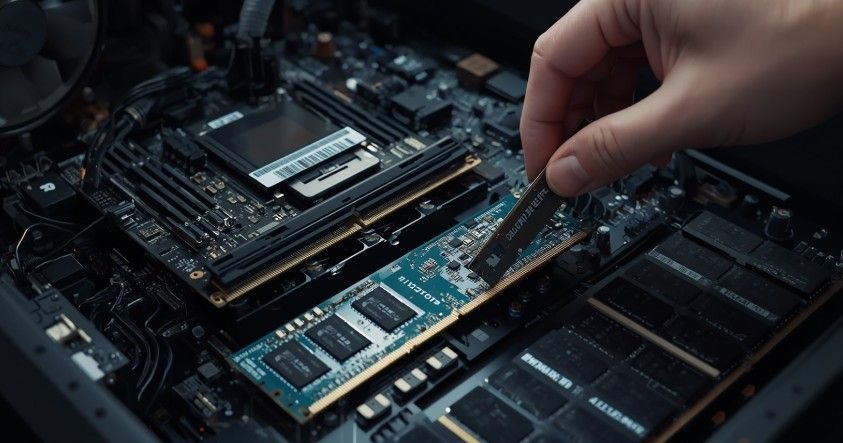
Physical RAM remains the most common cause of the error. Defective memory chips, aging hardware, improperly seated modules, or incompatible RAM configurations can create memory corruption that eventually causes system crashes. Many users discover the problem shortly after upgrading memory or combining different RAM kits.
Corrupted Windows Components
System files play a critical role in memory operations. When these files become damaged due to failed updates, malware infections, or unexpected shutdowns, Windows may struggle to manage memory correctly. Corrupted operating system files often trigger recurring BSOD events even when hardware is functioning normally.
Driver And Storage Problems
Drivers help Windows communicate with hardware devices. Outdated graphics, chipset, or storage drivers can create conflicts that affect memory allocation.
Similarly, failing SSDs or hard drives may corrupt data that Windows depends on for stable operation, producing symptoms similar to memory failures.
How To Fix Memory Management Blue Screen
The best approach is to work through each solution methodically. These steps address the most common causes in order of likelihood.
Step 1: Run Windows Memory Diagnostic
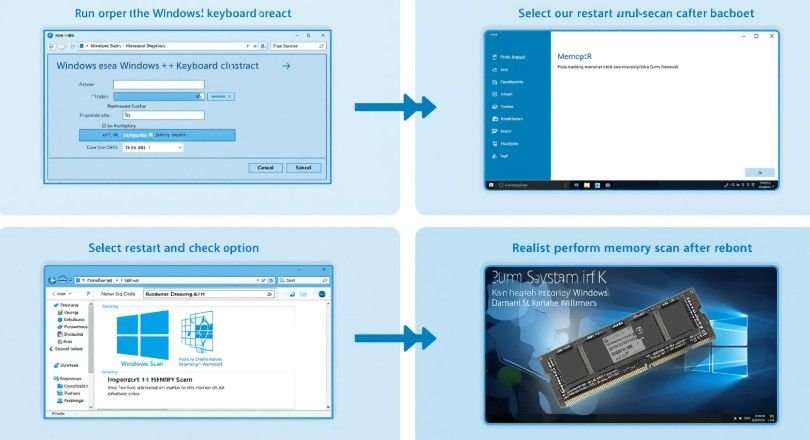
Since RAM is frequently responsible for the error, memory testing should be your starting point.
Press the Windows Key and R together to open the Run dialog box. Type mdsched.exe and press Enter. Select the option to restart immediately and allow Windows to scan your memory.
Once the test completes, review the results. If memory errors appear, a faulty RAM module may be responsible for the crashes. In many cases, replacing the affected memory stick resolves the issue permanently.
Step 2: Repair Corrupted Files And Disk Errors
Corrupted system files and storage problems can easily mimic memory failures.
Open Command Prompt with administrator privileges. First run DISM.exe /Online /Cleanup-image /Restorehealth to repair the Windows image. Once completed, run sfc /scannow to scan and repair system files.
Afterward, execute chkdsk /f /r to check the storage drive for errors. Windows may request a restart before the scan begins. This process helps repair file system corruption and identify problematic disk sectors.
Step 3: Update Critical Drivers
Outdated drivers are a surprisingly common trigger for BSOD errors.
Open Device Manager and review hardware categories such as Display Adapters, Storage Controllers, and System Devices. Update any outdated drivers that may be contributing to instability.
For graphics hardware, downloading the latest drivers directly from NVIDIA, AMD, or Intel often provides the most reliable results. Updated drivers frequently include bug fixes that improve memory handling and system compatibility.
Step 4: Inspect Physical Hardware
If software troubleshooting does not solve the problem, physical hardware should be examined.
Power down the computer completely and reseat the RAM modules. Dust buildup or a slightly loose connection can create intermittent memory issues.
Systems equipped with multiple memory sticks should be tested individually. Running the computer with one module at a time can help identify a faulty stick that causes crashes.
Users who have enabled XMP, EXPO, or other overclocking settings should temporarily return memory and processor settings to default values. Unstable overclocks often contribute to memory management errors during gaming or heavy workloads.
Everyday Uses Of Better Memory Management
Understanding memory health provides benefits beyond fixing a single error.

Gamers can reduce crashes during demanding titles by monitoring RAM stability and temperatures. Professionals working with video editing software, virtual machines, or large datasets benefit from maintaining healthy memory performance.
Mac users can apply similar principles by monitoring memory pressure through Activity Monitor, keeping macOS updated, and avoiding unstable third-party system utilities that interfere with memory allocation.
Preventing Future BSOD Problems
Preventive maintenance remains one of the most effective ways to avoid recurring crashes.
Regularly install Windows updates, maintain current drivers, and scan for storage issues before they become serious problems. Routine system maintenance often catches small issues before they escalate into full system failures.
Avoid mixing different RAM kits whenever possible. Even modules with matching specifications may use different memory chips, creating stability problems under heavy workloads.
Periodic hardware cleaning also helps. Excessive heat can reduce component reliability and contribute to memory instability over time.
Frequently Asked Questions
1. What Is Memory Management Blue Screen?
The memory management blue screen is a Windows stop code that appears when the operating system detects critical issues involving RAM, system files, drivers, or storage devices that affect memory operations.
2. How To Fix Blue Screen Memory Management?
To fix a memory management blue screen, start by testing RAM, repairing corrupted system files, checking storage health, updating drivers, and inspecting hardware components for faults or instability.
3. Can Bad RAM Cause Memory Management Blue Screen?
Yes. Faulty RAM is one of the leading causes of the memory management blue screen. Damaged memory modules can corrupt data, create instability, and trigger repeated BSOD crashes.
4. How To Fix Stop Code MEMORY_MANAGEMENT 0x1A?
Fixing stop code MEMORY_MANAGEMENT 0x1A usually involves running memory diagnostics, repairing Windows files, updating drivers, checking disk health, and testing RAM modules individually for hardware faults.
Blue Screens Don’t Have To Win
The memory management blue screen may feel alarming, but it is often a solvable problem rather than a catastrophic failure. By testing RAM, repairing system files, updating drivers, and checking hardware health, most users can restore stability without replacing their entire system. A proactive approach to maintenance can keep Windows running smoothly and help prevent future memory-related crashes before they interrupt your day.