How to Use Hot Corners on Mac Without Wasting Clicks

Your Mac has four hidden shortcut zones sitting in plain sight, and most people never use them. Once you understand how to use hot corners on a Mac, you can turn each corner of your screen into a fast action for locking your display, opening Mission Control, showing your desktop, starting Quick Note, or putting your screen to sleep.
I like this feature because it feels effortless after a few days. Instead of hunting through menus or stacking more keyboard shortcuts in your memory, you simply move your pointer to the right corner and let macOS handle the task instantly.
What Are Hot Corners on Mac?
Hot Corners are customizable shortcuts built into macOS. Each of the four corners of your screen can trigger a different action when your pointer reaches that corner.
For example, you can set one corner to show all open windows, another to reveal your desktop, and another to lock your screen when you step away from your Mac. You do not have to use every corner. In fact, I usually recommend starting with one or two so the feature feels helpful instead of distracting.
How to Set Up Hot Corners on Mac
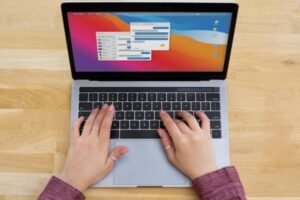
Here is the easiest way to set up Hot Corners on newer versions of macOS. Click the Apple menu logo in the top-left corner of your screen and choose System Settings. Scroll down the left sidebar and select Desktop & Dock. Then scroll to the bottom of the right-side menu and click Hot Corners.
You will now see four dropdown menus, one for each corner of your screen. Choose the action you want for each corner, then click Done to save your changes.
If you use an older Mac, you may see System Preferences instead of System Settings. In that case, look for Desktop & Screen Saver or Mission Control, then open Hot Corners from there.
What Actions Can You Assign to Hot Corners?
The best part about Mac Hot Corners is that you can choose actions based on how you actually use your computer. Mission Control shows all open windows and spaces, which helps when your screen feels crowded. Desktop clears your open windows so you can quickly access files, screenshots, or folders.
Quick Note opens a note window for fast ideas, reminders, or research notes. Lock Screen helps protect your privacy when you walk away from your Mac. You may also see options like Application Windows, Notification Center, Launchpad or Apps, Start Screen Saver, Disable Screen Saver, and Put Display to Sleep.
To disable any corner, open the dropdown menu and select the dash symbol. This is useful if you only want one or two active Hot Corners.
Best Hot Corner Settings for Everyday Use
The best setup depends on your workflow, but I recommend choosing shortcuts you use several times a day. For many users, Mission Control works well in the top corner because it makes multitasking easier. Desktop is another smart choice because it gives you instant access to files without minimizing every window manually.
For privacy, Lock Screen is one of the most practical options. If you work in an office, coffee shop, library, or shared home workspace, you can move your pointer to a corner and secure your Mac quickly. If you take notes often, Quick Note can also be useful, but I would only assign it if you do not accidentally trigger it too often.
A balanced beginner setup could use Mission Control in one top corner, Desktop in another corner, and Lock Screen in a bottom corner with a modifier key.
How to Prevent Accidental Hot Corner Triggers

One problem many Mac users face is accidental activation. Your pointer may touch a corner while you are moving around the screen, and suddenly Quick Note opens, your desktop appears, or your screen locks.
The easiest fix is to add a modifier key. Open the Hot Corners settings again. Before selecting a function from a corner dropdown, press and hold Command, Option, Control, or Shift on your keyboard. While holding that key, choose your desired action. After that, the corner will only activate when you hold that specific key and move the pointer into the corner.
This is one of my favorite Hot Corners tips because it gives you more control. I especially recommend using a modifier key for Lock Screen, Put Display to Sleep, Start Screen Saver, or Quick Note.
How to Turn Off Quick Note in the Bottom-Right Corner
Many Mac users first notice Hot Corners because Quick Note keeps opening by accident. If this happens to you, you can change or remove that shortcut in less than a minute.
Go to System Settings, open Desktop & Dock, and click Hot Corners. Find the corner assigned to Quick Note, open the dropdown menu, and choose another action. If you do not want anything to happen in that corner, select the dash symbol.
This small change can make your Mac feel less annoying, especially if your pointer often lands near the bottom-right corner.
Do Hot Corners Work With Multiple Monitors?
Yes, Hot Corners can work with multiple monitors, but they may feel different depending on your display arrangement. If you use a MacBook with an external monitor, the outer corners of the full display setup are usually easier to trigger than the inner corners between screens.
If you use dual monitors, test each corner before finalizing your setup. Choose corners your pointer naturally reaches, and avoid areas where you often move between displays. This helps you keep the shortcut useful without interrupting your workflow.
Why Are Hot Corners Not Working on My Mac?

If Hot Corners are not working, first check whether the corner has an action assigned. If it is set to the dash symbol, that corner is disabled.
If the action only works sometimes, check whether you added a modifier key. You may need to hold Command, Option, Control, or Shift while moving your pointer into the corner. Also, make sure your pointer reaches the exact edge of the screen. Getting close to the corner may not always trigger the shortcut.
Are Mac Hot Corners Worth Using?
Hot Corners are worth using if you want faster access to common Mac shortcuts. They are built into macOS, easy to customize, and helpful for multitasking, privacy, note-taking, and desktop organization.
The key is to keep your setup simple. I would not activate all four corners immediately. Start with the shortcut you need most, use it for a few days, then add another if it genuinely saves time.
Frequently Asked Questions (FAQs)
1. What is the fastest way to enable Hot Corners on Mac?
The fastest way is to open System Settings, click Desktop & Dock, scroll down to Hot Corners, choose an action for one or more corners, and click Done.
2. Can I use Hot Corners to lock my Mac?
Yes, you can assign Lock Screen to any Hot Corner. I recommend pairing it with a modifier key so your Mac does not lock accidentally while you are working.
3. How do I stop Quick Note from opening on Mac?
Open Hot Corners settings, find the corner assigned to Quick Note, and change it to another action or select the dash symbol to turn that corner off.
4. Is how to use hot corners on Mac different on older macOS versions?
The feature works similarly, but the settings path may differ. Newer versions use System Settings and Desktop & Dock, while older versions may use System Preferences with Desktop & Screen Saver or Mission Control.
Final Thoughts
Once I started using Hot Corners, my Mac felt quicker and easier to manage. It is not a flashy feature, but it is one of those hidden macOS features that saves time during small everyday actions like switching windows, showing the desktop, writing a quick note, or locking the screen.
If you are learning how to use hot corners on Mac, start with Mission Control, Desktop, or Lock Screen. Add a modifier key for anything you might trigger by mistake. With the right setup, Hot Corners can become one of the most useful Mac productivity shortcuts in your daily workflow.