Mac Split Screen Alternative App for Faster Workflows
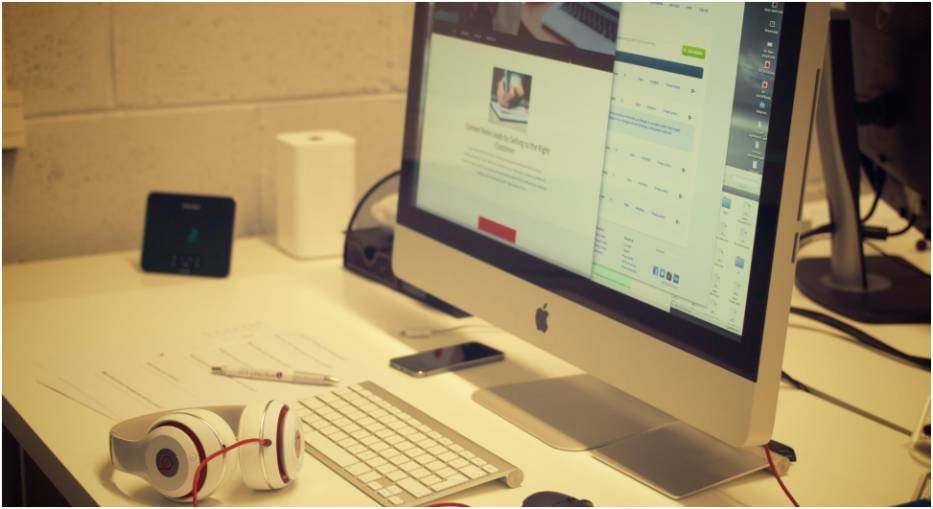
A Mac split screen alternative app is the fastest fix when Apple’s native Split View starts feeling too stiff. I use a MacBook screen for writing, research, calls, and admin work, and manually resizing windows gets old fast.
Apple’s built-in Split View is fine for placing two apps side by side. But real work rarely stays that neat. I often need a browser, notes, Slack, Finder, and a document open without turning my screen into a pile of overlapping rectangles.
That is where a better window manager changes the whole feel of macOS.
Why I Stopped Relying on Native Mac Split View
macOS already gives you window tiling, Split View, and newer drag-to-edge options. You can hover over the green window button, tile an app left or right, or use Option while dragging a window toward an edge.
That sounds useful. And it is.
But after using it during busy workdays, I found one major issue: native Split View is built for simple arrangements, not repeatable workflows.
Native Split View Works, But It Feels Limited
Split View is helpful when I only need two apps. For example, Safari on one side and Google Docs on the other works well.
The problem starts when I need thirds, quarters, or quick app movement. Native macOS tools feel slower than a dedicated window snapping app. They also require more pointer movement than I like.
For keyboard-heavy users, that matters. A window manager should let me snap, resize, and move apps without breaking focus.
The Real Problem Is Daily Repetition
The biggest time loss is not one resize. It is resizing the same apps every day.
I may open the same three windows each morning: browser on the left, document in the center, and notes on the right. Doing that manually once is harmless. Doing it five times a day becomes annoying.
That is why I prefer a Mac split screen alternative app with shortcuts, saved positions, and more layout options.
What Makes a Good Mac Split Screen Alternative App?
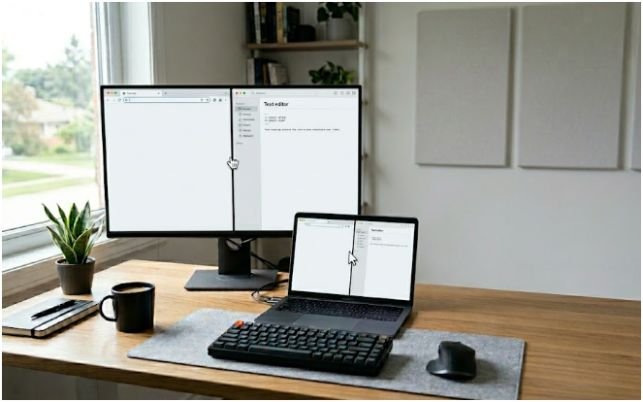
A good Mac window manager should do more than copy Windows-style snapping. It should help you think less about window placement.
For a single MacBook screen, I judge these apps by three things: speed, precision, and memory.
Keyboard Shortcuts Should Feel Instant
Keyboard shortcuts are the main reason to install a window management app. Dragging windows is fine, but shortcuts are faster when you repeat the same actions all day.
The best apps let you snap windows into halves, thirds, quarters, center positions, and full screen with simple key combinations.
This is especially useful for writers, marketers, developers, students, and remote workers who jump between apps often.
Single-Screen Layouts Need Precision
A MacBook screen has limited space. If the Dock, menu bar, or gaps steal too many pixels, your layout feels cramped.
Better apps let you control padding, window gaps, snap zones, and custom positions. That means your apps fit the screen without hiding important controls.
This matters more on a laptop than on a large external monitor.
Saved Layouts Beat Manual Resizing
The best feature is layout memory.
Saved layouts let you restore your preferred app positions later. This is ideal for daily office work, writing sessions, meetings, research, and client calls.
If your workflow depends on repeatable app groups, a saved layout can feel like a shortcut for your entire desk. It also connects naturally with a broader Mac window manager for office productivity setup.
Best Free Option: Rectangle
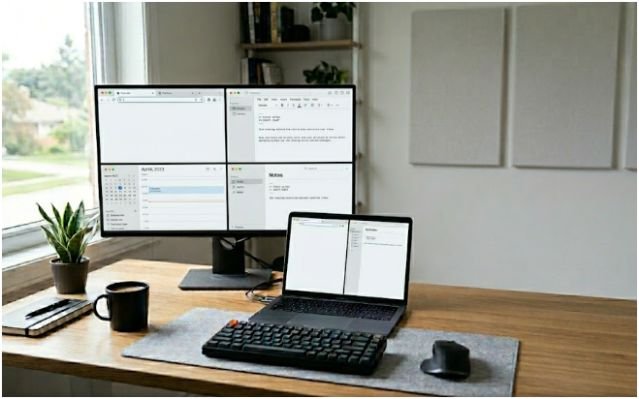
Rectangle is the best free option for most Mac users.
It is free, open-source, and built for moving and resizing windows with keyboard shortcuts or snap areas. It supports common layouts like halves, corners, thirds, and quarters.
Why Rectangle Works So Well
Rectangle feels fast because it does the basics without fuss. You can drag a window to an edge or use keyboard shortcuts to place it instantly.
It is also a strong replacement for the older Spectacle app, which many Mac users relied on before it was discontinued.
For a free tool, Rectangle covers a lot. It works well for writers, students, office workers, and anyone who wants better snapping without paying for a premium app.
Who Should Use Rectangle?
Use Rectangle if you want a free app that feels powerful from day one.
It is best for users who need fast snapping, keyboard shortcuts, and simple layout control. It may not be the best fit if you want advanced saved layouts or deep custom zones.
For most people, though, Rectangle is enough.
Best Paid Options for Better Control

Premium apps make sense when your workspace is more specific. If you want custom zones, saved layouts, keyboard overlays, or cleaner shortcut systems, paid tools are worth considering.
BetterSnapTool for Deep Custom Shortcuts
BetterSnapTool is the app I would choose for maximum control.
It lets you create custom snap areas, assign keyboard shortcuts, and control what happens when you interact with window borders or title bars. It also supports multiple monitors, which helps if you sometimes connect your MacBook to a larger display.
On a single MacBook screen, the best part is precision. You can set custom padding so windows do not clash with the Dock or menu bar.
BetterSnapTool is ideal if you know exactly where you want your apps to sit.
Moom for Saved Layouts and Keyboard Mode
Moom is best for people who love repeatable layouts.
It can work through the green window button, custom grids, keyboard mode, and saved window layouts. That makes it more than a simple snapping app.
I like Moom for workflows where the same apps return again and again. For example, you can create a writing layout, a research layout, or a meeting layout.
Its keyboard mode is also useful because you can move and resize windows without reaching for the mouse.
Magnet for Simple, Clean Snapping
Magnet is the easiest premium app to recommend for casual users.
It gives you clean snapping, keyboard shortcuts, menu bar control, and drag zones. It does not feel overloaded, which makes it great for people who want a polished setup without endless settings.
Magnet works especially well on smaller MacBook screens because it helps remove wasted space between windows.
If you want a paid app that feels simple, Magnet is a strong choice.
My Single MacBook Screen Test
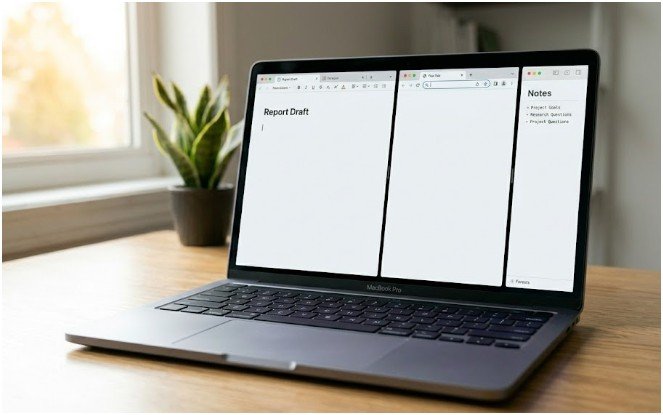
I tested these apps around a realistic laptop workflow, not a perfect demo setup.
My common layout uses three apps: a browser, a writing app, and notes. I also keep messages or Slack ready when needed, but not always visible.
The Three-App Layout I Use Most
The most useful layout was not a perfect 50/50 split. It was closer to a 50/30/20 workflow.
I kept the writing window largest. The browser sat beside it for research. Notes stayed narrow because I only needed quick references.
This is where native Split View felt limited. It pushed me toward two equal spaces. Rectangle, BetterSnapTool, Moom, and Magnet gave me better control over real work patterns.
What I Learned After Testing These Apps
Rectangle was fastest to start using.
Magnet felt the cleanest for basic snapping.
BetterSnapTool gave the most control.
Moom worked best when I wanted to restore a familiar workspace.
My biggest finding was simple: the best app depends on how often your layout repeats. If you constantly rebuild the same workspace, choose Moom or BetterSnapTool. If you only need faster snapping, Rectangle or Magnet is enough.
Which App Should You Pick?
The right choice depends on how you use your Mac.
Best Free Choice
Pick Rectangle if you want a free and reliable Mac split screen alternative app with strong keyboard shortcuts and snap areas.
It is the best starting point for most users.
Best Premium Choice
Pick BetterSnapTool if you want deep customization.
It is best for users who care about exact window sizes, padding, shortcuts, title bar actions, and custom snap areas.
Best Simple Choice
Pick Magnet if you want a clean paid app that works with little setup.
It is ideal for MacBook users who want quick snapping without building complex layouts.
Best Layout Memory Choice
Pick Moom if you want saved layouts and keyboard-driven control.
It is a smart option for people who use the same app arrangements every day.
FAQs About Mac Split Screen Alternative Apps
1. What is the best free split screen app for Mac?
Rectangle is the best free option because it supports keyboard shortcuts, snap areas, halves, thirds, quarters, and corners.
2. Is Rectangle better than Mac Split View?
Rectangle is better for speed and flexible layouts, while Mac Split View is fine for simple two-app use.
3. What is the best paid Mac window snapping app?
BetterSnapTool is best for customization, Moom is best for saved layouts, and Magnet is best for simple snapping.
4. Do Mac split screen apps work on one MacBook screen?
Yes, they work well on one MacBook screen because they help reduce gaps, resize windows faster, and use limited space better.
Final Take: Your MacBook Screen Deserves Better
Native Split View is useful, but it should not be the boss of your workspace. A good window manager lets your MacBook screen feel sharper, faster, and less cramped.
My practical pick is simple. Start with Rectangle if you want free snapping. Choose BetterSnapTool if you want control. Choose Moom if you want saved layouts. Choose Magnet if you want a polished shortcut system with less setup.
Your screen is small. Your workflow does not have to act small.