Best Mac Keyboard Shortcuts for Productivity That Save Time

Mastering the best Mac keyboard shortcuts for productivity is one of the easiest ways to stop repetitive clicking and move faster through everyday work. Whether I am writing, researching, managing files, joining meetings, or switching between apps, shortcuts help me stay focused without constantly reaching for the trackpad.
For many Mac users in the US, productivity is not about using complicated tools. It is about saving small amounts of time throughout the day. If you use a MacBook Air, MacBook Pro, iMac, or Mac mini for office work, school, remote work, content creation, or business tasks, these shortcuts can make macOS feel much faster and easier to control.
Why Mac Keyboard Shortcuts Matter for Daily Work
Mac keyboard shortcuts help you complete common actions with fewer steps. Instead of opening menus, dragging windows, or searching through folders manually, you can use a simple key combination and keep working.
The biggest benefit is flow. When I use shortcuts for Spotlight, Finder, screenshots, browser tabs, and text editing, I avoid small interruptions that slow me down. Over time, these shortcuts become muscle memory, and basic tasks feel almost automatic.
Apple also designs many macOS shortcuts to work across different apps, which means you can use the same commands in Safari, Chrome, Finder, Notes, Pages, Mail, Microsoft Word, Google Docs, and many other tools.
The One Mac Shortcut Every User Should Learn First
If I had to recommend only one shortcut, I would start with Command + Spacebar. This opens Spotlight Search, one of the most powerful built-in productivity tools on macOS.
Spotlight lets you launch apps, find files, open documents, search contacts, perform quick calculations, and look up information without opening Finder or Launchpad. Instead of searching through your Dock or desktop, press Command + Spacebar, type what you need, and press Return.
This shortcut is especially useful for remote workers, students, office professionals, and small business owners who jump between apps and files all day.
System Navigation and Multitasking Shortcuts

Mac users often lose time switching between apps and windows. That is why multitasking shortcuts are some of the most useful Mac productivity shortcuts.
Command + Tab lets you switch to your last-used app. If you hold Command and keep tapping Tab, you can cycle through all open apps. This is perfect when you move between Safari, Slack, Zoom, Mail, Excel, or Google Docs.
Command + `, also called the grave accent shortcut, lets you move between multiple windows of the same application. I use this when I have several browser windows or Finder windows open at once.
Control + Up Arrow opens Mission Control, giving you a complete view of your open windows and desktop spaces. Control + Left Arrow and Control + Right Arrow let you move between virtual desktops, also called Spaces. These shortcuts are excellent for separating work tasks, personal browsing, writing, and research.
Command + H hides the current app, while Option + Command + H hides all other background apps. These shortcuts help clean up your screen quickly when too many windows are open.
Finder Shortcuts for Faster File Management
Finder is where many Mac users spend a lot of time organizing downloads, documents, screenshots, images, invoices, and project files. The best Mac keyboard shortcuts for productivity should always include Finder commands because file management affects everyday workflow.
Press Spacebar to open Quick Look. This lets you preview images, PDFs, videos, documents, and presentations without fully opening them. I use this constantly when sorting files because it saves time and keeps my screen less cluttered.
Command + Delete sends a selected file to the Trash. Shift + Command + Delete empties the Trash. If you add the Option key, using Option + Shift + Command + Delete, you can empty the Trash without the confirmation dialog.
Option + Command + V works like move instead of paste. First copy a file using Command + C, then go to the destination folder and press Option + Command + V. This moves the file instead of creating a duplicate.
Command + Shift + G opens the Go to Folder window in Finder. This is useful when you want to jump directly to a folder path. Command + 1, Command + 2, Command + 3, and Command + 4 change Finder views between Icon, List, Column, and Gallery layouts.
Web Browsing and Tab Control Shortcuts
Most Mac users spend a large part of the day inside Safari, Chrome, Edge, or Firefox. Browser shortcuts can make research, shopping, email, writing, and online work much faster.
Command + T opens a new browser tab. Command + W closes the active tab or window. Command + Shift + T reopens the last closed tab, which is extremely helpful when you accidentally close an important page.
Command + L highlights the address bar instantly, so you can type a new search or web address without touching your mouse. This is one of the simplest ways to speed up web browsing on a Mac.
For anyone working in marketing, content writing, customer support, online education, finance, or remote administration, these Mac browser shortcuts can save time every day, especially when paired with using mission control on mac to move quickly between browser windows and other open apps.
Text Editing Shortcuts for Writing Faster
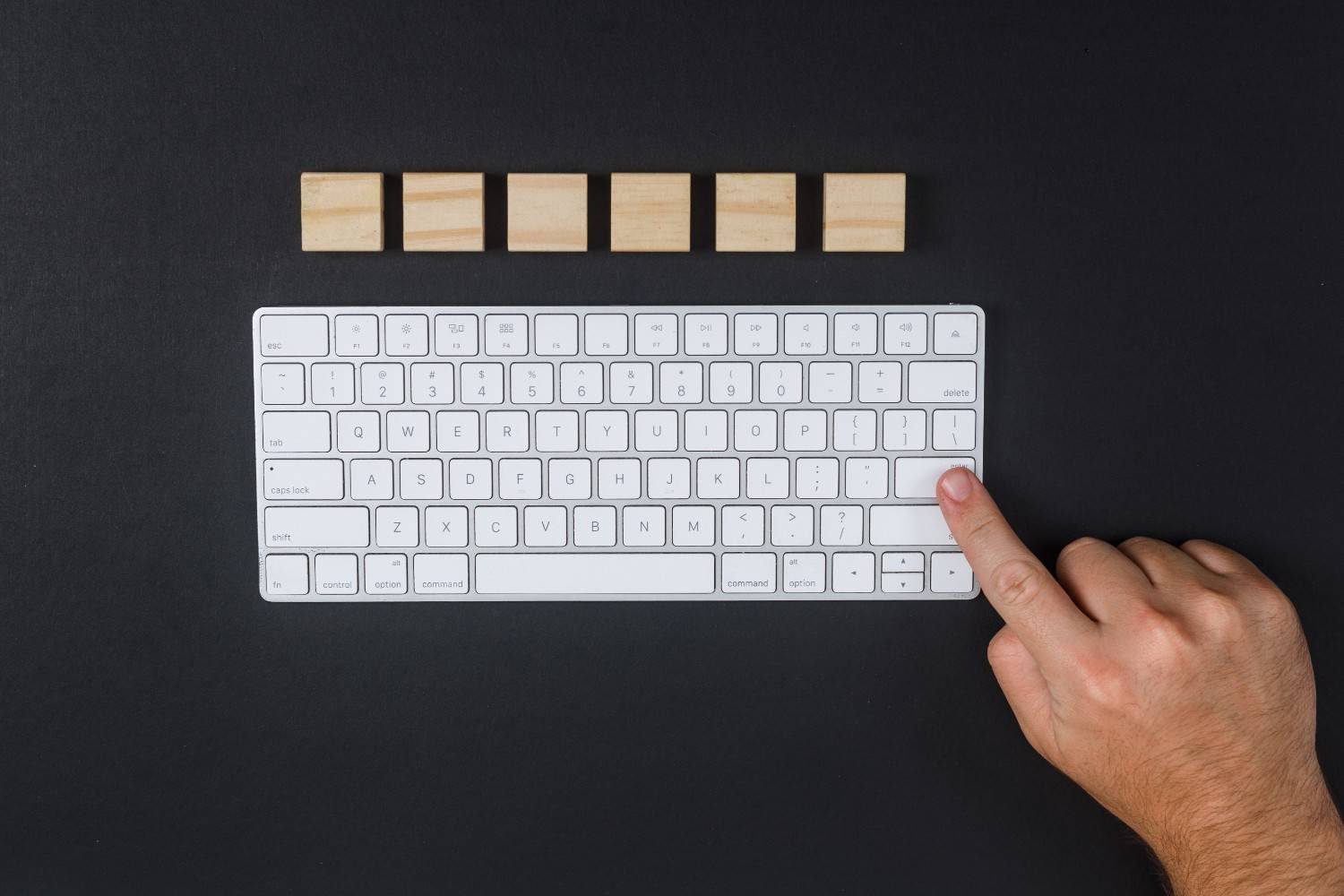
Mac shortcuts are also powerful for writing, editing, and formatting. If you write emails, reports, essays, proposals, blog posts, or social media captions, these commands can make your editing process smoother.
Option + Delete removes the entire word to the left of your cursor instead of deleting one character at a time. Command + Left Arrow moves your cursor to the beginning of the current line, while Command + Right Arrow moves it to the end.
Command + Up Arrow jumps to the top of a document, and Command + Down Arrow moves to the bottom. These shortcuts help when editing long documents or reviewing large notes.
Command + Shift + V pastes copied text while matching the surrounding format in many apps. This helps remove messy formatting from websites, emails, or other documents. Command + K turns highlighted text into a clickable hyperlink, which is useful for writers, bloggers, students, and business professionals.
Screenshot and Screen Recording Shortcuts
Screenshots are essential for tutorials, presentations, reports, customer support, design feedback, and remote collaboration.
Command + Shift + 5 opens the full screenshot and screen-recording toolbar. From there, you can capture the entire screen, select a specific area, record your screen, or adjust screenshot options.
Command + Control + Shift + 4 lets you capture a selected area and save it directly to the clipboard instead of placing another file on your desktop. This is great when you want to paste a screenshot into an email, document, or chat without creating clutter.
These screenshot shortcuts are especially helpful for US professionals who work with visual instructions, client communication, software documentation, or online training, because they help you get the clutter out of the content and share only what matters.
Smart Utility Shortcuts Most Mac Users Miss
Some of the most useful Mac shortcuts are hidden in plain sight. Command + Comma opens the settings or preferences panel for many active apps. This is much faster than searching through the menu bar.
Option + Command + Esc opens the Force Quit menu. If an app freezes, this shortcut helps you close it quickly without restarting your Mac.
Control + Command + Spacebar opens the Emoji and Symbol Viewer. This is useful when writing messages, social posts, emails, or documents that need symbols, emojis, currency marks, or special characters.
These smaller shortcuts may not seem important at first, but they make macOS feel much more efficient once you start using them regularly.
How to Learn Mac Shortcuts Without Getting Overwhelmed

You do not need to memorize every shortcut at once. Start with the shortcuts that match your daily habits. If you write often, focus on text editing shortcuts. If you manage files, start with Finder shortcuts. If you multitask all day, learn Command + Tab, Mission Control, and Spaces.
I recommend choosing five shortcuts and using them for one week. Once they feel natural, add five more. This approach works better than trying to remember a massive shortcut list in one sitting.
Frequently Asked Questions (FAQs)
1. What are the most useful Mac keyboard shortcuts for beginners?
The most useful shortcuts for beginners are Command + Spacebar for Spotlight, Command + Tab for switching apps, Spacebar for Quick Look, Command + T for a new browser tab, Command + Shift + 5 for screenshots, and Option + Command + Esc for Force Quit.
2. What is the fastest way to switch between apps on a Mac?
The fastest way to switch between apps is Command + Tab. Hold Command and press Tab until you reach the app you want. To move between windows of the same app, use Command + `.
3. How do I take screenshots faster on a Mac?
Use Command + Shift + 5 to open the screenshot toolbar. Use Command + Control + Shift + 4 when you want to capture a selected area and copy it directly to your clipboard.
4. Are MacBook shortcuts the same on all Macs?
Yes, most MacBook shortcuts work across MacBook Air, MacBook Pro, iMac, Mac mini, and Mac Studio. Some keyboards may look slightly different, but core macOS shortcut commands remain mostly the same.
Final Thoughts
The best Mac keyboard shortcuts for productivity are the ones you actually use every day. Command + Spacebar, Command + Tab, Quick Look, Finder shortcuts, screenshot tools, browser tab controls, text editing commands, and Force Quitting mac can all help you save time and work with less friction.
If your Mac workflow feels slow, start with the shortcuts that remove your most repeated clicks. Over time, these small changes can make your MacBook feel faster, cleaner, and more productive.