Best Mac Automation Tips for Remote Teams
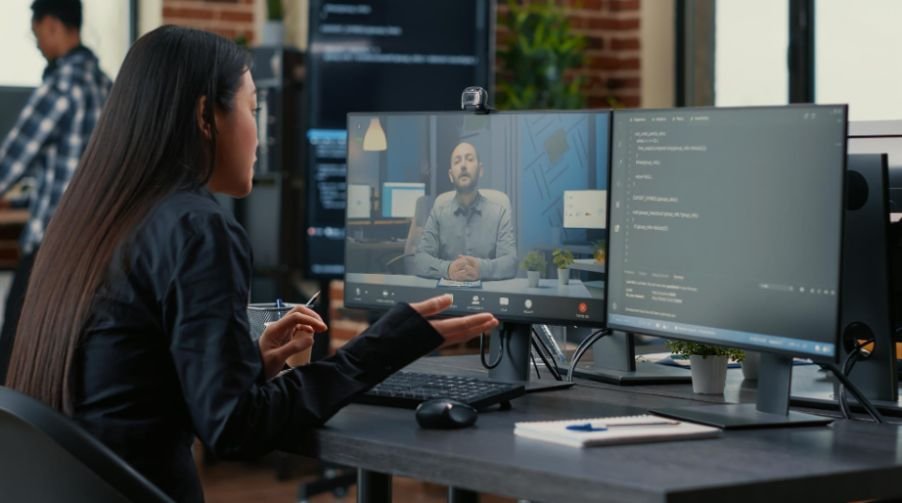
Remote work sounds flexible until your Mac turns into a mess of open tabs, missed messages, scattered files, and repeated setup tasks. I have seen how quickly a remote workday can lose momentum when every meeting, project, and app switch requires manual effort.
That is why Best Mac Automation Tips for Remote Teams matter more than ever for people who want smoother workflows without adding more complexity.
A good Mac setup should help a distributed team start faster, communicate clearly, manage files better, and stay focused. The goal is not to automate everything. The real goal is to remove small repeated actions that drain time every day.
Why Mac Automation Matters for Remote Teams
Remote teams depend on speed, clarity, and consistency. When everyone works from different locations, small delays can become bigger problems. A missed file, a forgotten task, or a messy meeting setup can slow the entire team.
Mac automation helps by turning repeated steps into reliable systems. Instead of opening the same apps every morning, searching for documents, resizing windows, or copying meeting notes manually, you can create workflows that do those actions faster.
For remote teams, automation is useful because it supports predictable work habits. It helps team members spend less time preparing to work and more time actually working.
Start With Repeatable Mac Workspaces
One of the easiest ways to improve productivity is to create repeatable workspaces. A remote team member may use one layout for meetings, another for writing, another for design, and another for project management.
If your workday involves moving between different tasks often, the switch between Mac workflows can help you create a smoother system for changing setups without wasting time.
For example, a meeting workspace can include Calendar, Notes, Slack, Zoom, and a browser window arranged in fixed positions. A writing workspace can include a document editor on one side, research tabs on the other, and messages minimized.
This removes the need to rebuild your screen every time you switch tasks. Tools like Shortcuts, Raycast, Alfred, Rectangle, and GridSutra can help create faster desktop arrangements and app launches.
Automate Window Layouts for Better Focus

Window management is one of the most overlooked parts of Mac productivity. Remote workers often move between chats, calls, dashboards, documents, and browser tabs all day. If those windows overlap or open randomly, focus drops quickly.
A Mac window management tool can help snap apps into clean zones. Teams can create standard layouts for common tasks such as daily standups, client calls, content planning, reporting, or coding.
This is especially useful for distributed teams because everyone can follow a similar screen setup during shared workflows. It saves time and reduces confusion when team members need to switch between apps quickly.
Use Calendar Automation to Reduce Meeting Friction
Meetings are necessary, but the manual work around them can be reduced. Calendar automation can help remote teams create reminders, prepare notes, open meeting links, and block focus time.
For example, a shortcut can open your calendar, launch the meeting app, pull up the agenda, and turn on Do Not Disturb before a call. Another workflow can create task reminders after recurring meetings.
This helps people arrive prepared without rushing. It also lowers the chance of missing links, forgetting notes, or joining late because the setup was scattered.
Connect Tasks, Notes, and Project Tools
Remote work often fails when information gets trapped in different apps. A team may discuss work in Slack, track tasks in Asana, store files in Drive, and keep meeting notes in Notion or Apple Notes.
Automation can connect these systems. You can turn messages into tasks, create reminders from notes, send form responses into project boards, or move approved files into the right folders.
The best workflow is simple: when something becomes a task, it should not stay buried in chat. It should move into the system where the team actually tracks work.
Automate File Sorting and Shared Folder Cleanup
Remote teams create a lot of files: screenshots, reports, invoices, drafts, images, videos, meeting recordings, and downloads. Without a system, folders become messy fast.
Mac automation tools like Hazel, Shortcuts, and Automator can sort files by name, type, date, or folder location. Screenshots can move into one folder. PDFs can go into another. Client files can be renamed and stored automatically.
This is one of the most practical parts of Best Mac Automation Tips for Remote Teams because clean files reduce wasted search time. When everyone follows a similar naming and folder system, collaboration becomes easier.
Use Shortcuts for Common Remote Work Actions
Apple Shortcuts is useful for simple automations that do not require advanced technical skills. Remote workers can use it to start the workday, open project tools, send quick status updates, resize images, start timers, or prepare meeting notes.
If you want a broader setup for daily productivity, Mac Workflow Automation for Students and Professionals explains how structured workflows can help different users save time on Mac.
A useful shortcut might open your task manager, communication app, calendar, and current project folder at the same time. Another shortcut can create a daily planning note with sections for priorities, meetings, and follow-ups.
Shortcuts works best when it solves small, repeated problems. Start with one workflow you repeat every day, then improve from there.
Improve Focus With App and Notification Automation
Remote teams often struggle with notification overload. Messages, emails, task alerts, meeting reminders, and browser notifications can break focus every few minutes.
Mac Focus modes can help automate quieter work blocks. You can create settings for deep work, meetings, personal time, and admin tasks. Each mode can allow only the apps and people that matter during that moment.
This helps remote workers protect concentration without fully disconnecting from the team. The key is balance. Automation should reduce noise, not make communication harder.
Standardize Mac Setups for New Remote Employees
Remote teams grow faster when onboarding is simple. A new employee should not spend days figuring out which apps to install, where files live, or how the team manages work.
A standard Mac setup can include required apps, browser bookmarks, folder structures, security settings, password manager access, meeting tools, and project management systems.
For larger teams, device management tools can help install apps, enforce updates, and keep security settings consistent. For smaller teams, a simple onboarding checklist with automation shortcuts can still save hours.
Use Time Tracking Without Micromanaging

Time tracking can be helpful when used correctly. It should support planning, billing, workload balance, and better estimates. It should not feel like surveillance.
Mac time tracking tools can show where time goes during the day. Remote teams can use this information to improve project planning, reduce unnecessary meetings, and identify repeated tasks that should be automated.
The best approach is transparent. Make time tracking about improving work systems, not watching people.
Best Mac Automation Tools for Remote Teams
Remote teams can use different tools depending on their workflow. Apple Shortcuts is great for simple personal automation. Automator still works well for file-based actions. Raycast and Alfred help with quick commands, app launching, snippets, and search.
Keyboard Maestro is powerful for advanced workflows. Hazel is excellent for file sorting. Rectangle and GridSutra can improve window layouts. Zapier and Power Automate can connect cloud apps across the team. Timing, Toggl, and similar tools can help track work patterns.
Frequently Asked Questions
1. What are the Best Mac Automation Tips for Remote Teams?
Start with app launching, window layouts, calendar prep, file sorting, task updates, focus modes, and shared onboarding workflows.
2. Can Mac automation help small remote teams?
Yes, small teams can save time by automating repeated setup, file organization, meeting preparation, and communication tasks.
3. Do remote teams need advanced coding for Mac automation?
No, tools like Shortcuts, Raycast, Alfred, Hazel, and window managers can automate daily tasks without complex coding.
4. What should remote teams automate first on Mac?
Start with the task that wastes the most time every day, such as opening apps, arranging windows, sorting files, or preparing meetings.
Final Thoughts
I believe Mac automation works best when it feels invisible. The best setup is not the most complicated one. It is the one that helps a remote team start faster, stay organized, and finish work with fewer distractions.
If your team keeps repeating the same clicks, searches, setups, and reminders every day, those are signs that automation can help. With the right tools and simple habits, Best Mac Automation Tips for Remote Teams can turn a messy remote workday into a cleaner, faster, and more focused workflow.