Automate Your Mac Setup for Meetings and Calls

I will waste the first few minutes before every video call opening apps, hunting for the meeting link, resizing windows, closing random tabs, and checking whether notifications were going to pop up on screen.
That small chaos adds up fast, especially when the day is packed with client calls, team check-ins, interviews, webinars, or remote work meetings.
Automate Your Mac Setup for Meetings and Calls is not about making your Mac complicated. It is about creating a repeatable meeting workspace that opens faster, looks cleaner, and helps you join calls with confidence.
Why Your Mac Feels Messy Before Meetings
A messy meeting setup usually starts before the call even begins. You may have Slack open, browser tabs everywhere, notes hidden behind other windows, and personal notifications ready to appear while you share your screen.
Even if your meeting app works fine, the rest of your workspace can still slow you down.
The real problem is repetition. Most people prepare for meetings the same way every day. They open Calendar, find the call link, launch Zoom or Google Meet training, open notes, adjust windows, mute notifications, and move files away from the desktop. Doing all of that manually makes every call feel more stressful than it should.
What a Smart Mac Meeting Setup Should Do
A strong meeting setup should prepare your Mac before you need it. At the basic level, it should open your calendar, launch your meeting app, bring up your notes, and arrange your windows neatly. It should also reduce distractions by turning on Focus Mode, hiding unnecessary apps, and keeping your screen clean for sharing.
For professionals who take multiple calls per day, the goal is simple: one action should prepare the full workspace. Instead of rebuilding your setup again and again, your Mac should help you start every meeting from the same clean place.
Use Mac Shortcuts for One-Click Meeting Prep
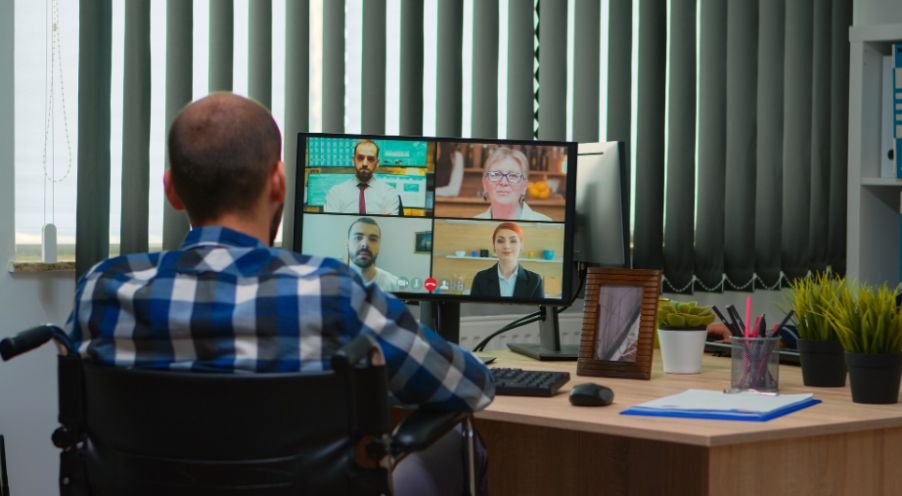
Apple Shortcuts is one of the easiest places to begin. You can create a shortcut that opens your meeting app, launches Calendar, opens Notes, and brings up your preferred browser. You can run it from the Dock, menu bar, Spotlight, Siri, or a keyboard shortcut.
A simple meeting shortcut can include actions like opening Zoom, Google Meet, Microsoft Teams, Apple Calendar, a project folder, and your notes app. If you use the same tools every day, this saves several clicks before every call.
This is especially useful for remote workers, consultants, freelancers, students, sales teams, and managers who move between calls all day. A one-click workspace removes the friction between “I have a meeting” and “I am ready.”
Arrange Your Meeting Windows Automatically
Opening apps is only half the setup. The bigger productivity gain comes from arranging windows properly. A good call layout might place your video app on one side, notes on another side, and the agenda or browser tab behind it. This keeps everything visible without forcing you to drag windows around manually.
Window management tools can make this much easier. You can create repeatable layouts for client meetings, team standups, interviews, webinars, or screen-sharing sessions. For example, your video call window can stay centered, notes can stay on the right, and the browser can stay ready in the background.
This is where a clean Mac workspace becomes more than convenience. It helps you look prepared, avoid awkward pauses, and keep your attention on the conversation instead of the screen.
Turn On Focus Mode Before Calls
Focus Mode is one of the most important parts of meeting automation. Nothing feels worse than sharing your screen and seeing private messages, random alerts, or app notifications appear during a call. You can create a meeting-specific Focus Mode that allows only important contacts and silences everything else.
Before a call, turn on Focus Mode manually or include it inside your meeting shortcut. You can also customize which apps are allowed to notify you. For example, you may allow Calendar alerts but silence Messages, shopping notifications, social apps, and non-urgent work chats.
This creates a calmer meeting environment and protects your privacy while screen sharing.
Build a Calendar-First Meeting Workflow
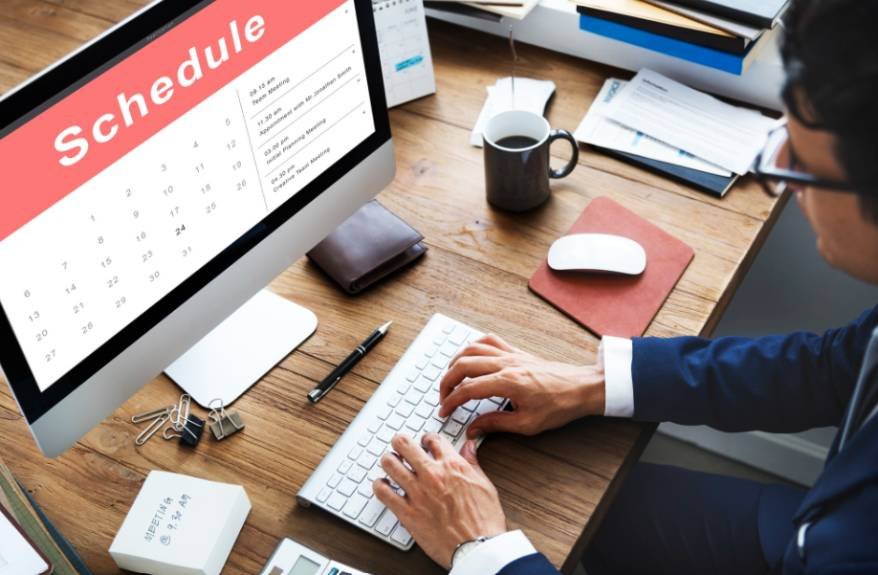
Most meetings begin in your calendar, so your automation should support that habit. Keep meeting links, agendas, notes, and documents inside the calendar event whenever possible. This reduces the need to search through email threads or chat messages minutes before the call.
You can use Apple Calendar, Google Calendar, Fantastical, BusyCal, or similar tools to organize meeting links and reminders. The best setup is simple: your calendar tells you what is next, your shortcut opens the right apps, and your window layout places everything where you need it.
For daily work, this is better than relying on memory. Your Mac becomes a meeting launchpad instead of a cluttered desktop.
Automate What Happens When Zoom or Meet Opens
Advanced users can go further by creating app-based triggers. For example, when Zoom opens, your Mac can pause music, turn on Focus Mode, open notes, launch an AI meeting assistant, and arrange your windows. When Zoom closes, your Mac can restore your normal workspace.
This kind of automation is useful if you have repeated call types. A sales call may need a CRM, notes app, and browser. A team meeting may need project management software and Slack. A client presentation may need a clean desktop, slides, and screen-sharing tools.
The best setup is not the most complex one. It is the one that removes the most repeated work without becoming hard to manage.
Best Tools for Mac Meeting Automation
You can create a strong workflow with built-in Mac features and a few helpful tools. Apple Shortcuts is ideal for launching apps and creating one-click routines. Focus Mode helps stop distractions. Calendar apps organize links and reminders. Zoom, Google Meet, Teams, Webex, and FaceTime handle calls.
For deeper automation, tools like Keyboard Maestro and BetterTouchTool can trigger actions when apps open or close. Window management tools help restore clean layouts before meetings. AI note-taking apps can help capture summaries and follow-ups after calls.
If you want to compare more options, workflow automation tools for Mac users can help you choose tools for shortcuts, macros, window layouts, file cleanup, and daily productivity routines.
If you want to reduce more repeated setup work beyond meetings, best ways to automate repetitive Mac tasks fast covers app launching, file cleanup, shortcuts, macros, and daily Mac workflows.
The best approach is to start small. Automate the steps you repeat most often, then improve the workflow over time.
Final Meeting Workflow You Can Copy

Here is a simple setup that works for most Mac users. Create one shortcut that opens Calendar, your meeting app, Notes, and your browser. Add Focus Mode before the call starts. Use a window layout tool to place your video app and notes side by side. Keep your meeting agenda attached to the calendar event. After the call, save notes, create follow-up tasks, and close the meeting workspace.
Once this becomes a habit, Automate Your Mac Setup for Meetings and Calls becomes a real productivity system instead of just another tech trick.
Frequently Asked Questions
1. How do I automate my Mac before Zoom meetings?
Use Apple Shortcuts to open Zoom, Calendar, Notes, and your browser, then turn on Focus Mode before the call starts.
2. Can Mac Shortcuts open my next meeting?
Yes, Mac Shortcuts can open meeting apps, calendar pages, notes, folders, links, and browser tabs with one click.
3. Can I automatically arrange Mac windows before calls?
Yes, a window management tool can place your video call, notes, agenda, and browser in fixed positions before every meeting.
4. Why should I Automate Your Mac Setup for Meetings and Calls?
It helps you join faster, avoid distractions, reduce pre-call stress, and keep your workspace clean during video meetings.
Final Thoughts
I like this setup because it solves a real daily problem without forcing you to become a technical expert. Meetings already take enough energy, so your Mac should not make the process harder.
When your apps open automatically, your notes are ready, your windows are arranged, and notifications are quiet, you can focus on the conversation instead of the setup. A calmer call starts with a cleaner Mac workflow.