Mac window manager for office productivity Done Right
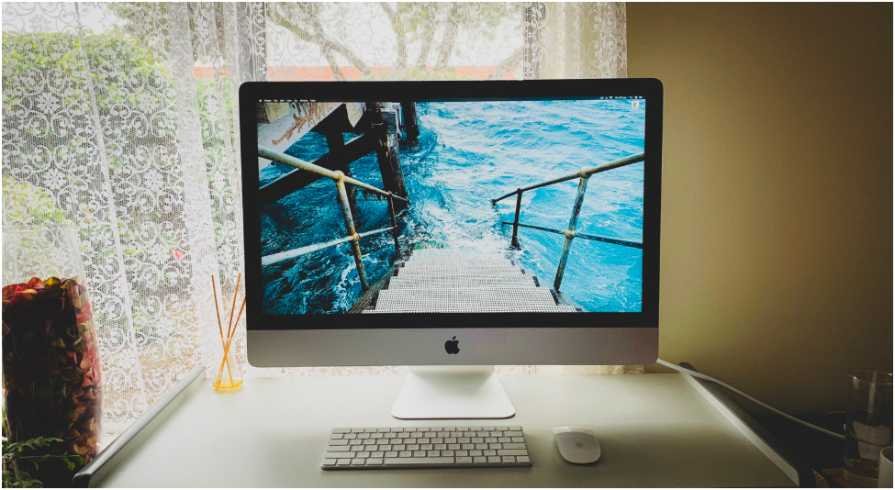
A messy desktop can make simple office work feel twice as slow. I notice it most when Mail, Slack, Safari, Calendar, Notes, Zoom, and a spreadsheet all fight for the same screen.
That is where a Mac window manager for office productivity becomes useful. The right setup helps you place windows once, switch faster, and stop dragging the same apps around all day. For office users, the goal is not a fancy setup. The goal is fewer interruptions, cleaner focus, and a workspace that behaves the same every morning.
Why Office Work Feels Messy On A Mac
macOS is smooth, but office multitasking can still get chaotic. Most workers do not use one app at a time. They write in Docs, check messages, compare spreadsheets, join video calls, review PDFs, and open browser tabs across several projects.
The problem gets worse on external monitors. A window may slide into the next display when you only wanted to snap it to the inside edge. Meeting windows hide notes. A spreadsheet covers your email. After unplugging a laptop from a dock, every carefully placed window moves.
A Mac window manager for office productivity fixes that by turning window placement into a repeatable system. Instead of manually arranging everything, you create a rhythm: communication on one side, active work in the center, reference material on another screen, and meetings in a separate space.
Start With Built-In macOS Window Tools
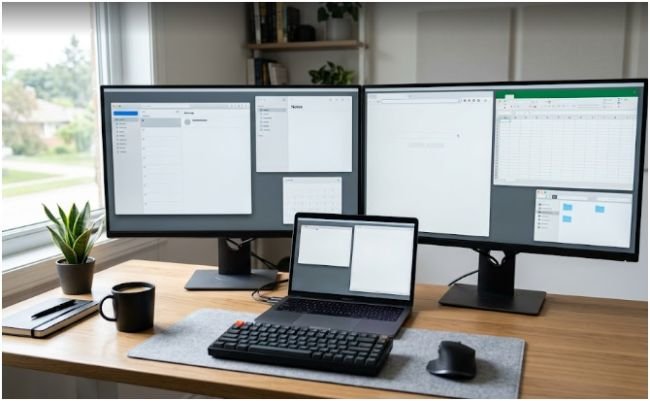
Before installing anything, I always check what macOS already offers. This matters for corporate laptops because many offices restrict third-party software. Native tools are not perfect, but they are enough for basic layouts.
Native Window Tiling
Modern macOS versions include built-in window tiling. You can use the green window button, drag windows to screen edges, or use menu options to place apps into halves or quarters.
This works well for simple office pairs. For example, place a report on the left and research on the right. It is clean, quick, and does not need an extra app.
The limitation is control. Built-in tiling feels fine for two windows, but it gets less flexible when you need thirds, custom zones, repeated layouts, or multi-monitor precision.
Stage Manager
Stage Manager helps when you want one active task in front of you. It keeps the current app or group centered and moves other windows into a side strip.
I like it for focused tasks such as writing a proposal, reviewing a contract, or preparing a slide outline. It reduces visual noise without closing anything. It is less useful when you need four windows visible at the same time.
Mission Control And Spaces
Mission Control and Spaces are still underrated for office work. You can create different desktops for different work modes. One Space can hold email and chat. Another can hold writing tools. A third can hold meetings and shared documents.
This is useful if you screen share often. Keep Zoom, meeting notes, and the shared file in one Space. Move private chats and unrelated browser tabs elsewhere. That small habit protects your privacy and makes you look more organized.
Best Mac Window Managers For Daily Office Work
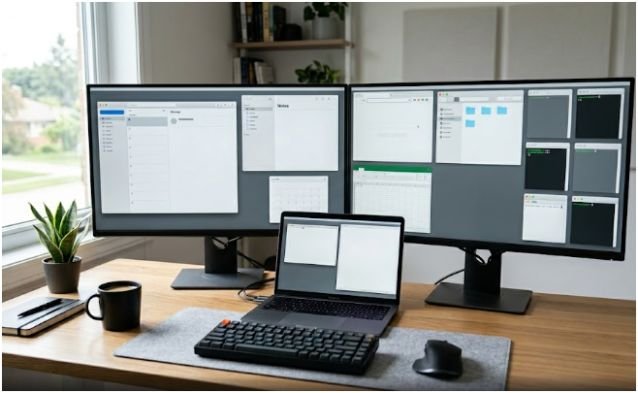
If native tools feel limited, third-party tools give more speed and control. The best choice depends on whether you prefer keyboard shortcuts, mouse dragging, saved layouts, or custom zones.
Rectangle For Free Keyboard Control
Rectangle is a strong first choice because it is free, open source, and lightweight. It lets you move and resize windows with keyboard shortcuts or snap areas.
For office productivity, that means you can send Mail to the left half, Safari to the right half, and Notes to a corner without touching the mouse. It is ideal for workers who like fast shortcuts but do not need advanced automation.
Rectangle is also a good starting point for teams. It gives employees common window controls without forcing them into a complex workflow.
Magnet For Drag-To-Snap Simplicity
Magnet is better for people who prefer mouse movement. You drag a window to a screen edge or corner, and it snaps into place. It supports halves, quarters, thirds, and multiple external displays.
For office workers, Magnet feels natural because it works like the snapping behavior many people already know from Windows. That matters in mixed-device workplaces where employees move between Windows PCs and Macs.
A Mac window manager for office productivity should reduce thinking, not add setup time. Magnet does that well for people who want simple drag control.
Raycast For Shortcut-First Teams
Raycast is not only a launcher. Its window management features make sense if you already use Raycast for apps, snippets, search, and daily commands.
The main benefit is consolidation. Instead of installing a separate window manager, you can control windows from the same command system you use for other Mac tasks. It works best for keyboard-first users who enjoy hotkeys and command palettes.
Best Tools For Multiple Monitors
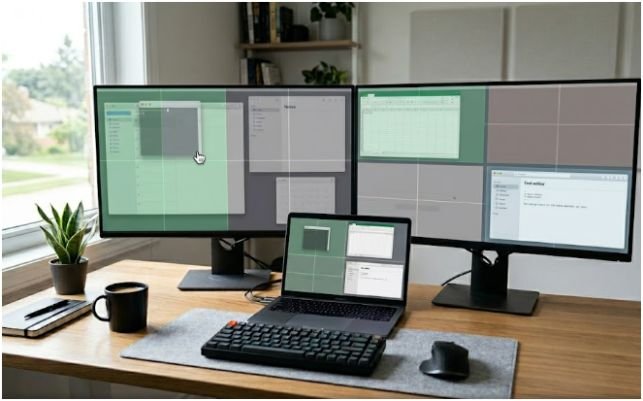
Multiple monitors change the decision. A basic snap tool may work on one screen, but office setups with two displays, an ultrawide monitor, or a docked MacBook need more precision.
For a deeper setup, you can pair this article with a Mac window layout app for multiple monitors to build screen-specific workflows.
Magnet For Inner-Screen Edge Control
On multi-monitor setups, the hardest part is snapping to the inside edge between two screens. Without enough drag resistance, the window slips into the next monitor.
Magnet is a strong choice for this mouse-based workflow. Its drag-to-snap behavior and display support make it practical for workers who move windows all day. If you use two monitors, increase edge sensitivity where possible and test how windows behave on inner borders.
BentoBox For Custom Drop Zones
BentoBox is useful when halves and quarters are not enough. It works more like a custom zone system. You can create layouts for each monitor and drop windows into zones that match your real workflow.
This is powerful on ultrawide monitors. Instead of stretching one app across the full display, create three practical zones: active work in the center, reference material on one side, and communication tools on the other.
For office productivity, custom zones work best when they match job roles. A project manager may need Calendar, Slack, and Asana visible. A finance worker may need Excel, a browser dashboard, and a PDF viewer. A writer may need Docs, research, and notes.
Moom For Saved Office Layouts
Moom is best when your main pain is restoring layouts. Many office users plug into a desk setup in the morning, unplug for a meeting, then return to a messy screen.
Saved layouts solve that. You can arrange your apps once, save the layout, and bring it back when needed. That is more valuable than simple snapping if your day includes docking, undocking, and switching between laptop and monitor setups.
My Practical Office Layout Test
Here is the office layout I find most useful on a two-monitor setup.
On the main screen, I keep the active work window in the center. That could be a document, spreadsheet, CMS editor, or project dashboard. On the left side, I keep research or source material. On the right side, I keep notes or task details.
On the second monitor, I keep communication tools. Mail sits on one half. Slack or Teams sits on the other. Calendar stays visible only when planning the day.
For meetings, I switch to a separate Space. Zoom takes the main area. Notes sit beside it. The shared document stays ready. Private apps stay away from the meeting Space.
This layout reduces context switching because every app has a job. It also stops communication tools from stealing the main work area. That is the real value of a Mac window manager for office productivity: it gives every window a reason to be visible.
How To Choose The Right Setup
Choose native macOS tools if you cannot install apps or only need basic halves and quarters. They are clean, safe, and easy for corporate machines.
Choose Rectangle if you want free keyboard shortcuts and reliable snapping. It is a good fit for analysts, writers, students, and operations teams.
Choose Magnet if you prefer mouse dragging and want a familiar snap style. It is especially practical for users moving from Windows to Mac.
Choose Raycast if you already use command-based workflows. It works best when window control is part of a larger shortcut system.
Choose BentoBox if you use ultrawide or multi-monitor layouts and want custom zones. It is ideal when your screen needs do not fit standard halves and quarters.
Choose Moom if your biggest issue is restoring layouts after your Mac changes displays. It is useful for docked office setups, hybrid workers, and people who switch between meeting rooms and desks.
A Mac window manager for office productivity should match your habits. Do not choose the most powerful app just because it has more features. Choose the one you will use without thinking.
FAQs
1. What Is The Best Mac Window Manager For Office Work?
Rectangle is best for free shortcut control, while Magnet is better for simple mouse-based snapping.
2. Does macOS Have A Built-In Window Manager?
Yes, macOS includes window tiling, Stage Manager, Mission Control, Spaces, and Split View for basic window control.
3. Which Mac Window Manager Works Best With Multiple Monitors?
Magnet, BentoBox, and Moom are strong choices because they support snapping, custom zones, or saved layouts.
4. Do I Need A Mac Window Manager For Office Productivity?
You need one if you regularly rearrange apps, use external monitors, or lose time switching between overlapping windows.
Final Take: Stop Letting Your Windows Run The Meeting
I like tools that make work feel calmer without asking me to rebuild my whole routine. That is exactly what the right Mac window manager for office productivity should do.
Start simple. Use macOS tiling for two-app work. Add Rectangle or Magnet when you need speed. Move to BentoBox or Moom when multiple monitors, custom zones, or saved layouts become daily problems.
Your Mac should not feel like a pile of floating papers. Give every window a place, and your workday gets cleaner fast.